
Windows 11 26H2 Servicing Architecture and Upgrade Mechanics
Microsoft released Windows 11 version 26H2 (OS Build 26300) as an annual feature update. For enterprise systems administrators, understanding how Microsoft delivers this update determines deployment timelines, bandwidth planning, and downtime expectations.
The upgrade path depends directly on the source operating system build:
- Devices running Windows 11 version 24H2 or version 25H2 share a common core operating system structure with 26H2. New features were delivered in a dormant state through preceding monthly cumulative updates. Upgrading eligible endpoints requires an enablement package (EKB), which acts as an activation switch, providing a fast installation and typically requiring a single restart in most scenarios.
- Devices running older Windows releases (such as Windows 11 22H2 or 23H2, and Windows 10) cannot receive the 26H2 enablement package directly. Windows 11 22H2 is out of support, and 23H2 is approaching end of servicing. These devices follow a supported feature update or operating system upgrade path and may require multiple restarts.
| Source Operating System | Recommended 26H2 Upgrade Path | Deployment Type | Restart |
|---|---|---|---|
| Windows 11 25H2 | Direct upgrade to 26H2 | Enablement Package | Typically 1 |
| Windows 11 24H2 | Direct upgrade to 26H2 | Enablement Package | Typically 1 |
| Windows 11 23H2 | Upgrade using supported Windows installation or feature update path | Full feature update / OS upgrade | Multiple may be required |
| Windows 11 22H2 | Upgrade to a supported Windows 11 release before or alongside migration to 26H2 | Full OS upgrade path | Multiple may be required |
| Windows 10 22H2 | Windows 11 in-place upgrade, subject to hardware and eligibility requirements | Full OS upgrade | Multiple may be required |
Enterprise Prerequisites for Intune Feature Update Policies
Before creating the deployment profile in the Microsoft Intune admin center, confirm that your tenant and endpoints meet these four technical requirements:
- Licensing: Endpoints must be licensed for Windows 10/11 Enterprise E3 or E5, Microsoft 365 Enterprise E3 or E5, Microsoft 365 Business Premium, or Windows 10/11 Education A3 or A5.
- Management Authority: Devices must be enrolled in Microsoft Intune and either Microsoft Entra joined or Microsoft Entra hybrid joined.
- Windows Diagnostic Data: Telemetry must be configured to at least Required (Basic). If diagnostic data is turned off, Intune cannot monitor update progress or generate compliance reports.
- Network Endpoints: Firewalls and proxy servers must allow outbound traffic to Microsoft Update and Windows Update for Business endpoints (including *.prod.do.dsp.mp.microsoft.com and *.delivery.mp.microsoft.com).
Step 1: Configure Windows Update Rings to Prevent Policy Conflicts
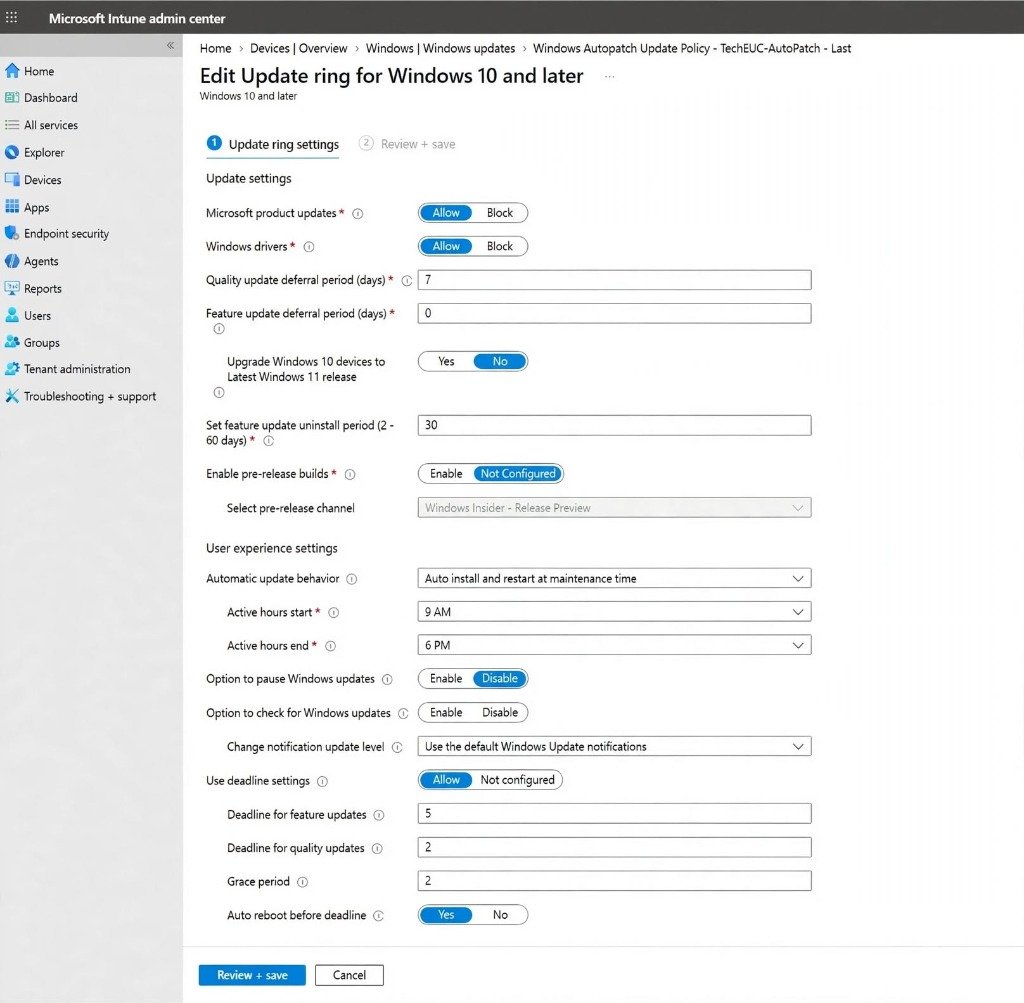
One of the most frequent errors in enterprise update management is configuring feature update deferral days inside an Update Ring while simultaneously assigning a Feature Update policy. When both policies conflict, the update ring deferral settings can override or stall the feature update policy rollout.
To establish a clean update architecture, configure your Update Ring as follows:
- Sign in to the Microsoft Intune admin center.
- Navigate to Devices > Windows > Windows updates (or Quality updates) and select your target Update Ring policy.
- Under Update settings, set Feature update deferral period (days) to 0. Setting this value to 0 hands full version authority over to your Feature Update policy.
- Set Upgrade Windows 10 devices to Latest Windows 11 release to No if you want your Feature Update policy to control exactly which devices upgrade.
- Configure your deployment deadlines under User experience settings. For instance, set a 5-day deadline for feature updates and a 2-day grace period to ensure predictable compliance across remote devices.
Step 2: Create the Windows 11 26H2 Feature Update Policy
With update rings configured, you can now define the target operating system release. Feature update policies pin managed devices to a specific version of Windows, preventing unwanted upgrades until you explicitly approve the next release.
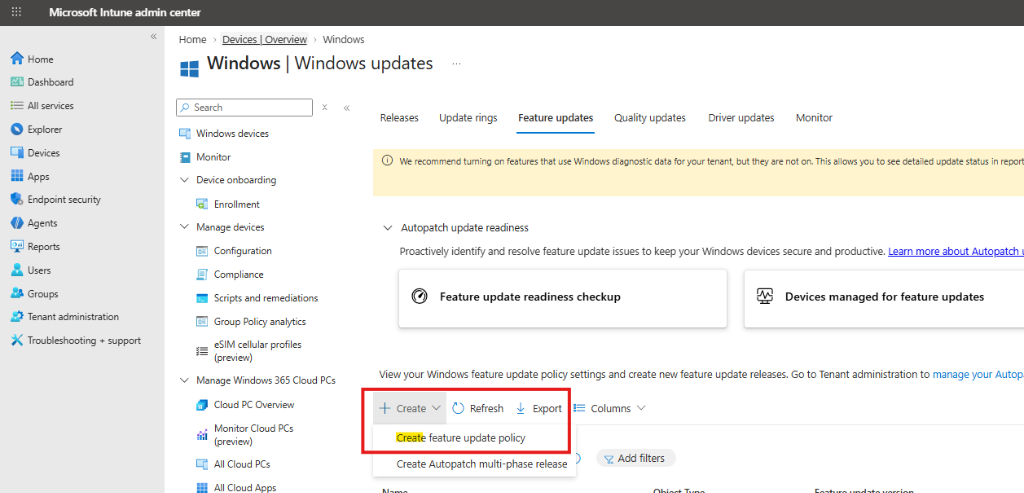
- In the Intune admin center, navigate to Devices > Windows > Windows updates.
- Select the Feature updates tab from the top navigation.
- Click + Create and select Create feature update policy from the dropdown menu.
Step 3: Define Deployment Settings and Version Targets
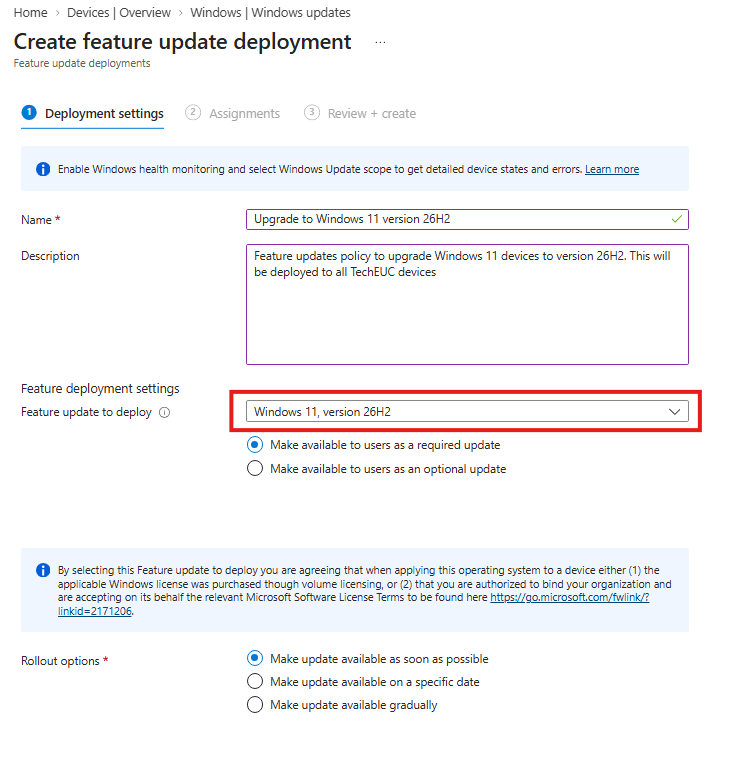
On the Deployment settings screen, specify the profile details and select the target build:
- Name: Provide a descriptive identifier, such as
Upgrade to Windows 11 version 26H2. - Description: Document the scope of the deployment for your team (for example,
Feature updates policy to upgrade Windows 11 devices to version 26H2). - Feature update to deploy: Open the dropdown menu and select Windows 11, version 26H2.
- Update Availability: Select Make available to users as a required update. This setting ensures the update installs automatically according to your update ring deadlines rather than waiting for manual user initiation.
- Rollout options: Select Make update available as soon as possible for pilot groups. For broad production groups, you can select gradual rollout to stage deployment across defined scheduling intervals.
Step 4: Assign Policy to Phased Pilot Groups
A structured phased deployment minimizes operational risk. Never assign a new major feature release to all enterprise endpoints simultaneously. Target a pilot validation ring first.
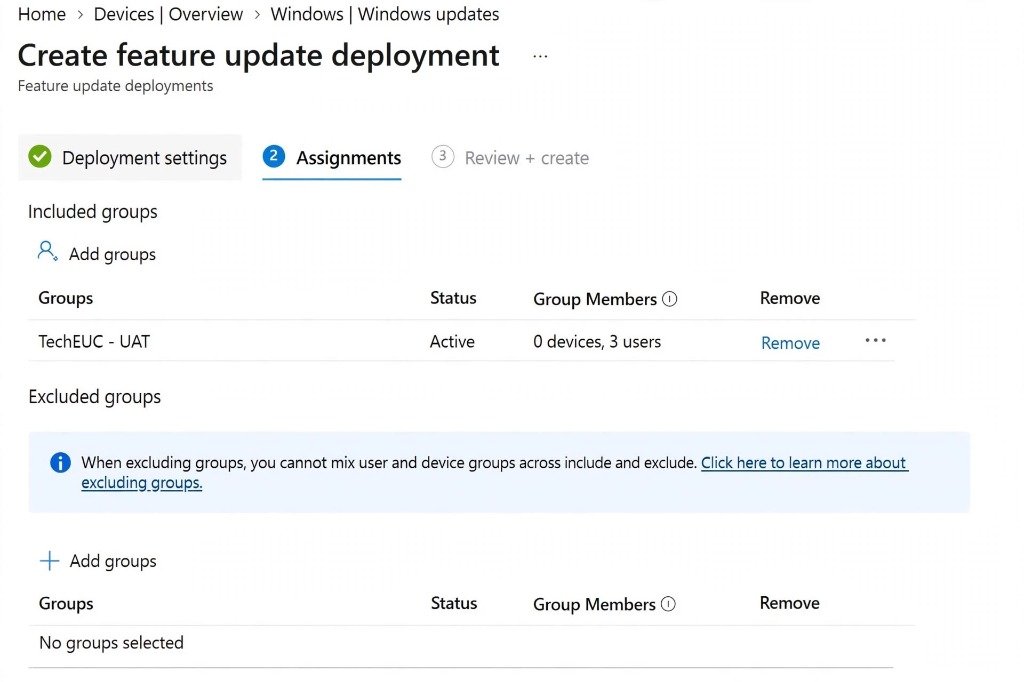
- On the Assignments tab, click Add groups under Included groups.
- Select your designated pilot device group (for example,
TechEUC - UAT). - Under Excluded groups, add any sensitive device groups, kiosk devices, or executive systems that must remain on their current production baseline until initial pilot validation concludes.
- Click Next to proceed.
Step 5: Review and Deploy the Policy
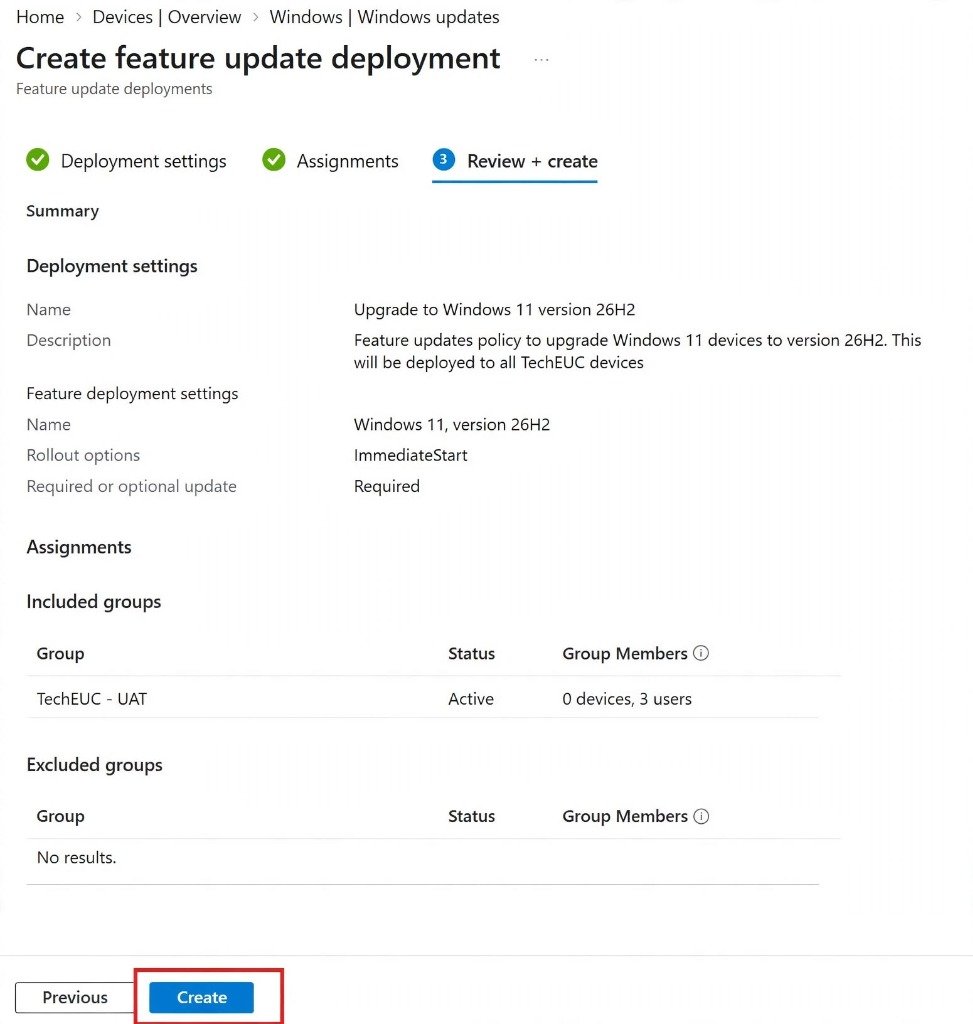
On the Review + create tab, verify all configured parameters. Confirm that the Target version reads Windows 11, version 26H2, Rollout options are set to ImmediateStart, and the correct pilot group is listed.
Click Create. Intune will compile the policy and prepare device targeting across your tenant.
Step 6: Trigger Client Sync and Validate Installation
Once assigned, Intune pushes the policy to targeted endpoints during their regular check-in cycle. In a lab or pilot scenario, you can accelerate policy delivery directly from the client device.
To force an immediate check-in, open a PowerShell prompt as administrator on the client machine and run the following command to trigger the Intune Management Extension and Device Enrollment sync:
POWERSHELL • Sync-IntuneDevice.ps1
# Trigger immediate MDM sync with Microsoft Intune
Get-ScheduledTask -TaskPath "\Microsoft\Windows\EnterpriseMgmt\*" | Where-Object { $_.TaskName -like "*Schedule created by enrollment client*" } | Start-ScheduledTask

# Initiate Windows Update detection cycle
$WUSession = New-Object -ComObject Microsoft.Update.Session
$WUSearcher = $WUSession.CreateUpdateSearcher()
$WUSearcher.Search("IsInstalled=0 and Type='Software'") | Out-Null
After the check-in completes, open Settings > Windows Update. The client will detect the feature update policy and begin downloading Windows 11, version 26H2.
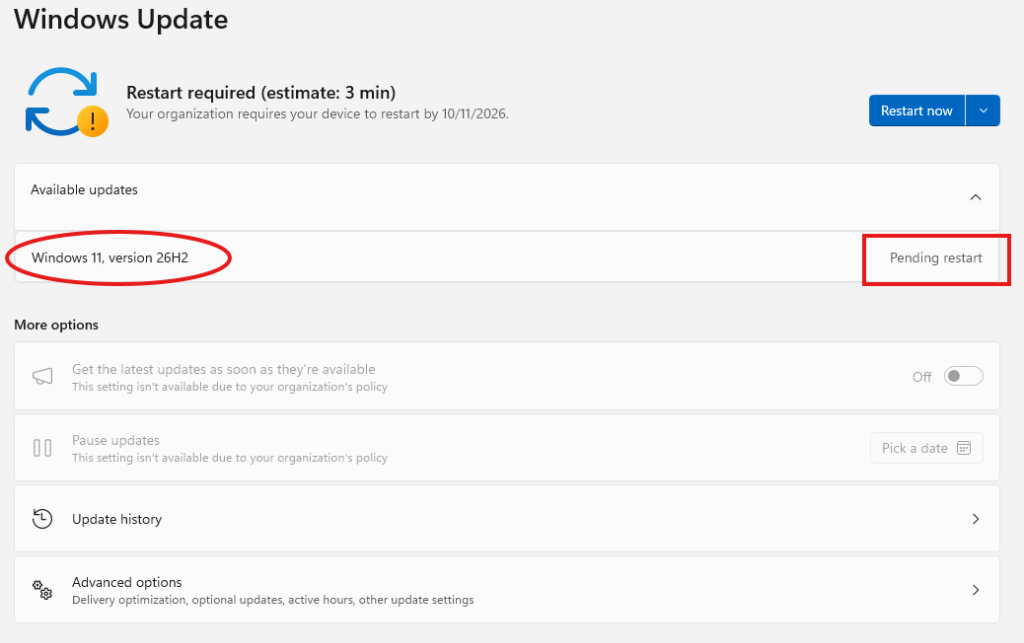
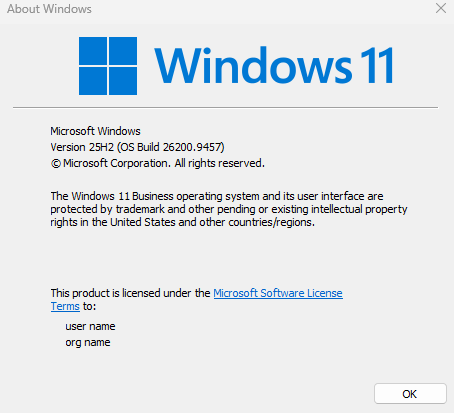
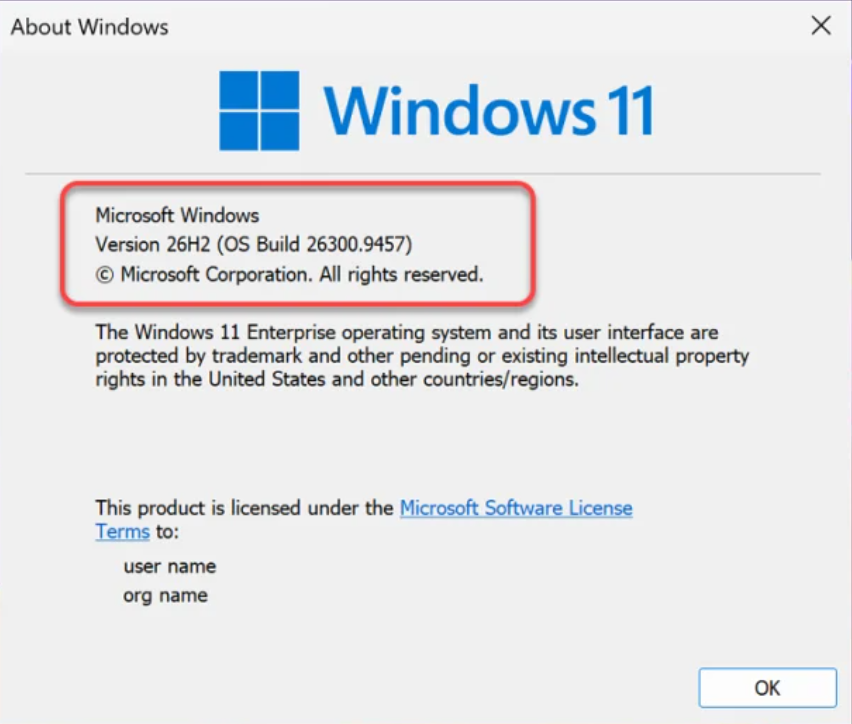
When the download and staging finish, Windows prompts for a restart. Following the reboot, open the run dialog (Windows Key + R), type winver, and press Enter to verify the active build.
Step 7: Monitor Enterprise Compliance in Intune Reports
After deploying to your pilot ring, monitor the tenant-level progress through Intune reporting tools:
- In Intune admin center, navigate to Reports > Windows updates.
- Select Windows 10 and later feature updates.
- Under Feature update policy, choose your policy (
Upgrade to Windows 11 version 26H2). - Click Generate again to refresh telemetry data.
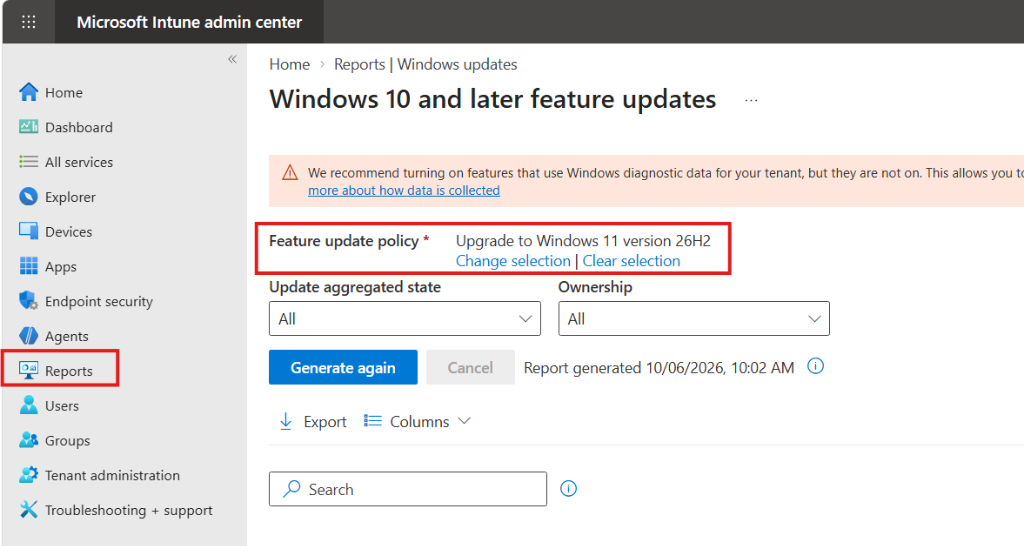
The report displays the aggregate deployment state for every targeted endpoint. Successful devices appear with an Installed state and Success aggregate status.

Troubleshooting Common Windows 11 26H2 Upgrade Issues
When an endpoint fails to receive or install the 26H2 update, use these diagnostic channels to isolate the root cause.
1. Client Registry Policy Verification
When you deploy feature updates through native Intune Feature Update profiles, Microsoft uses the cloud-orchestrated Windows Update for Business deployment service (WUfB-DS) rather than writing legacy static target version strings to the local registry. The primary confirmation that Intune has enrolled the client in feature update servicing is the FeatureUpdateEnrolled flag.
To inspect the active MDM policy state on the endpoint, open PowerShell as an administrator and execute:
POWERSHELL • Check-WUfBPolicy.ps1
# Verify Intune WUfB-DS enrollment and policy parameters
$RegPath = "HKLM:\SOFTWARE\Microsoft\PolicyManager\current\device\Update"
Get-ItemProperty -Path $RegPath | Select-Object FeatureUpdateEnrolled, DeferFeatureUpdatesPeriodInDays, ConfigureDeadlineForFeatureUpdates, TargetReleaseVersion, TargetReleaseVersionInfo
A properly enrolled device displays:
FeatureUpdateEnrolled= 1 (confirms the device is registered with the cloud deployment service, which handles 26H2 targeting dynamically).DeferFeatureUpdatesPeriodInDays= 0 (confirms that ring deferrals are zeroed to avoid policy contention).ConfigureDeadlineForFeatureUpdates= 5 (reflects your configured deployment deadline in days).TargetReleaseVersionandTargetReleaseVersionInfomay appear empty on native Intune profiles. These legacy values populate only when version targeting is explicitly enforced via Settings Catalog, Administrative Templates, or Group Policy rather than the native deployment service.
2. Event Viewer Diagnostic Logs
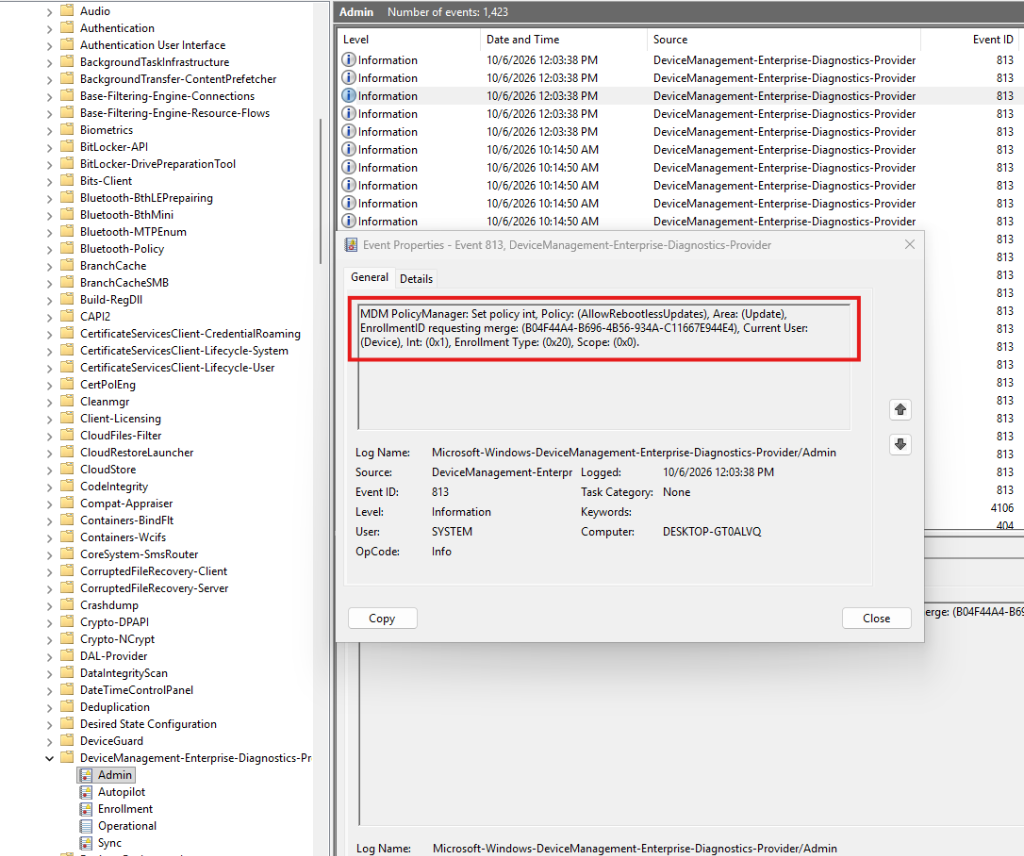
Open Event Viewer and navigate to Applications and Services Logs > Microsoft > Windows > DeviceManagement-Enterprise-Diagnostics-Provider > Admin.
- Event ID 813: Confirms the client successfully applied MDM update policy strings from Intune.
- Event ID 814: Details specific policy value changes pushed to the operating system.
- Event ID 404: Indicates policy processing failure, typically due to conflicting Group Policy or configuration manager co-management workloads.
3. Checking Safeguard Holds
Microsoft automatically places safeguard holds on devices with known hardware or driver incompatibilities to prevent faulty upgrades. To check if a device is blocked by a safeguard hold, query the Windows Update diagnostic log via PowerShell:
POWERSHELL • Check-SafeguardHolds.ps1
# Inspect Safeguard Hold IDs on local machine
$HoldPath = "HKLM:\SOFTWARE\Microsoft\Windows NT\CurrentVersion\Update\TargetingInfo\Installed\Client.OS.*"
Get-ItemProperty -Path $HoldPath -ErrorAction SilentlyContinue | Select-Object Version, SafeguardHoldList
4. Microsoft Account Sign-in Assistant Service (wlidsvc)
Windows Update for Business requires the Microsoft Account Sign-in Assistant service to authenticate device identity with Microsoft cloud update infrastructure. If this service is disabled by hardening scripts, feature updates fail silently with error code 0x80070422.
Verify that wlidsvc startup type is set to Manual or Automatic:
POWERSHELL • Verify-WlidSvc.ps1
Get-Service -Name wlidsvc | Select-Object Name, Status, StartTypeRollback and Uninstall Procedures
If an unexpected application conflict emerges after deploying Windows 11 26H2, administrators have two recovery mechanisms:
- Intune Uninstall Period: Within your Update Ring policy, the setting Set feature update uninstall period (2 – 60 days) defines how long the Windows.old recovery directory remains active on the machine. During this window, users or administrators can roll back from Settings > System > Recovery > Go back.
- Enablement Package Removal: If the device was upgraded via the enablement package from 24H2 or 25H2, the update can be uninstalled rapidly like a standard quality update using DISM without reinstalling the entire operating system.
POWERSHELL • Rollback-26H2Package.ps1
# Query installed enablement packages using DISM in PowerShell
Get-WindowsPackage -Online | Where-Object { $_.PackageName -like "*Enablement*" -or $_.PackageName -like "*26H2*" } | Select-Object PackageName, PackageState

# Remove the identified enablement package and return to previous build
dism.exe /Online /Remove-Package /PackageName:<PackageIdentity> /Quiet /NoRestart
Frequently Asked Questions
Can I upgrade directly from Windows 10 to Windows 11 26H2 using Intune?
Yes. If your Windows 10 endpoints meet the hardware prerequisites for Windows 11, assigning the Windows 11 26H2 feature update policy initiates a full in-place operating system migration. The client downloads the complete installation image, stages the files, and upgrades across a maintenance reboot.
Why is my Feature Update policy not applying to pilot devices?
The most common cause is non-zero deferral days configured in your Windows Update Ring policy. Ensure the Feature update deferral period is set to 0 days. Additionally, check that diagnostic data is set to at least Required and verify that the device is not held by a Microsoft safeguard hold.
How long does the 26H2 upgrade take on Windows 11 24H2 or 25H2?
On eligible 24H2 or 25H2 endpoints, the upgrade is delivered as an enablement package that provides a fast installation. Because the code is already dormant in preceding cumulative updates, the package activates the new feature set and typically requires a single restart in most scenarios.
What happens to devices running unsupported processors?
Devices with unsupported CPUs or lacking TPM 2.0 will fail hardware evaluation checks performed by Windows Update for Business. Intune will report these machines with a status of OfferReady or NotApplicable, and the update will not install.
Can users postpone the Windows 11 26H2 restart?
Yes, up until the deadline specified in your Update Ring policy. Once the deadline and grace period elapse, the Windows Update client automatically schedules and executes the restart to complete installation.
Related Intune Playbooks and Guides
- How to Configure Windows Hello for Business in Microsoft Intune
- How to Configure Windows LAPS in Microsoft Intune: Step-by-Step Guide
- Deploy Win32 Apps Using Native PowerShell Script Installer in Intune
- Fix Autopilot Device Enrollment Error 80180003 [7 Verified Solutions]
- Intune Management Extension Log Files: Complete Reference