
Jump to configuration steps ↓
What Is Windows Hello for Business?
Windows Hello for Business replaces traditional passwords with strong two-factor authentication on managed endpoints. It combines a physical credential (the device hardware identity secured by a Trusted Platform Module) with a user credential (a biometric gesture or personal identification number).
Windows Hello vs. Windows Hello for Business
While consumer Windows Hello lets home users unlock a local PC with a PIN or webcam gesture, Windows Hello for Business integrates directly with enterprise identity providers. It uses asymmetric cryptographic keys signed by the local TPM and verified by Microsoft Entra ID or on-premises Active Directory Domain Controllers. This architecture enables single sign-on (SSO) to cloud and corporate applications without transmitting password hashes over the wire.
How Windows Hello for Business Works
During user provisioning, Windows Hello for Business generates an asymmetric credential key pair. When hardware-backed protection is required, Windows Hello for Business generates the credential key pair using the TPM, and the private key is protected by the TPM rather than being exposed as an ordinary exportable software credential. The matching public key registers with Microsoft Entra ID. When an employee inputs their PIN or scans a biometric sensor, the TPM signs an authentication challenge, completing verification without exposing credentials to network interception or replay attacks.
Windows Hello for Business Deployment Models and Trust Types
Microsoft documents three deployment models: cloud-only, hybrid, and on-premises. Within hybrid and on-premises deployments, different trust types such as Cloud Kerberos Trust, Key Trust, and Certificate Trust are used. This guide focuses on configuring Windows Hello for Business with Microsoft Intune for cloud-joined endpoints, and details how hybrid environments integrate with Cloud Kerberos Trust.
| Deployment Model | Trust Type | Architectural Scope and Description |
|---|---|---|
| Cloud-only | N/A | Designed for cloud-first organizations where users and resources authenticate primarily through Microsoft Entra ID without reliance on on-premises Active Directory. |
| Hybrid | Cloud Kerberos Trust | The recommended architecture for organizations with on-premises Active Directory that require access to on-premises resources (file shares, printers). Microsoft Entra issues Kerberos Ticket Granting Tickets (TGTs) accepted by Domain Controllers without deploying internal Public Key Infrastructure (PKI). |
| Hybrid | Key Trust | Supported hybrid architecture using public-key trust with Active Directory. Microsoft currently recommends Cloud Kerberos Trust where applicable. |
| Hybrid | Certificate Trust | Supported for organizations that intentionally require certificate-based authentication. Requires deploying user certificates via Intune SCEP or PKCS certificate profiles along with enterprise certificate authority lifecycle management. |
| On-premises | Key Trust | Supported for environments managing authentication entirely on-premises without cloud identity dependencies. |
| On-premises | Certificate Trust | Supported for pure on-premises Active Directory environments utilizing smart card or certificate-based infrastructure. |
Enabling Cloud Kerberos Trust in Hybrid Deployments
To enable Cloud Kerberos Trust for hybrid environments, configuring an Intune policy alone is not sufficient. An administrator must complete two distinct requirements:
- On-Premises Directory Setup: Configure the Microsoft Entra Kerberos Server object on your Active Directory domain controllers via Microsoft Entra Connect or the Microsoft Entra admin center.
- Intune Configuration Setting: In Microsoft Intune, Cloud Kerberos Trust requires setting
Use Cloud Trust For On Prem Auth = True. Because the Account Protection profile blade only exposesUse Certificate For On Prem Auth(which triggers certificate trust), organizations deploying Cloud Kerberos Trust must configure this switch using the Settings Catalog under thePassport For WorkorWindows Hello For Businesscategory. KeepUse Certificate For On Prem Authset to Disabled to prevent certificate trust from taking precedence.
Prerequisites and Tenant Preparation
Confirm that your environment satisfies these baseline operational requirements before deploying the configuration:
- Operating system: Windows Hello for Business is supported on currently supported Windows client versions. For current deployments, use a supported Windows 11 release unless your organization has a specific supported Windows 10 servicing scenario.
- Licensing: Microsoft Entra ID P1 or P2 is not required solely for Windows Hello for Business. However, other Microsoft Intune or Entra ID features deployed alongside WHfB (such as conditional access policies or automated Intune MDM enrollment) have separate licensing requirements.
- Device Join State: Devices must be Microsoft Entra joined or Microsoft Entra hybrid joined. To review device deployment, consult our Windows Autopilot Setup Guide with Microsoft Intune.
- Hardware: The configuration demonstrated in this guide requires a compatible TPM because the Account Protection policy enables Require Security Device. Devices should also use UEFI Secure Boot.
- Authentication: Users must have an authentication/MFA method available for the Windows Hello for Business provisioning flow. The exact method depends on the authentication methods configured in Microsoft Entra ID.
Tenant-Wide Policy vs. Targeted Policy
Microsoft Intune provides multiple administrative locations to control Windows Hello for Business. Understanding how these blades interact is necessary to avoid policy overrides across your fleet:
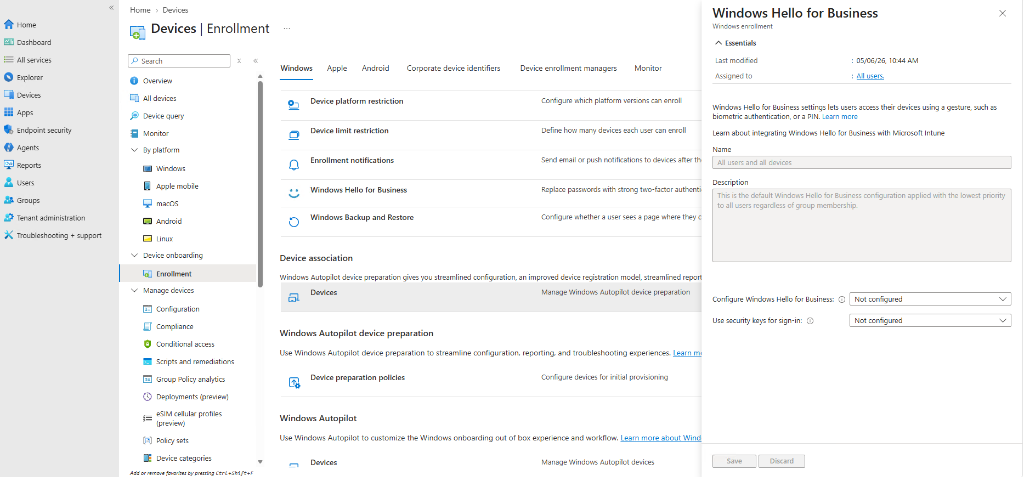
As documented in Microsoft Learn, the tenant-wide policy under Devices > Enrollment > Windows > Windows Hello for Business operates under specific technical rules:
- It is only applied at enrollment time. Any subsequent changes made to this configuration do not apply to devices already enrolled in Intune.
- It applies to all devices getting enrolled in Intune across the entire organization. It cannot be scoped to specific Microsoft Entra security groups, departments, or device categories.
- If set to Enabled, it prompts every enrolling machine to configure a PIN during the initial Out of Box Experience (OOBE), including shared meeting room PCs, warehouse kiosks, and service accounts.
Policy Precedence and Conflict Rules
When multiple policies touch Windows Hello for Business, Windows evaluates them according to the strict priority order defined by Microsoft:
| Precedence Rank | Authority and Policy Type | Behavior on Conflict |
|---|---|---|
| 1 (Highest) | User – Group Policy Object (GPO) | Overrides all computer policies and MDM CSP configurations. |
| 2 | Computer – Group Policy Object (GPO) | Applies if no User GPO is defined. Overrides MDM CSPs. |
| 3 | User – PassportForWork CSP (Intune User Settings) | User-scoped settings override device-scoped MDM settings. |
| 4 | Device – PassportForWork CSP (Intune Device Settings) | Applies machine-wide when no user-scoped CSP or GPO is assigned. |
| 5 (Lowest) | Exchange ActiveSync – DeviceLock CSP | Evaluates passcode complexity; Windows enforces the strictest common subset. |
ControlPolicyConflict/MDMWinsOverGP policy does not apply to Windows Hello for Business. Where Intune is the management authority, use Intune as the primary configuration source.Configure Windows Hello for Business in Intune
Follow these steps to create and deploy a targeted Account Protection policy using the Microsoft Intune admin center.
Step 1 – Create the Account Protection Policy
Sign in to the Microsoft Intune admin center. In the left navigation pane, select Endpoint security and open Account protection. Click + Create Policy.
In the creation wizard, select:
- Platform: Windows
- Profile: Account Protection
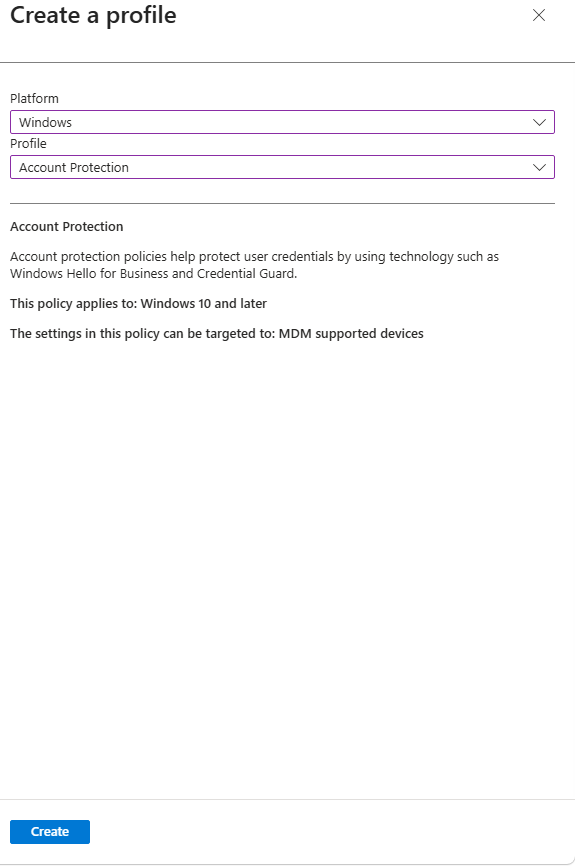
Click Create to launch the policy configuration editor.
Step 2 – Configure WHfB Settings
On the Basics tab, enter an administrative name and operational description:
- Name: Windows Hello for Business
- Description: This policy will enable Windows Hello for Business
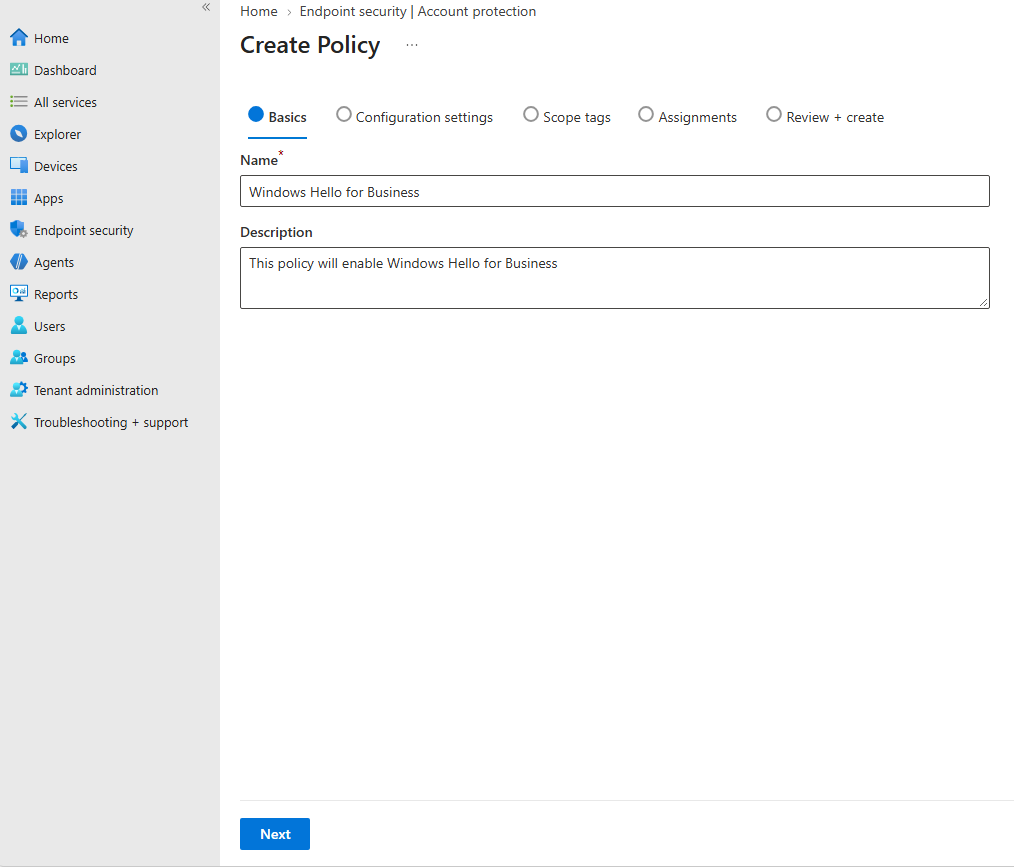
Click Next to open the Configuration settings tab.
Understanding Device Scope vs. User Scope
The Account Protection profile exposes two distinct configuration sections: Device-scoped settings and User-scoped settings. Understanding the boundary between them is critical for proper group assignment:
- Device-Scoped Settings: Apply to the physical computer and enforce policy on any user who signs into that endpoint. Device-scoped policies should be targeted to Microsoft Entra device groups.
- User-Scoped Settings: Apply to the individual user identity across all workstations they access. User-scoped policies should be targeted to Microsoft Entra user groups.
- Precedence Between Scopes: When configurations at the user level interact with device-level policies, user-level settings take precedence. User-scoped settings apply to the targeted user on managed devices where the policy is applicable. Windows Hello for Business credentials themselves remain device-bound and are provisioned separately on each device.
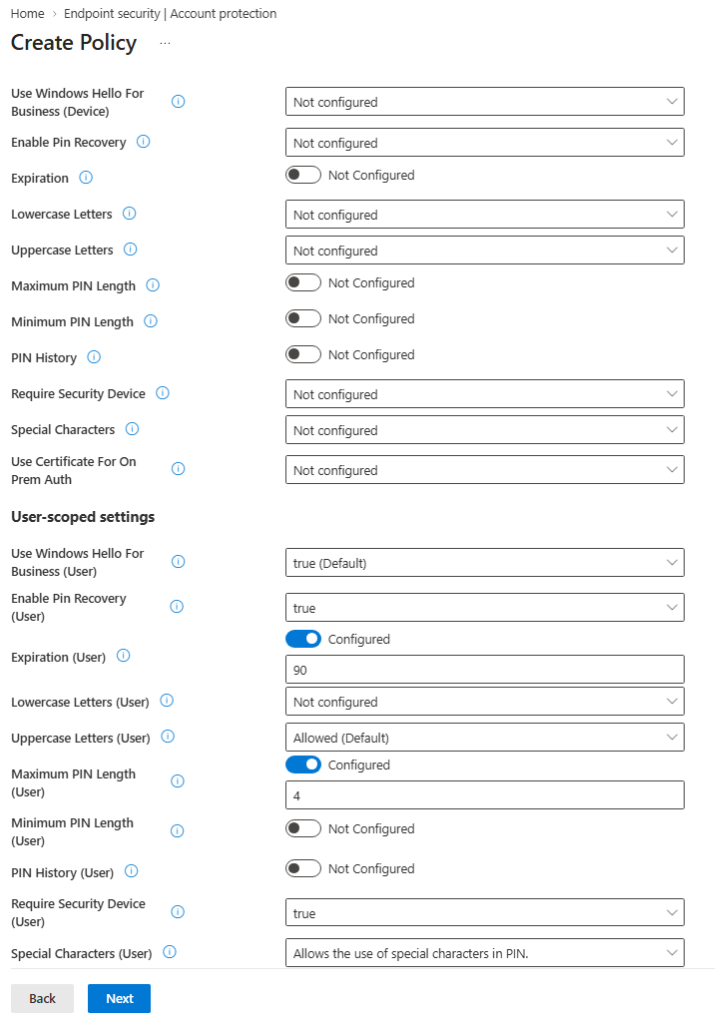
For standard user-targeted deployments, leave the Device-scoped settings set to Not configured to prevent accidental machine-wide restrictions on shared hardware. Then configure the User-scoped settings as shown in Figure 4:
- Use Windows Hello For Business (User): Set to
true (Default)to require Windows Hello registration for targeted users upon logon. - Enable PIN Recovery (User): Set to
trueto activate self-service PIN recovery through the Microsoft PIN Reset Service. - Expiration (User): Configured and set to
90days. 90 days serves as an example policy value. Organizations should set PIN expiration according to internal security standards. While NIST guidance discourages arbitrary periodic changes for memorized secrets, Windows Hello PINs serve as local device activation secrets for hardware-backed keys and are governed by organization-specific policy. - Maximum PIN Length (User): Configured and set to
4digits as shown in the policy configuration, or customized depending on organizational security policy. - Uppercase Letters (User): Set to
Allowed (Default)to permit users to build alphanumeric PINs. - Special Characters (User): Set to
Allows the use of special characters in PIN. - Require Security Device (User): Set to
trueto enforce hardware-backed protection. When configured to true, only endpoints equipped with a functional, accessible TPM can successfully provision Windows Hello for Business.
Click Next. Configure Scope tags if required by your administrative structure, and click Next.
Step 3 – Assign the Policy
On the Assignments tab, search for and select the Microsoft Entra security group containing your pilot workstations or targeted users. Ensure your group type aligns with your configured scope (device groups for device-scoped settings, user groups for user-scoped settings):
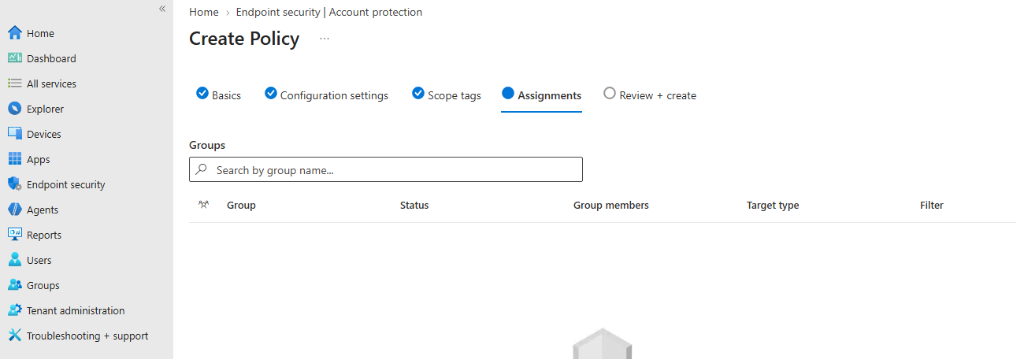
Targeting specific groups ensures controlled deployment phases, allows gradual expansion across departments, and protects shared kiosks from unintended PIN prompts. Review your selections on the Review + create tab and click Save.
Windows Hello Provisioning Experience
Once the policy syncs to the targeted endpoint, Windows 11 guides the employee through the interactive onboarding flow upon their next logon.
1. Logon Prompt
Upon entering standard credentials, Windows presents the full-screen onboarding prompt:
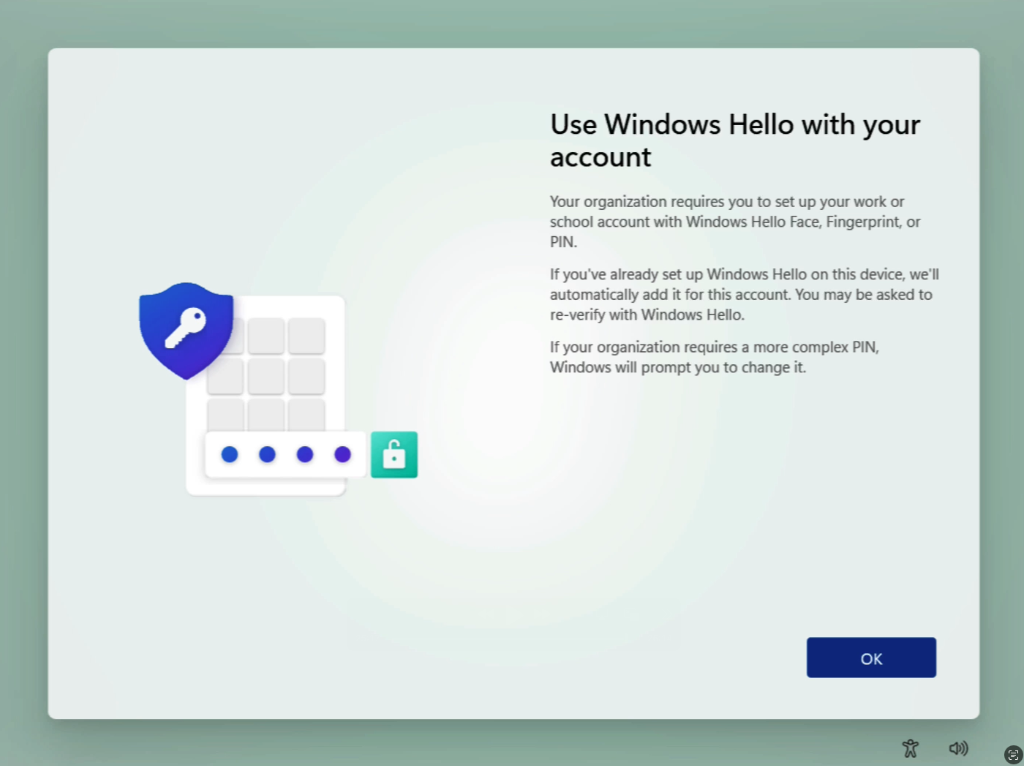
The user clicks OK to start the registration wizard.
2. Multi-Factor Authentication Verification
Windows initiates an interactive authentication challenge against Microsoft Entra ID. The user approves the push notification in their Microsoft Authenticator application or completes their designated MFA challenge:
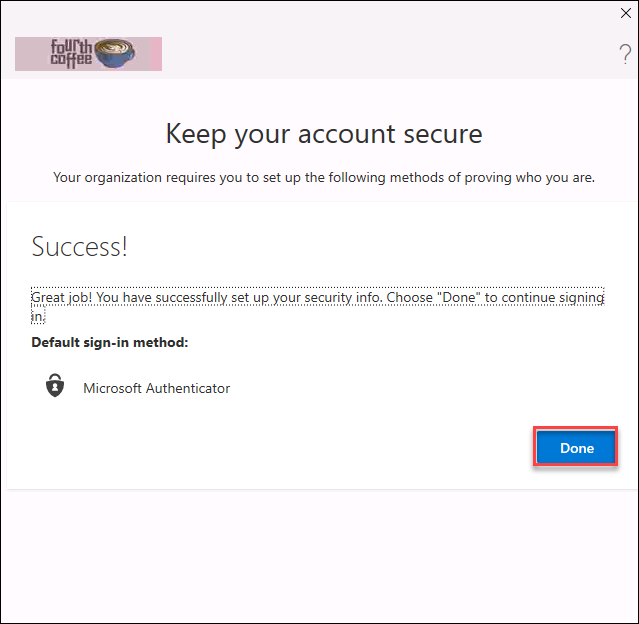
3. PIN Creation
Once identity is verified, Windows displays the Set up a PIN dialog box:
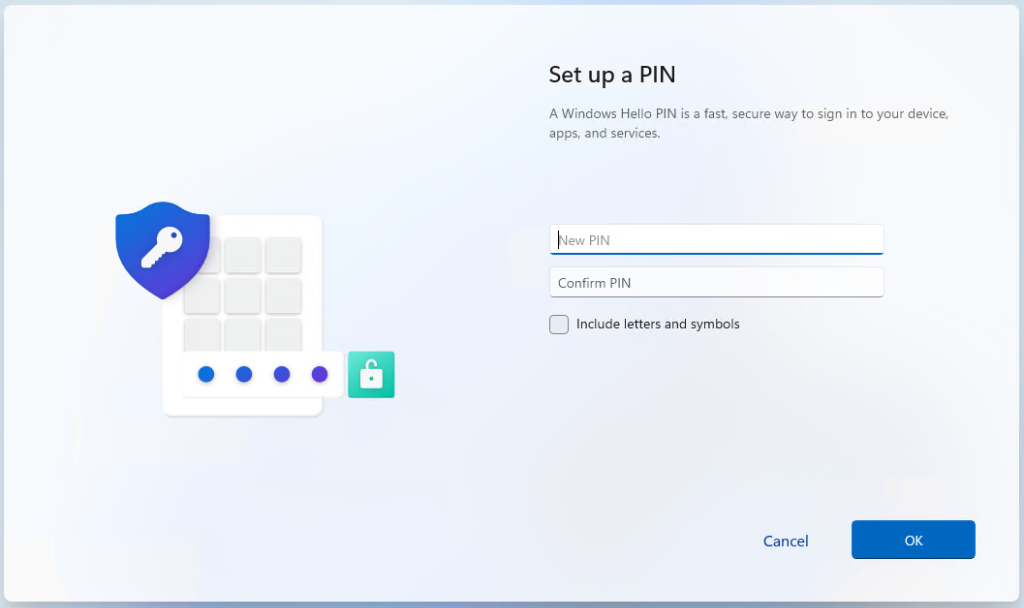
The user enters and confirms their PIN. If the policy permits letters and special characters, checking Include letters and symbols unlocks alphanumeric input. Once submitted, the TPM 2.0 generates the private/public key pair locally, uploads the public key to Microsoft Entra ID, and seals the container.
4. Provisioning Confirmation
Upon successfully validating the PIN complexity rules against the policy, Windows completes the hardware key binding and presents the confirmation screen:
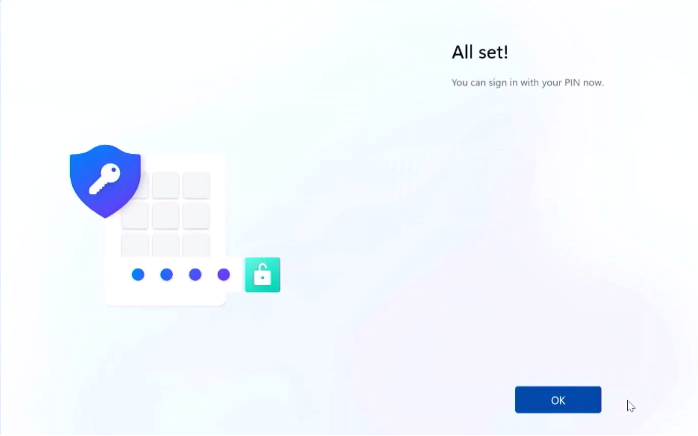
The user clicks OK to conclude onboarding and proceed directly to their desktop session.
5. Lock Screen Sign-In Validation
Press Windows Key + L to lock the workstation. The Windows 11 lock screen now presents the PIN entry field as the primary sign-in interface:
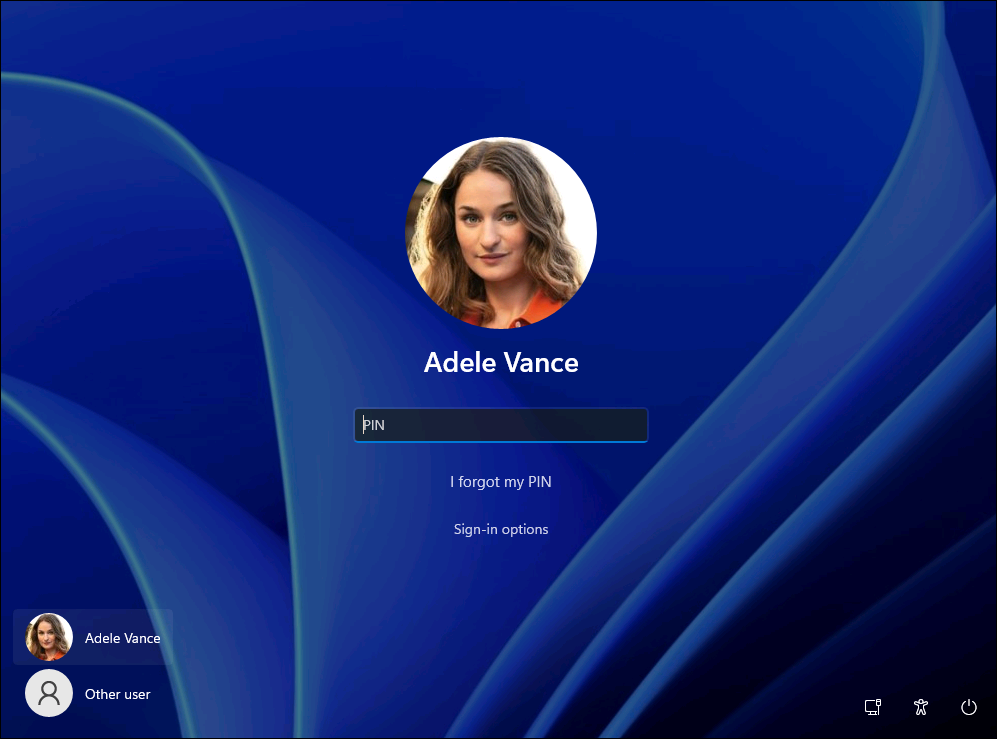
Validate Windows Hello for Business
Running dsregcmd /status
To confirm that Windows Hello for Business is fully operational and bound to hardware, open Command Prompt as the signed-in standard user (without administrator rights). Running Command Prompt with administrator privileges can cause Web Account Manager (WAM) and token broker checks to report inaccurate states.
dsregcmd /statusLocate the User State section in the command output:
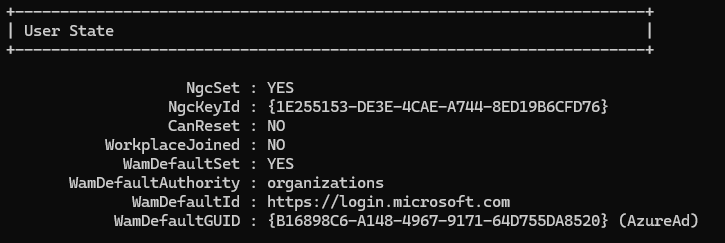
Review these critical verification fields across their corresponding command sections:
| Section in Output | Verification Field | Technical Meaning and Verification Goal |
|---|---|---|
| Device State | TpmProtected : YES | Indicates whether the device identity private key is stored and protected by the physical hardware TPM. |
| User State | NgcSet : YES | Confirms whether the current signed-in user has an active Next Generation Credential (NGC) container registered on the endpoint. |
| User State | NgcKeyId | Identifies the Windows Hello for Business credential key associated with the user’s NGC container. |
| User State | CanReset | Indicates available PIN reset methods for the user. Possible values include DestructiveOnly, NonDestructiveOnly, DestructiveAndNonDestructive, and Unknown. |
| SSO State | AzureAdPrt : YES | Confirms the user holds an active Primary Refresh Token (PRT) from Microsoft Entra ID. A missing PRT (AzureAdPrt : NO) blocks Windows Hello provisioning. |
| SSO State | OnPremTgt : YES | For hybrid Cloud Kerberos Trust deployments, indicates whether the user successfully obtained an on-premises Cloud Kerberos ticket for domain resources. |
Cloud Kerberos Trust Validation
When operating in a hybrid environment where endpoints access on-premises file shares, printers, or Active Directory domain controllers, verify that OnPremTgt : YES is displayed in the SSO State section of dsregcmd /status. If this value displays NO, verify that Microsoft Entra Kerberos is configured on your on-premises domain, ensure AzureAdPrt : YES is active, and confirm line of sight to a domain controller.
Troubleshooting Common Windows Hello Issues
When investigating provisioning failures, consult this troubleshooting matrix based on documented Microsoft error codes and operational root causes:
| Issue / Error Code | Root Cause | Diagnostic and Remediation Runbook |
|---|---|---|
| Error 0x801C0003 | User is not authorized to enroll. | Verify that the user has an assigned Microsoft Intune license and that Microsoft Entra device enrollment restrictions do not block Windows MDM enrollment. |
| Error 0x80090029 | TPM is not configured or set up. | Run tpm.msc as an administrator to check TPM status and prepare the TPM. Confirm that the TPM 2.0 chip is initialized and ready before retrying Windows Hello for Business provisioning. |
| Error 0x80090016 | NTE_BAD_KEYSET (keyset does not exist or cannot be accessed). | Commonly associated with an unavailable keyset. Investigate TPM state, trust model configuration, user credential state, and certificate-trust settings before considering any hardware TPM reset. Avoid clearing the TPM as the default initial action. |
| Missing PRT (AzureAdPrt : NO) | Device registration or Conditional Access block. | Inspect Conditional Access policies requiring MFA during PRT acquisition. Ensure the device successfully completes Microsoft Entra join and network traffic reaches login.microsoftonline.com. |
| Virtual Machine Provisioning Fails | Missing Virtual TPM (vTPM). | If your Intune policy enforces Require Security Device = true, virtual machines must run as Hyper-V Generation 2 with Enable Trusted Platform Module selected in security settings. |
| Provisioning Prompt Never Appears | Post-logon enrollment prompt suppressed. | Inspect HKLM:\SOFTWARE\Policies\Microsoft\PassportForWork. If DisablePostLogonProvisioning is set to 1, change it to 0 or remove the registry value to restore interactive prompts. |
| Access Denied to On-Premises Shares | Missing Cloud Kerberos Trust or line of sight. | Verify Microsoft Entra Kerberos configuration on the on-premises domain, check for OnPremTgt : YES in dsregcmd /status, and verify network line of sight to Domain Controllers. |
Event Viewer Diagnostic Channels
For silent provisioning failures, inspect these dedicated Event Viewer (eventvwr.msc) channels:
Applications and Services Logs > Microsoft > Windows > User Device Registration > Admin: Event ID 306 confirms successful credential registration; Event ID 204 identifies network and discovery failures.Applications and Services Logs > Microsoft > Windows > HelloForBusiness > Operational: Logs detailed cryptographic operations, TPM attestation checks, and policy evaluations.
Frequently Asked Questions
Does Windows Hello for Business require Microsoft Entra ID P1 or P2?
No. Microsoft Entra ID P1 or P2 is not required solely for Windows Hello for Business. However, features commonly used alongside WHfB (such as Conditional Access, group-based automated Intune enrollment, and advanced reporting) require separate licensing.
What is the difference between Windows Hello and Windows Hello for Business?
Consumer Windows Hello provides local convenience sign-in for individual home PCs using a PIN or webcam. Windows Hello for Business uses asymmetric cryptographic key pairs tied to TPM 2.0 hardware and integrates with enterprise directories (Microsoft Entra ID or Active Directory) to deliver single sign-on across corporate resources.
What is Cloud Kerberos Trust?
Cloud Kerberos Trust is Microsoft’s recommended hybrid architecture. It allows Microsoft Entra ID to issue partial Kerberos tickets that on-premises Active Directory Domain Controllers accept natively, granting access to on-premises file shares and resources without requiring complex Public Key Infrastructure (PKI) or certificate deployment.
What is the difference between Cloud Kerberos Trust and Key Trust?
Key Trust requires synchronizing user public keys to on-premises Active Directory Domain Controllers running Windows Server 2016 or newer via Microsoft Entra Connect. Cloud Kerberos Trust eliminates this requirement by deploying a Microsoft Entra Kerberos Server object on-premises, greatly simplifying deployment.
Can Windows Hello for Business work with Microsoft Entra joined devices?
Yes. Microsoft Entra joined devices natively support Windows Hello for Business for cloud-only authentication and can also access on-premises resources when Cloud Kerberos Trust is deployed.
Can Windows Hello for Business be configured entirely through Intune?
Yes. For cloud-only environments, Windows Hello for Business can be configured entirely via Microsoft Intune using Account Protection policies. For hybrid environments accessing on-premises Active Directory resources, an administrator must also configure Microsoft Entra Kerberos on the on-premises domain.
What does NgcSet mean in dsregcmd /status?
NgcSet : YES confirms that the signed-in user has an active Next Generation Credential (NGC) key container bound to the device TPM and registered in Microsoft Entra ID.
What does TpmProtected mean in dsregcmd /status?
In the Device State section of dsregcmd /status, TpmProtected : YES indicates that the device identity private key (used to identify the machine to Microsoft Entra ID) is stored and protected inside the physical hardware Trusted Platform Module.
What does OnPremTgt mean?
OnPremTgt : YES indicates that the client has received an on-premises Kerberos Ticket Granting Ticket from Microsoft Entra ID, confirming that Cloud Kerberos Trust is working and the user can authenticate to on-premises resources.
Why is Windows Hello for Business PIN provisioning failing?
Common causes include missing or failed Microsoft Entra MFA registration, lack of an active Primary Refresh Token (AzureAdPrt : NO), lack of a functional TPM 2.0 chip, network blocks communicating with Microsoft Entra endpoints, or conflicting Group Policy Objects overriding MDM settings.
Conclusion
Windows Hello for Business provides a strong, device-bound authentication mechanism that can be centrally configured and managed through Microsoft Intune. By enforcing TPM hardware binding, establishing structured PIN complexity, and integrating Microsoft Entra Multi-Factor Authentication, organizations protect their endpoint fleet against credential theft and phishing.
To continue building your modern endpoint management architecture, review our accompanying enterprise runbooks for Configuring Windows LAPS in Microsoft Intune, Updating Microsoft Defender Antivirus via Intune, and our Windows Autopilot Setup Guide with Microsoft Intune.
Microsoft Documentation and Official References
For official technical documentation and specifications, consult the following Microsoft Learn references: