
Quick Answer: To configure Chrome bookmarks using Intune, create a Windows 10 and later Settings Catalog profile, enable Managed Bookmarks and Enable Bookmark Bar under the Google > Google Chrome category, paste a validated JSON array into Managed Bookmarks (Device), and assign the policy to your target Entra ID security groups.
Deploying corporate links to Google Chrome across managed Windows endpoints gives employees instant access to Microsoft 365 portals, IT service desks, and internal web applications from the first browser launch. Unlike older Intune workflows that required downloading and importing custom Google Chrome chrome.admx templates into custom OMA-URI profiles, the Microsoft Intune Settings Catalog now includes native Google Chrome Administrative Templates out of the box.
When you configure Chrome bookmarks using Intune Settings Catalog, Windows writes the policy directly to the enterprise Google Chrome registry tree and pins a dedicated, read-only folder to the top left of the Chrome bookmarks bar. Users can keep creating and organizing their own personal bookmarks alongside the corporate folder, but they cannot delete, rename, or modify the links managed by IT. If your environment runs a dual-browser standard, pair this policy with our step-by-step guide to configure Edge favorites using Intune using the exact same JSON structure.
Prerequisites to Configure Chrome Bookmarks Using Intune
Before creating the Google Chrome managed bookmarks policy in the Microsoft Intune admin center, verify that your environment meets these requirements:
- Target Windows 10 or Windows 11 endpoints must be enrolled in Microsoft Intune and assigned an active Microsoft Intune license.
- Managed devices need active internet connectivity to check in with the Intune service and receive the latest configuration profiles.
- Google Chrome Enterprise (MSI) or standard Google Chrome must be installed on the target Windows endpoints.
- Your administrator account must hold the Policy and Profile Manager or Intune Administrator role in Microsoft Entra ID.
- You need a validated JSON array defining your root managed folder title, bookmark links, and any nested subfolders.
Template Structure for Creating a Chrome Managed Bookmarks JSON File
Google Chrome uses the ManagedBookmarks policy schema, which shares the exact same four-key JSON format used by Microsoft Edge. Review how each JSON key behaves in Google Chrome before building your configuration payload:
| JSON Key | Data Type | Required / Optional | Description in Google Chrome |
|---|---|---|---|
toplevel_name | String | Optional (Recommended) | Sets the custom name of the root managed folder pinned to the Chrome bookmarks bar (such as TechEUC Links). Defaults to “Managed bookmarks” when omitted. |
name | String | Required | Defines the visible display title of an individual bookmark link or a nested subfolder. |
url | String | Required for links | Specifies the full destination URL including the protocol prefix (such as https://m365.cloud.microsoft). Omitted on folder objects. |
children | Array of Objects | Required for folders | Contains an array of child bookmark objects or nested subfolders inside a parent folder. |
Create a Chrome Managed Bookmarks JSON File
Below is the production JSON payload we will deploy in this guide. It creates a top-level folder named TechEUC Links on the Google Chrome bookmarks bar and nests a subfolder named TechEUC containing direct links to Microsoft 365, Outlook, and Teams:
JSON • ChromeManagedBookmarks.json
[
  {
    "toplevel_name": "TechEUC Links"
  },
  {
    "name": "TechEUC",
    "children": [
      { "name": "Microsoft 365", "url": "https://m365.cloud.microsoft" },
      { "name": "Outlook", "url": "https://outlook.office.com" },
      { "name": "Teams", "url": "https://teams.microsoft.com" }
    ]
  }
]
Important: Always edit your JSON payload in a code editor such as Visual Studio Code or Notepad++ rather than Word. Smart quotes, missing https:// protocol prefixes, or a trailing comma after the last item in a children array will cause Google Chrome to ignore the entire ManagedBookmarks policy.
Configure Chrome Bookmarks Using Intune Settings Catalog
Follow these steps in the Microsoft Intune admin center to create and assign the Google Chrome managed bookmarks configuration profile.
Step 1: Create a New Intune Configuration Policy
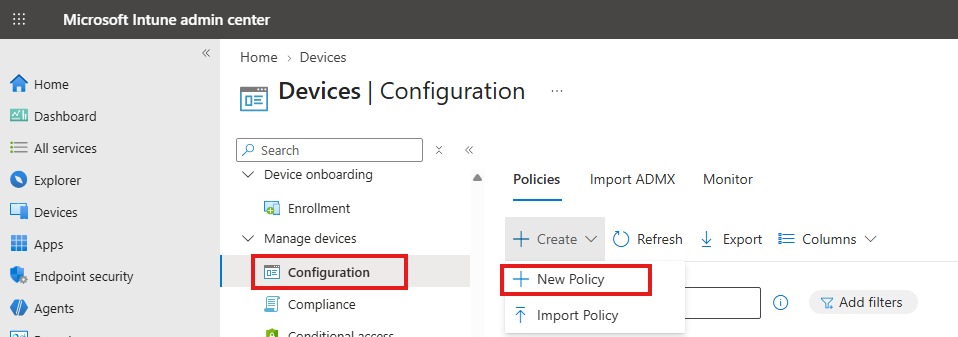
Sign in to the Microsoft Intune admin center and navigate to Devices > Manage devices > Configuration. Under the Policies tab, click + Create and select + New Policy.
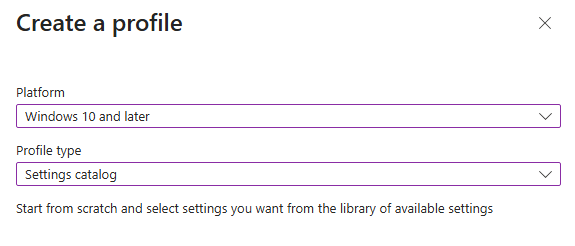
In the Create a profile flyout panel, select Windows 10 and later for the Platform and choose Settings catalog for the Profile type. Click Create.
Step 2: Specify Policy Name and Description
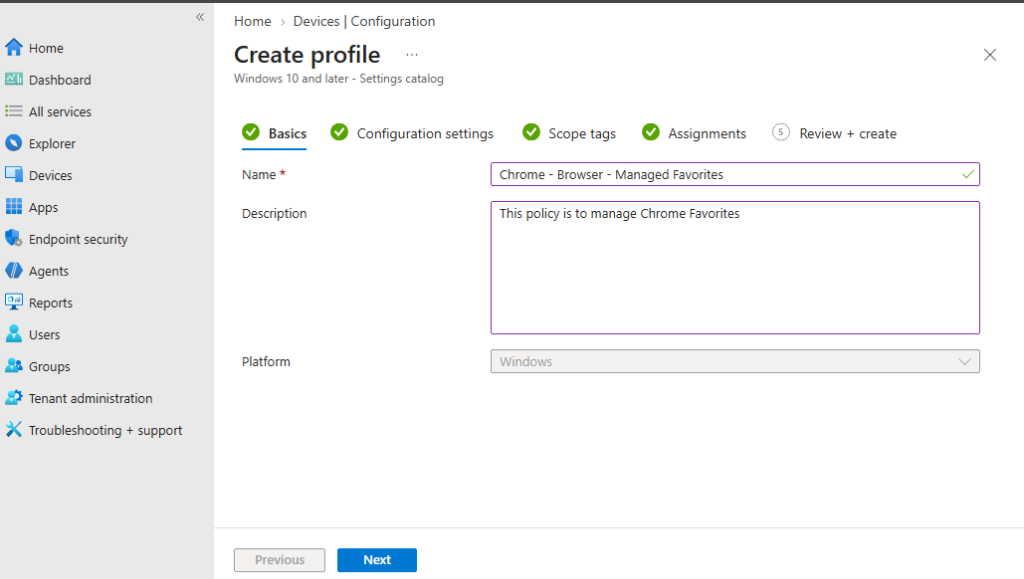
On the Basics tab, provide a descriptive name and summary so other administrators can identify the policy:
- Enter
Chrome - Browser - Managed Favoritesin the Name field. - Enter
This policy is to manage Chrome Favoritesin the Description field.
Click Next to proceed to the Configuration settings tab.
Step 3: Configure Managed Bookmarks and Enable Bookmark Bar in Settings Picker
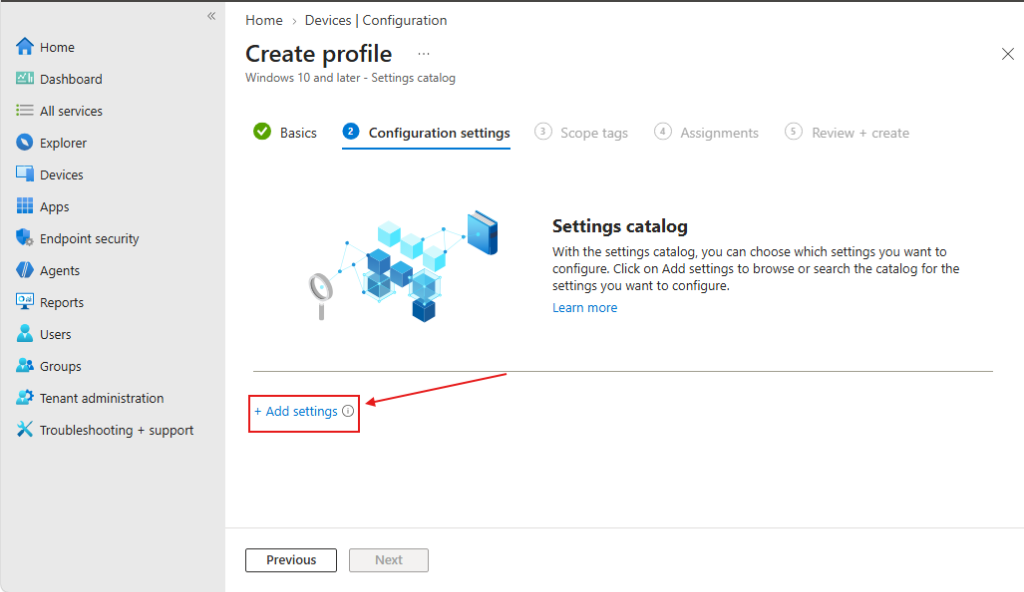
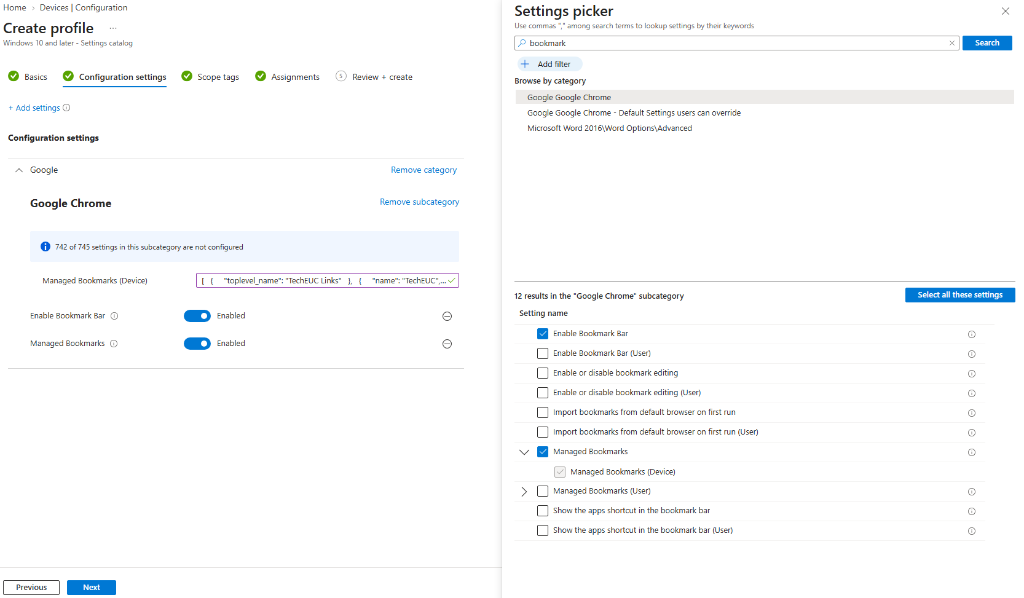
On the Configuration settings tab, click + Add settings to open the Settings picker panel.
In the Settings picker search box, type bookmark and click Search. Under Browse by category, select Google Google Chrome (avoid choosing the “Default Settings users can override” category if you want the bookmarks bar enforced as mandatory). In the settings list below, check both of the following items:
- Select Enable Bookmark Bar (Device scope) so Google Chrome displays the bookmarks bar automatically below the address bar without requiring users to press
Ctrl + Shift + B. - Select Managed Bookmarks and its sub-item Managed Bookmarks (Device).
Close the Settings picker panel. On the left configuration pane, toggle both Enable Bookmark Bar and Managed Bookmarks to Enabled, paste your JSON string into the Managed Bookmarks (Device) input field, and click Next.
Step 4: Assign and Create the Intune Policy
Configure any required Scope tags on the next tab and click Next. On the Assignments tab, click Add groups under Included groups and select your target Microsoft Entra ID device security group. Click Next, verify all settings on the Review + create tab, and click Create.
Synchronize and Monitor Chrome Bookmarks Intune Policy
To trigger an immediate policy check-in on a test Windows 10 or Windows 11 workstation, open Settings > Accounts > Access work or school, select your corporate account, click Info, and click Sync. If you are also deploying applications or browser extensions alongside your configuration profiles, check our guide on upgrading to Windows 11 26H2 using Intune.
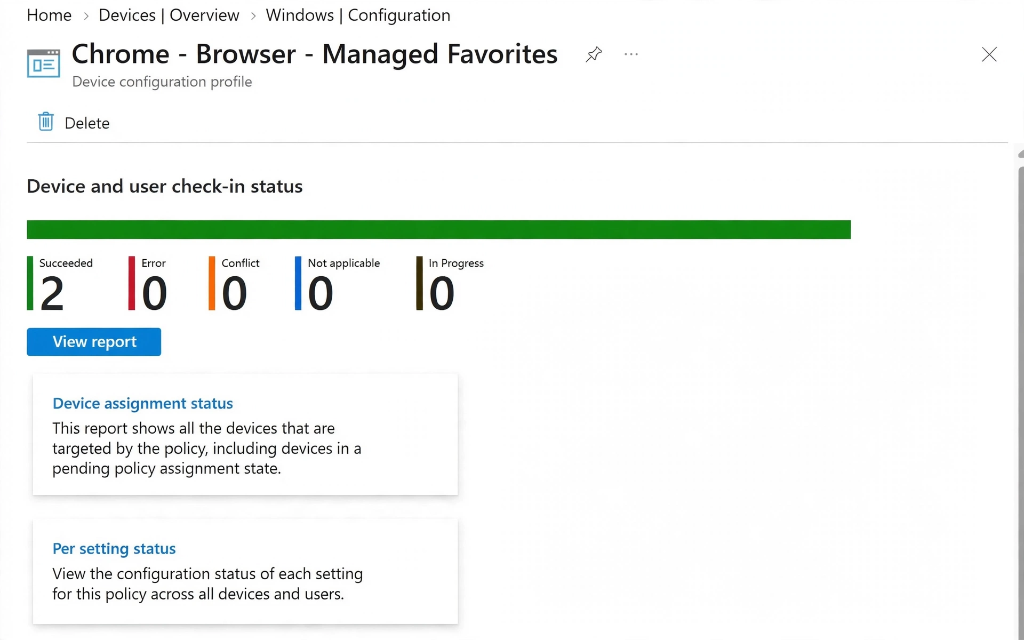
In the Microsoft Intune admin center, open Devices > Windows > Configuration and click the Chrome – Browser – Managed Favorites policy. Confirm that your targeted endpoints appear under Succeeded in the Device and user check-in status chart with zero errors or conflicts.
End-User Experience and Verify Chrome Policy ManagedBookmarks
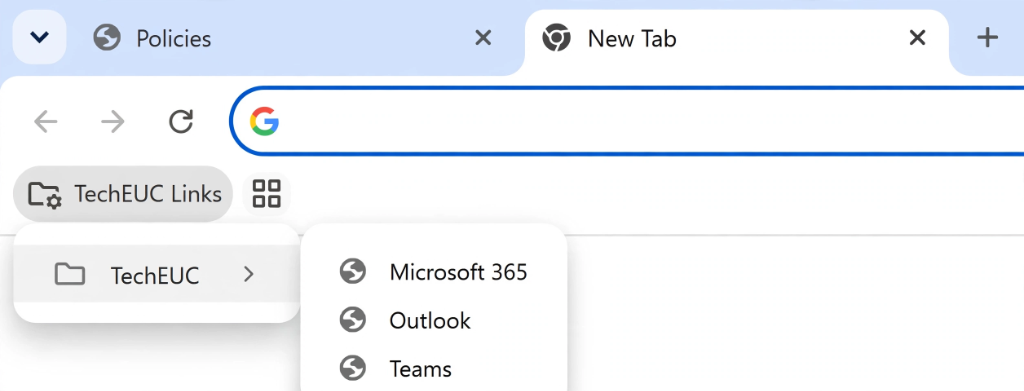
Sign in to a targeted Windows device and launch Google Chrome. The bookmarks bar is enabled automatically below the omnibox and displays the TechEUC Links folder with its gear badge. Clicking TechEUC Links expands the TechEUC subfolder containing Microsoft 365, Outlook, and Teams.
Because these bookmarks are enforced by enterprise policy, right-clicking any item inside the TechEUC Links folder shows the Edit, Cut, and Delete options grayed out. Users can still add, edit, and sync their own personal bookmarks on the rest of the Chrome bookmarks bar.
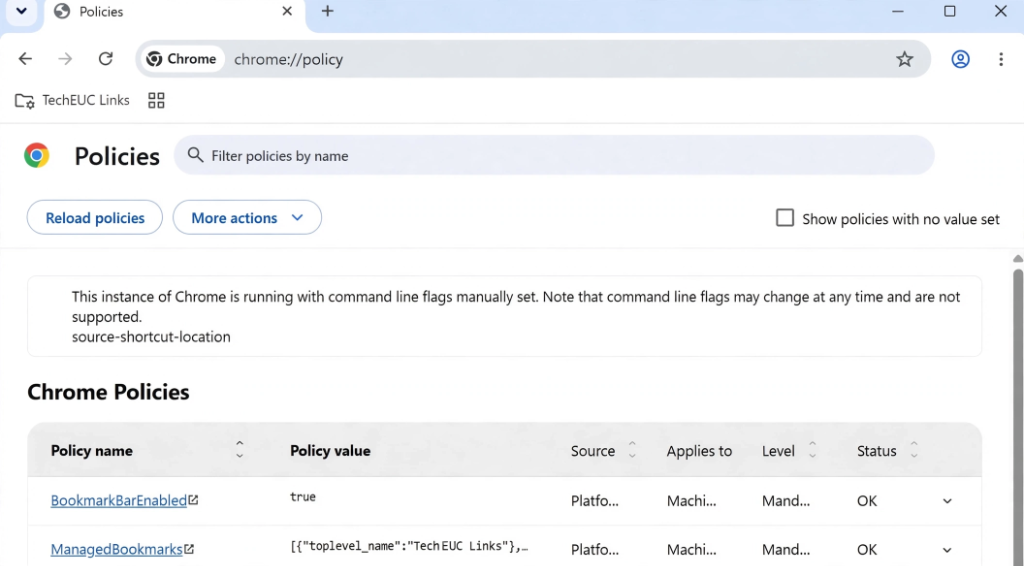
To verify policy ingestion inside the browser, open a new tab in Google Chrome, type chrome://policy in the address bar, and press Enter. Under Chrome Policies, confirm that both BookmarkBarEnabled (set to true) and ManagedBookmarks (containing your JSON array) display a Status of OK and a Level of Mandatory.
PowerShell Script to Validate JSON and Audit Chrome Registry Keys
When Intune applies a Google Chrome Settings Catalog profile, the Windows MDM agent writes device-scoped settings to HKLM:\SOFTWARE\Policies\Google\Chrome and user-scoped settings to HKCU:\SOFTWARE\Policies\Google\Chrome. If you want to collect these registry values across your fleet into Intune reporting, see our tutorial on how to collect Windows registry data using Intune.
You can also run the PowerShell script below, Test-ChromeManagedBookmarks.ps1, locally or as an Intune Proactive Remediation detection script to audit both registry hives, validate the ManagedBookmarks JSON string with ConvertFrom-Json, and write a verification log to $env:ProgramData\TechEUC\ChromeBookmarks.
POWERSHELL • Test-ChromeManagedBookmarks.ps1
#Requires -RunAsAdministrator
<#
.SYNOPSIS
    Audits Google Chrome ManagedBookmarks and BookmarkBarEnabled registry policies.
.DESCRIPTION
    Inspects HKLM:\SOFTWARE\Policies\Google\Chrome and HKCU:\SOFTWARE\Policies\Google\Chrome
    for the ManagedBookmarks JSON string, validates JSON syntax via ConvertFrom-Json,
    and writes the audit log to $env:ProgramData\TechEUC\ChromeBookmarks.
#>

[CmdletBinding()]
param()

$LogDirectory = "$env:ProgramData\TechEUC\ChromeBookmarks"
$LogFile = "$LogDirectory\Audit_ChromeBookmarks.log"

if (-not (Test-Path -Path $LogDirectory)) {
    New-Item -Path $LogDirectory -ItemType Directory -Force | Out-Null
}

function Write-TechEUCLog {
    param([string]$Message, [string]$Level = "INFO")
    $Timestamp = Get-Date -Format "yyyy-MM-dd HH:mm:ss"
    $Entry = "[$Timestamp] [$Level] $Message"
    Add-Content -Path $LogFile -Value $Entry -Encoding UTF8
    Write-Output $Entry
}

Write-TechEUCLog -Message "Starting Google Chrome ManagedBookmarks policy audit."

$PolicyPaths = @(
    @{ Scope = "Device (HKLM)"; Path = "HKLM:\SOFTWARE\Policies\Google\Chrome" },
    @{ Scope = "User (HKCU)";   Path = "HKCU:\SOFTWARE\Policies\Google\Chrome" }
)

$PolicyFound = $false

foreach ($Target in $PolicyPaths) {
    $RegPath = $Target.Path
    $ScopeName = $Target.Scope

    if (Test-Path -Path $RegPath) {
        $Props = Get-ItemProperty -Path $RegPath -ErrorAction SilentlyContinue
        if ($null -ne $Props.ManagedBookmarks) {
            $PolicyFound = $true
            Write-TechEUCLog -Message "Found ManagedBookmarks in $ScopeName ($RegPath)."
            Write-TechEUCLog -Message "BookmarkBarEnabled value: $($Props.BookmarkBarEnabled)"

            try {
                $ParsedJson = $Props.ManagedBookmarks | ConvertFrom-Json -ErrorAction Stop
                $ItemCount = ($ParsedJson | Measure-Object).Count
                Write-TechEUCLog -Message "JSON validation succeeded. Top-level array items: $ItemCount"
            }
            catch {
                Write-TechEUCLog -Message "JSON validation failed in $ScopeName : $($_.Exception.Message)" -Level "ERROR"
                exit 1
            }
        }
    }
}

if (-not $PolicyFound) {
    Write-TechEUCLog -Message "ManagedBookmarks registry value not found in HKLM or HKCU." -Level "WARN"
    exit 1
}

Write-TechEUCLog -Message "Google Chrome ManagedBookmarks audit completed with zero errors."
exit 0
Troubleshooting Chrome Managed Bookmarks Deployment
If your managed bookmarks folder does not appear on the Google Chrome bookmarks bar after a device sync, check the following three common causes:
- Verify MDM Event ID 814 in Event Viewer: Open Event Viewer and navigate to Applications and Services Logs > Microsoft > Windows > DeviceManagement-Enterprise-Diagnostics-Provider > Admin. Look for Event ID 814 referencing
Chrome~Policy~googlechrome~ManagedBookmarks, which confirms the MDM client received the string policy from Intune and wrote it to the registry. - Check for “Default Settings users can override” vs Mandatory category: In the Intune Settings picker, Google Chrome exposes two categories: Google Google Chrome (mandatory policies written to
HKLM:\SOFTWARE\Policies\Google\Chrome) and Google Google Chrome – Default Settings users can override (written toHKLM:\SOFTWARE\Policies\Google\Chrome\Recommended). Always select Google Google Chrome so users cannot hide the bookmark bar or override the managed folder. - Avoid Multiple Overlapping Chrome Bookmark Policies: Because
ManagedBookmarksis stored as a single registry string value (REG_SZ), assigning two different Chrome bookmark profiles to the same endpoint causes a policy conflict or overwrites the first list. Consolidate shared links and department subfolders into a single JSON array per security group.
Frequently Asked Questions
Does configuring Chrome bookmarks using Intune delete personal user bookmarks?
No. Google Chrome places all links from the ManagedBookmarks policy inside a separate, locked folder on the left side of the bookmarks bar. Users retain full control over their personal bookmarks and Google account sync outside that managed folder.
Can I use the same JSON payload for both Microsoft Edge and Google Chrome in Intune?
Yes. Microsoft Edge’s ManagedFavorites policy and Google Chrome’s ManagedBookmarks policy use the exact same four JSON keys (toplevel_name, name, url, and children). You can copy the exact same JSON array into both Settings Catalog profiles.
Do I still need to import the Google Chrome ADMX file into Intune to manage bookmarks?
No. Microsoft Intune Settings Catalog now includes the Google Chrome Administrative Templates natively under the Google > Google Chrome category. You do not need to upload chrome.admx or build custom OMA-URI policies to deploy managed bookmarks.
Why is the Managed Bookmarks folder not showing even though chrome://policy says Status OK?
If chrome://policy reports Status: OK for ManagedBookmarks but the folder is hidden on the browser UI, either the Chrome bookmarks bar is turned off (enable the Enable Bookmark Bar setting in your Intune profile) or the URLs inside your JSON array are missing the https:// protocol prefix.