
Quick Answer: To collect Windows registry data in Microsoft Intune without PowerShell scripts, use the native Properties Catalog under Devices > Manage devices > Configuration > Create > Properties catalog. Specify the target HKEY_LOCAL_MACHINE (HKLM) registry path, select one of three collection patterns (Key/Value, Key/All Values, or Key/Subkeys/All Values), and assign the profile to a device group. The dedicated Microsoft Device Inventory Agent handles client-side collection and reports data directly to the Intune Device Inventory blade.
The Shift to Native Registry Inventory in Microsoft Intune
For years, endpoint administrators managing Windows through Microsoft Intune faced a common challenge: how do you collect custom registry keys without building custom infrastructure?
Previously, auditing a registry value required complex workarounds:
- Packaging a PowerShell script inside a Win32
.intunewinfile. - Deploying Proactive Remediations (requiring an Intune Suite or Windows Enterprise E3/E5 license).
- Setting up third-party telemetry tools or custom Azure Log Analytics ingestion pipelines.
With the native Windows Registry Data collector inside the Properties catalog, Microsoft solved this problem. You can now define explicit HKLM registry paths directly in the Intune admin console. The native device agent collects the values on a regular schedule and reports them in the Intune Device Inventory pane.
Architecture Flow: How It Operates Under the Hood
Understanding how the collection pipeline works helps prevent configuration errors and clarifies why data does not appear immediately.
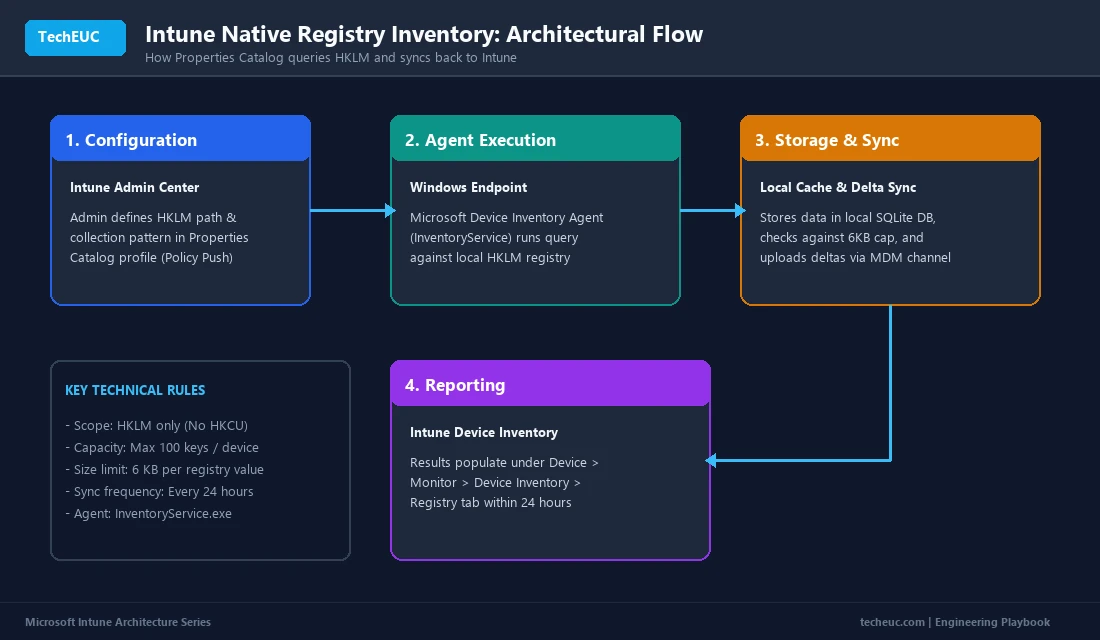
The collection process runs in four steps:
- Policy Definition & Push: The administrator creates a Properties Catalog policy. The policy containing target registry paths and collection patterns is delivered to the endpoint during standard MDM sync.
- Execution via Dedicated Agent: The query is executed by the Microsoft Device Inventory Agent running as the
InventoryServiceWindows service, not the legacy Intune Management Extension PowerShell engine. - Local Staging & Delta Evaluation: The agent queries the requested
HKLMkeys, stores the data in an encrypted local SQLite database (InventoryData.db), checks against the 6 KB limit, and compares findings to past scans. - Data Ingestion: When changes are detected, the agent uploads the delta to Intune. The Intune backend processes the payload and displays it under the Device Inventory tab.
Rules, Limits, and Prerequisites
Before configuring registry collection profiles, keep these operational limits in mind:
| Specification | Policy Rule / Limit | Context & Details |
|---|---|---|
| Supported Registry Hive | HKEY_LOCAL_MACHINE (HKLM) only | The collection service runs under LocalSystem. HKEY_CURRENT_USER (HKCU) is not supported. |
| Maximum Registry Keys | 100 keys per device | Limits performance overhead and payload size. |
| Maximum Value Size | 6 KB (6,144 bytes) per registry value | Oversized strings or binary data exceeding 6 KB are dropped or truncated. |
| Reporting Latency | Up to 24 hours | Inventory scans and deltas refresh on a 24-hour cycle. |
| Supported OS | Windows 10 (1809+) and Windows 11 | Supported on Entra Joined, Entra Hybrid Joined, and Co-managed devices. |
| Licensing Tier | Microsoft Intune Plan 1 | Standard feature. Does not require Intune Suite or Intune Plan 2. |
The Three Registry Collection Patterns Explained
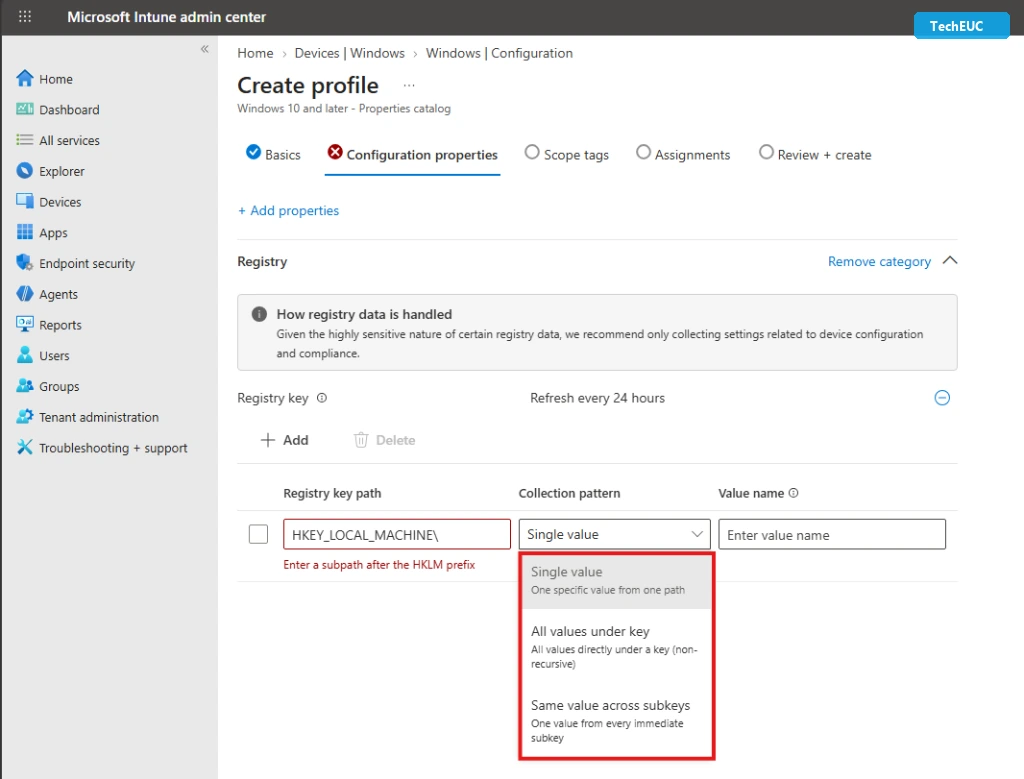
When you add a registry key in Intune, you get three collection patterns to choose from:
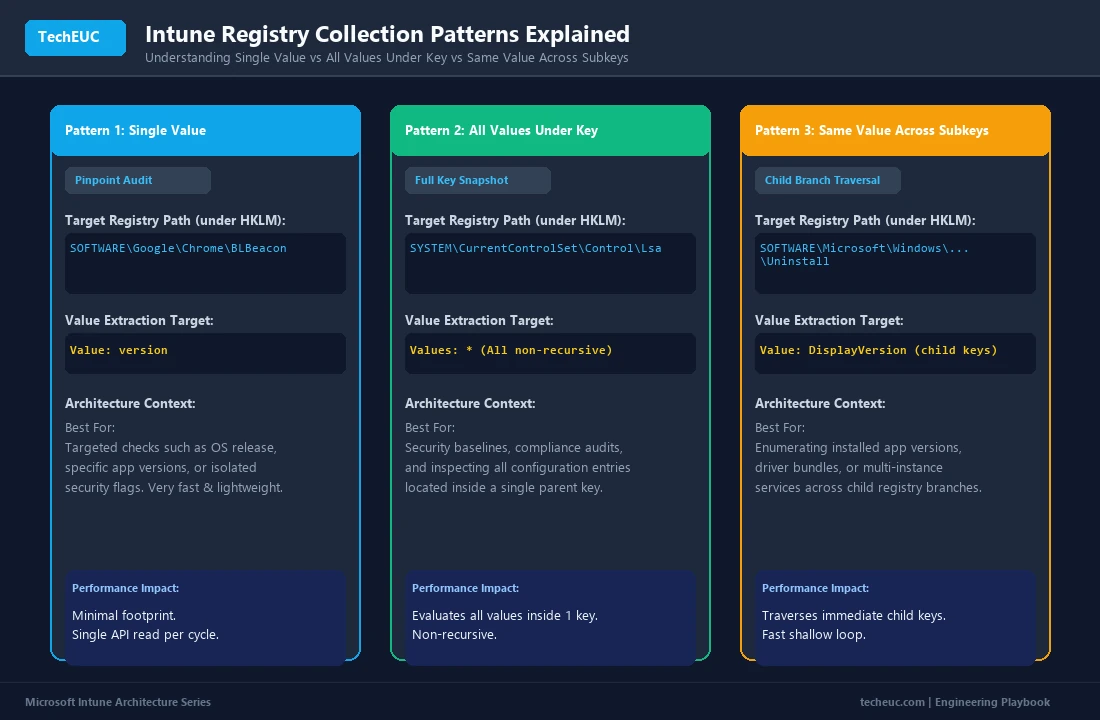
Here is what each collection pattern does and when to select it:
- Single value: Specify a registry path and value name to collect one specific value from that path.
- Best for: Checking a specific application version (e.g.
SOFTWAREGoogleChromeBLBeacon>version) or an individual security flag.
- Best for: Checking a specific application version (e.g.
- All values under key: Specify a registry path to collect all values directly under that path. This pattern is non-recursive and does not include subkeys.
- Best for: Auditing configuration keys like
SYSTEMCurrentControlSetControlLsawhere multiple values reside in one place.
- Best for: Auditing configuration keys like
- Same value across subkeys: Specify a base registry key path and a value name to collect that value from each immediate subkey.
- Best for: Querying installed software lists under the Uninstall hive (e.g. extracting
DisplayVersionorDisplayNameacross every installed app).
- Best for: Querying installed software lists under the Uninstall hive (e.g. extracting
Step-by-Step: Creating a Registry Collection Policy in Intune
Follow these steps to configure a registry collection policy using the Windows Uninstall registry hive as our practical example:
Step 1: Create a New Properties Catalog Profile
Sign in to the Microsoft Intune admin center. Go to Devices > Windows > Configuration (under Manage devices). Click + Create > New Policy.
- Platform: Select Windows 10 and later.
- Profile type: Select Properties catalog.

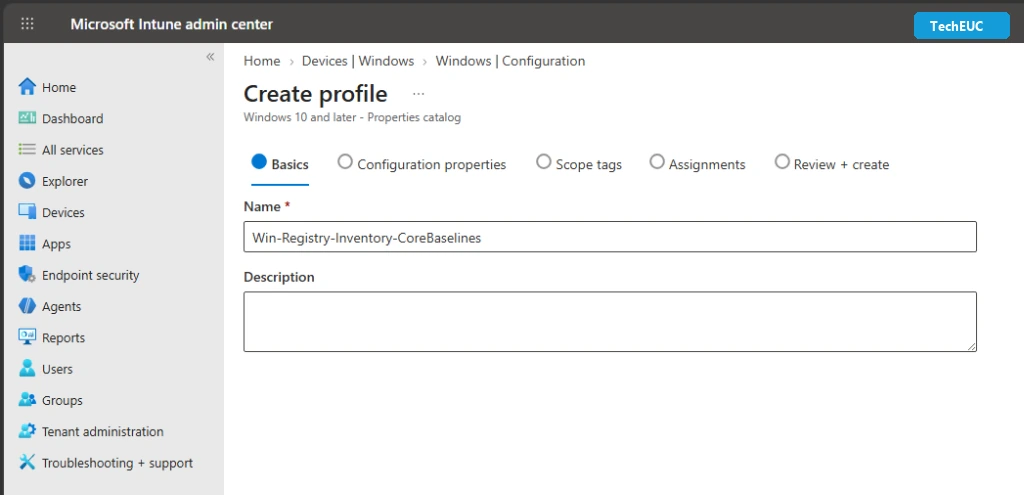
Step 2: Enter Profile Basics
On the Basics tab, enter a clear policy name and description:
- Name:
Win-Registry-Inventory-CoreBaselines - Description: Collects installed application inventory via the Uninstall registry hive.
Click Next.
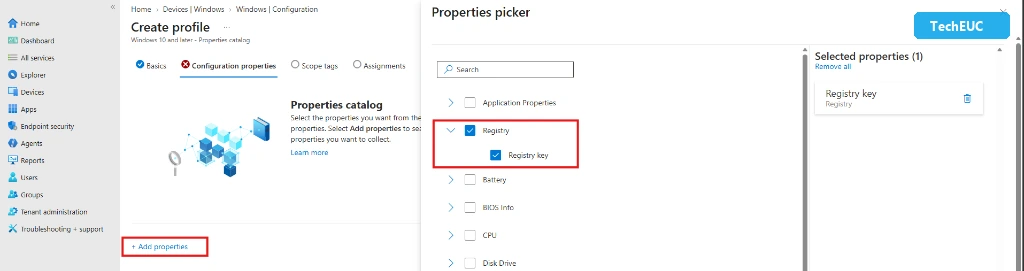
Step 3: Add Registry Properties
On the Configuration properties tab, click + Add properties to open the Properties picker on the right.
- Locate and expand Registry.
- Check the box for Registry key.
- Verify that Registry key appears under Selected properties (1) on the right panel.
- Close the Properties picker flyout.
Step 4: Specify Registry Key Path and Collection Pattern
Under the Registry category, click + Add to enter your registry details. Take note of how the portal handles the path:
- Registry key path: Specify the
HKEY_LOCAL_MACHINEpath. TheHKEY_LOCAL_MACHINEprefix is populated automatically in the console, so you only enter the subpath after the prefix. - Collection pattern: Select one of the three patterns (Single value, All values under key, or Same value across subkeys).
- Value name: Enter the value name (only required if you selected Single value or Same value across subkeys).
Step 5: Querying the Uninstall Hive
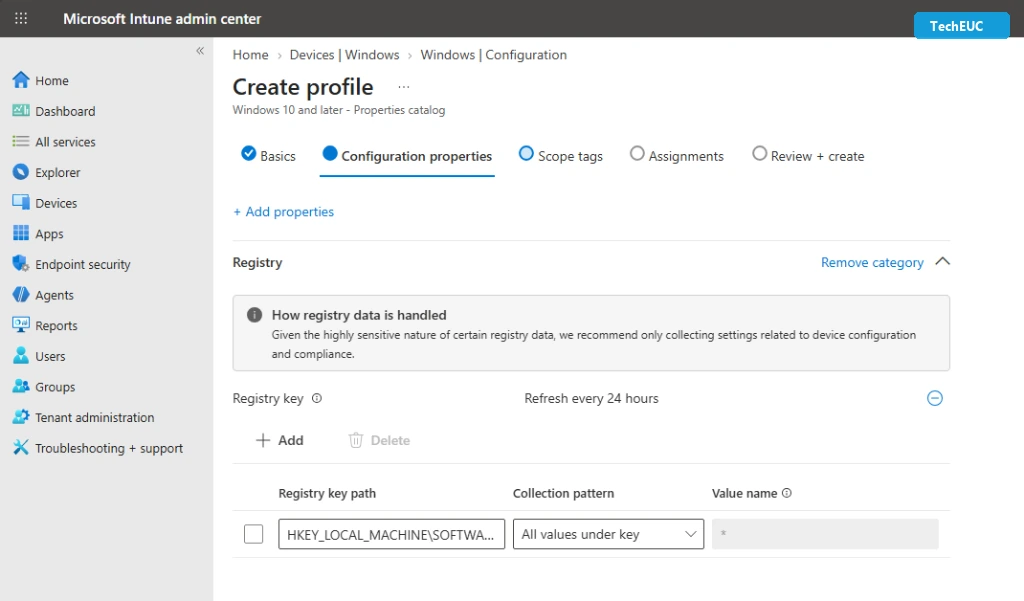
To inventory installed software across all machines, enter the Uninstall registry hive path:
REGISTRY PATH • UNINSTALL HIVE
HKLM:\SOFTWARE\Microsoft\Windows\CurrentVersion\Uninstall- Registry key path: Enter
SOFTWAREMicrosoftWindowsCurrentVersionUninstall - Collection pattern: Select
All values under key(which auto-populates the Value name with*) orSame value across subkeyswith a value name likeDisplayNameorDisplayVersion.
Step 6: Scope Tags, Assignments, and Policy Creation
- Click Next. On the Scope tags tab, you do not need to specify anything. Leave it as Default and click Next.
- On the Assignments tab, click + Add groups and select the target Entra ID device group where you want to deploy the policy.
Note: Always assign registry collection profiles to device groups since HKLM settings apply to the machine level. - Click Next, review your settings on the Review + create tab, and click Create.
Where to View Collected Registry Data in Intune
Once assigned endpoints complete their scheduled scan and upload the payload, you can review the collected inventory in the admin portal.
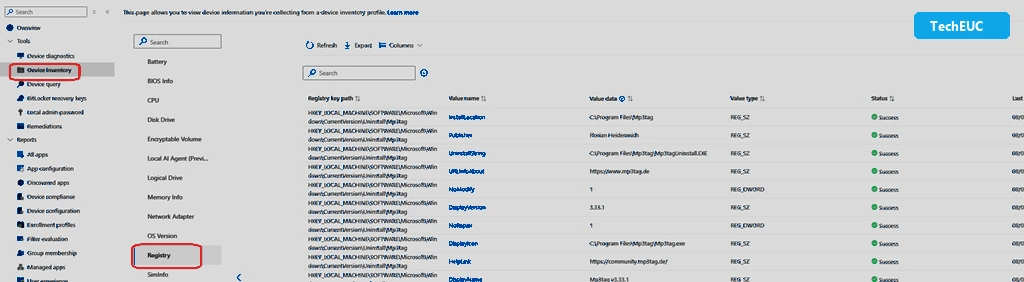
To view the data:
- Go to Devices > Windows and select your device.
- Under Tools, click Device inventory.
- Select the Registry tab in the left sub-navigation.
- You will see the collected registry inventory with Registry key path, Value name, Value data, Value type (e.g.
REG_SZ,REG_DWORD), and collection Status (Success).
Client-Side Mechanics and Troubleshooting
When an expected registry value does not appear in Intune, troubleshooting requires checking the client-side execution logs.
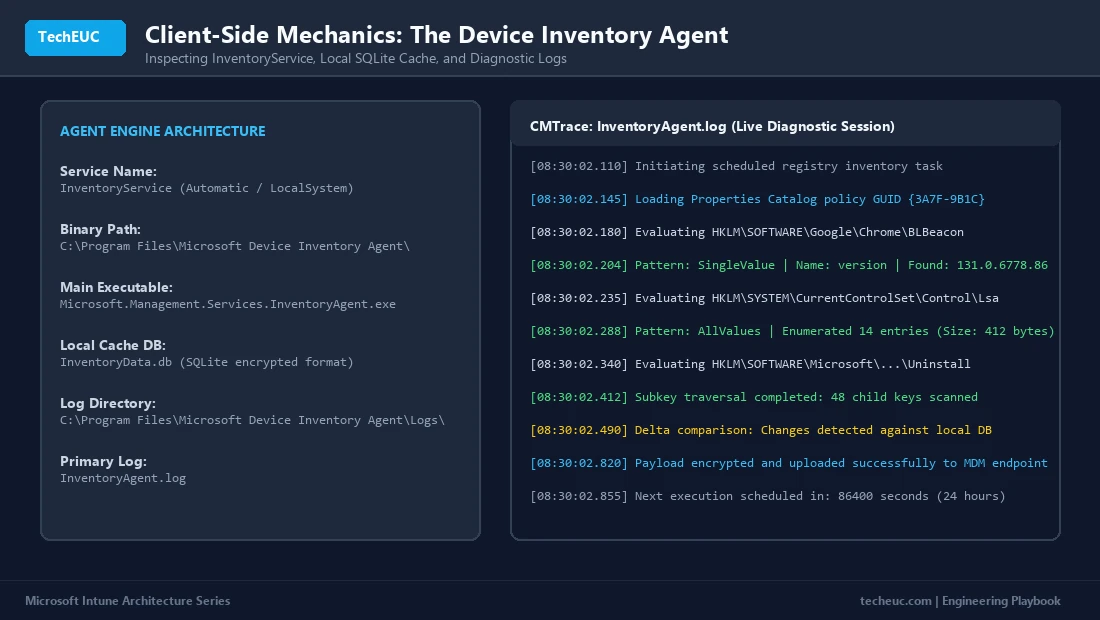
The Dedicated Device Inventory Agent
Properties catalog collection is handled by a dedicated agent rather than the Intune Management Extension:
- Service Name:
InventoryService(Microsoft Device Inventory Agent) - Account: Runs as
NT AUTHORITYSYSTEM - Binary Location:
C:Program FilesMicrosoft Device Inventory Agent - Local Cache:
InventoryData.db(SQLite database) - Log Path:
C:Program FilesMicrosoft Device Inventory AgentLogsInventoryAgent.log
Reading the Diagnostic Log
Open InventoryAgent.log using CMTrace. Look for these key events during a collection cycle:
Initiating scheduled registry inventory task: The local scan has started.Loading Properties Catalog policy GUID: The policy was parsed from Intune MDM.Evaluating HKLM...: The target registry path being inspected.Delta comparison: Changes detected: Confirms whether values changed since the last scan.Payload encrypted and uploaded successfully: Confirms the upload to Intune cloud completed.
Frequently Asked Questions (FAQ)
Can I collect keys from HKEY_CURRENT_USER (HKCU)?
No. The Microsoft Device Inventory Agent runs in the NT AUTHORITYSYSTEM background context without access to individual interactive user sessions. If you need user-level registry data, deploy a remediation script set to run in the user context.
How often does Intune collect and update registry data?
Data collection runs once every 24 hours. The agent checks for changes against the local SQLite database and uploads only the updated deltas.
What happens if a requested registry key does not exist on the client?
The agent logs the key as not found in its local cycle. It does not generate an error status or mark the policy as failed in Intune.
Does this feature require Microsoft Intune Suite or Intune Plan 2?
No. The Properties Catalog and native Windows Registry data collection are standard capabilities included with Microsoft Intune Plan 1.
Next Steps in Production
Native Properties Catalog collection eliminates the maintenance burden of deploying custom PowerShell discovery scripts, Azure storage accounts, or Proactive Remediations just to inspect fleet registry keys. For production environments, pilot the policy on a targeted Entra ID device group first, verify data ingestion in the Intune Device Inventory pane, and gradually migrate your legacy hardware and software inventory scripts to native collection.
Need help optimizing your Intune configuration policies or automating fleet inventory?