
Quick Answer: To deploy and update ZeeDrive using PowerShell, Intune, or RMM tools (such as NinjaOne), execute an automated installation script in the SYSTEM context. The script inspects C:\Program Files\Thinkscape\Zee Drive\ for version subdirectories, compares the local binary build against the latest vendor release using [System.Version], terminates active processes, executes the silent installer, and uses RunAsUser to present interactive user notifications in the active user session.
Introduction
If you manage ZeeDrive across a fleet of endpoints, you already know the pain: there is no standard uninstall registry key, version detection requires scanning Program Files folders, and keeping users informed during an update, without breaking SYSTEM-context execution, adds another layer of complexity.
In this post, I’ll walk you through a production-ready PowerShell script that fully automates ZeeDrive deployment and updates via NinjaOne RMM. The script handles three distinct scenarios, scrapes the latest version from ZeeDrive’s own download page, runs silent installs as SYSTEM, and fires user-facing WPF popups using the RunAsUser module, all with structured logging and clean exit codes.
Whether you’re managing 50 or 5,000 endpoints, this approach keeps ZeeDrive current with zero manual intervention.
Quick Summary
This PowerShell solution automates ZeeDrive installation and updates using Intune, NinjaOne, and other RMM platforms. It detects installed versions, retrieves the latest release automatically, installs updates under SYSTEM context, executes required actions in user context, and provides user-friendly notifications.
You can download the script from my GitHub
Why ZeeDrive Deployment Is Non-Trivial
Most software deployments follow a predictable pattern: check the registry for the installed version, compare it to the target, run a silent installer. ZeeDrive breaks that pattern in two important ways:
No standard Uninstall registry key. ZeeDrive does not write to HKLM\SOFTWARE\Microsoft\Windows\CurrentVersion\Uninstall. This means you cannot rely on Get-Package, winget list, or typical registry queries to detect what is installed.
Version is encoded in the folder name. ZeeDrive installs to versioned subfolders under Program Files:
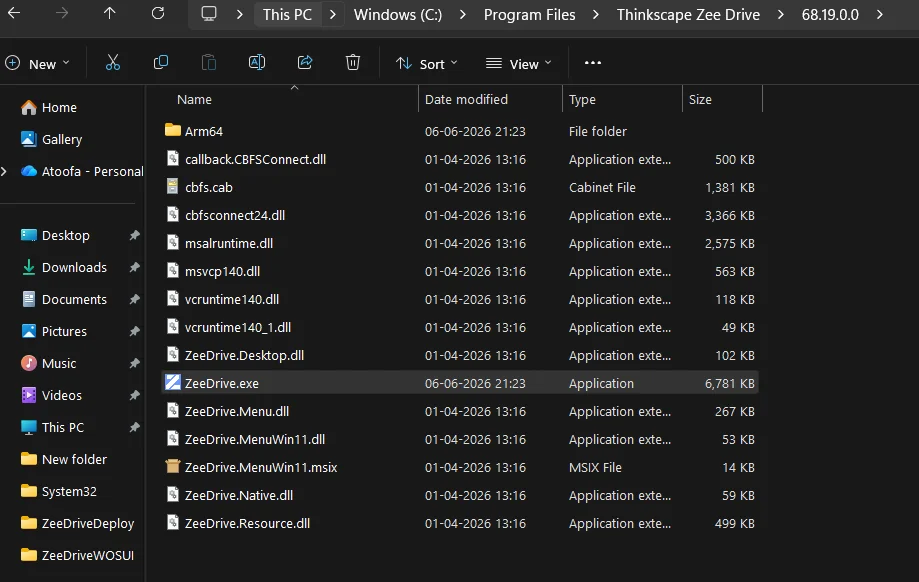
C:\Program Files\Thinkscape\Zee Drive\68.19.0.0\ZeeDrive.exe
C:\Program Files (x86)\Thinkscape\Zee Drive\68.19.0.0\ZeeDrive.exe
The folder name is the version. Detection means scanning both paths for subfolders that contain ZeeDrive.exe and parsing the folder name as a [System.Version] object for accurate comparison.
Two-phase update process. An update is not a single command. The Command=Install step must run as SYSTEM to lay down files, but Command=Update, which refreshes the HKCU\Software\Microsoft\Windows\CurrentVersion\Run key, must run in the user’s session. Mixing these up causes exit code 1 failures and a broken autostart entry.
Script Architecture: Three Scenarios
The script resolves every endpoint into one of three scenarios:
| Scenario | Condition | Action |
|---|---|---|
| A | ZeeDrive not installed | Download → Command=Install → Show “contact IT support” popup |
| B | Installed, already on latest | Log and exit cleanly: no action taken |
| C | Installed, but outdated | Download → Command=Install (SYSTEM) → Command=Update (user context) → Show “sign out” popup |
This three-branch approach means the script is fully idempotent: you can run it as a scheduled task on any cadence without side effects on up-to-date endpoints.
Key Functions Explained
1. Version Detection: Scanning Program Files
Because there is no registry key to query, version detection works by enumerating versioned subfolders across both 32-bit and 64-bit Program Files paths:
function Get-InstalledZeeDriveVersion {
    $found = @()
    foreach ($base in @($InstallBase64, $InstallBase32)) {
        if (-not (Test-Path $base)) { continue }
        foreach ($folder in (Get-ChildItem -Path $base -Directory -ErrorAction SilentlyContinue)) {
            $exe = Join-Path $folder.FullName "ZeeDrive.exe"
            if (Test-Path $exe) {
                Write-Log "Found installation: $($folder.FullName)"
                $found += $folder.Name    # folder name = version e.g. "68.19.0.0"
            }
        }
    }
    if ($found.Count -eq 0) { return $null }
    $highest = $found | Sort-Object {
        try { [System.Version]$_ } catch { [System.Version]"0.0.0.0" }
    } -Descending | Select-Object -First 1
    Write-Log "Detected installed version: $highest"
    return $highest
}
A try/catch wraps the [System.Version] cast so that any unexpected folder names (e.g. leftover temp folders) fall back to 0.0.0.0 instead of terminating the sort. The function always returns the highest version present, which correctly handles environments where ZeeDrive left behind an older version folder after a previous update.
2. Latest Version Scraping – No API Required
ZeeDrive does not expose a version API. Instead, the script fetches the public download page and extracts the version from the blob storage URL pattern embedded in the page HTML:
function Get-LatestZeeDriveVersion {
    Write-Log "Fetching ZeeDrive download page..."
    try {
        $html    = (Invoke-WebRequest -Uri $DownloadPage -UseBasicParsing -TimeoutSec 30).Content
        $rx      = [regex]'Version-(\d+\.\d+)\.0\.0\/ZeeDrive\.exe'
        $matches = $rx.Matches($html)
        if ($matches.Count -eq 0) {
            Write-Log "Could not parse version from download page." "ERROR"
            return $null
        }
        # Page is ordered newest-first; first match = latest
        $short = $matches[0].Groups[1].Value     # e.g. "68.19"
        $full  = "$short.0.0"                     # e.g. "68.19.0.0"
        $url   = "$BlobBase/Version-$full/ZeeDrive.exe"
        Write-Log "Latest available version: $full"
        Write-Log "Download URL: $url"
        return @{ VersionFull = $full; DownloadUrl = $url }
    }
    catch {
        Write-Log "Failed to fetch download page: $_" "ERROR"
        return $null
    }
}
The regex targets the URL pattern Version-68.19.0.0/ZeeDrive.exe which is stable across ZeeDrive’s download page structure. Because the page renders newest versions first, $matches[0] is always the latest. The function returns a hashtable with both the full version string and the direct download URL, providing everything needed for the install step.
Tip: If ZeeDrive ever changes their page structure, this is the one function to update. Keep it isolated so the rest of the script stays stable.
3. Version Comparison: Using [System.Version]
String comparison of version numbers is notoriously unreliable (“9.0” > “68.0” alphabetically). The script uses [System.Version].CompareTo() for accurate numeric comparison:
function Compare-Versions {
    param([string]$Installed, [string]$Latest)
    try {
        return ([System.Version]$Installed).CompareTo([System.Version]$Latest)
    }
    catch {
        Write-Log "Version comparison error (installed='$Installed' latest='$Latest'): $_" "WARN"
        return 0   # Treat as equal if comparison fails, avoids unnecessary reinstall
    }
}
A negative return value means the installed version is older. Zero means equal. Positive means the endpoint is somehow running a newer version than the published one. Scenarios B and C branch on this result.
4. User Popups via RunAsUser: The SYSTEM Context Problem
Running as SYSTEM means you have no access to the interactive desktop session. Any attempt to call [System.Windows.Forms.MessageBox]::Show() or Add-Type -AssemblyName PresentationFramework in SYSTEM context produces no visible output.
The solution is the RunAsUser PowerShell module (Invoke-AsCurrentUser), which creates a child process in the active console user’s session. The script installs this module on-demand if not already present:
function Install-RunAsUserModule {
    try {
        if (-not (Get-Module -ListAvailable -Name RunAsUser)) {
            Write-Log "RunAsUser module not found. Installing..."
            if (-not (Get-PackageProvider -Name NuGet -ErrorAction SilentlyContinue)) {
                Install-PackageProvider -Name NuGet -MinimumVersion 2.8.5.201 -Force
            }
            Set-PSRepository PSGallery -InstallationPolicy Trusted -ErrorAction SilentlyContinue
            Install-Module RunAsUser -Force -AllowClobber -Scope AllUsers
        }
        Import-Module RunAsUser -Force
        Write-Log "RunAsUser module loaded."
        return $true
    }
    catch {
        Write-Log "Failed to install/load RunAsUser module: $_" "ERROR"
        return $false
    }
}
The popup itself is a WPF window built with inline XAML and PresentationFramework. For Scenario C (update), the popup runs Command=Update first to refresh the autostart registry key, then presents a “Sign out now / Sign out later” dialog:
Invoke-AsCurrentUser -ScriptBlock {
    powershell.exe `
        -ExecutionPolicy Bypass `
        -WindowStyle Hidden `
        -File "C:\ProgramData\ZeeDriveDeploy\ZeeDriveUI.ps1"
}
The UI script is written to disk first ($WorkDirZeeDriveUI.ps1) and executed from its absolute path. This is critical: CreateProcessAsUser (used internally by RunAsUser) does not inherit the system PATH variable, so relative paths will silently fail.
If RunAsUser fails entirely, the script falls back to msg.exe for a basic notification.
5. The Two-Step Update Process: Why Path Matters
This is the most common failure point in ZeeDrive update deployments. After Command=Install completes, the new version’s EXE exists under Program Files. Command=Update must be invoked from that newly installed path, not from the downloaded installer in the working directory:
# Locate the newly installed exe from Program Files
$newInstalledExe = $null
foreach ($base in @($InstallBase64, $InstallBase32)) {
    $candidate = Join-Path $base "$newVersionFull\ZeeDrive.exe"
    if (Test-Path $candidate) {
        $newInstalledExe = $candidate
        break
    }
}
if (-not $newInstalledExe) {
    Write-Log "Cannot find newly installed ZeeDrive.exe at expected path." "ERROR"
    exit 1
}
Running Command=Update from ZeeDrive_New.exe in your working directory returns exit code 1 every time. This path verification step catches mismatches before the user-context popup is even attempted.
Exit Codes
The script uses clean exit codes compatible with NinjaOne’s result handling:
| Exit Code | Meaning |
|---|---|
0 | Success: install completed, update completed, or no action needed |
1 | Error: download failed, install failed, or version parsing error |
ZeeDrive’s own installer uses 0 or 10 for success and 11 to indicate a reboot may be required. The script maps all three to a successful outcome.
Deploying via NinjaOne RMM
- Upload the script to your NinjaOne script library. Set the run-as context to System.
- Create a Scheduled Task or Policy targeting your ZeeDrive-managed device group. Weekly is a sensible cadence.
- Set timeout to at least 5 minutes to account for download time on slow connections.
- Review exit codes in the NinjaOne activity log: exit
0on all endpoints means your fleet is current.
The working directory (C:\ProgramData\ZeeDriveDeploy) and log file (ZeeDeploy.log) persist between runs, giving you a local audit trail on each endpoint alongside whatever RMM-level reporting you have.
Testing
Here, I am running the Script to test all three scenario which is New install, Upgrade and already installed higher version.
A- New Install
I don’t have any version of ZeeDrive installed. We ran the Powershell from terminal to test.
C:\Windows\System32>powershell -file "C:\Users\shaik\Downloads\Zee02June.ps1"
2026-06-03 13:39:39 [INFO] ===== ZeeDrive Deploy Script v1.6 Started =====
2026-06-03 13:39:39 [INFO] Active console user: DESKTOP-UG0GU2L\shaik  (Session: 1)
2026-06-03 13:39:39 [INFO] ZeeDrive is NOT installed.
2026-06-03 13:39:39 [INFO] Fetching ZeeDrive download page...
2026-06-03 13:39:41 [INFO] Latest available version: 68.19.0.0
2026-06-03 13:39:41 [INFO] Download URL: https://thinkscapestorage.blob.core.windows.net/zeedrive/Version-68.19.0.0/ZeeDrive.exe
2026-06-03 13:39:41 [INFO] --- SCENARIO A: Fresh Install ---
2026-06-03 13:39:41 [INFO] Downloading https://thinkscapestorage.blob.core.windows.net/zeedrive/Version-68.19.0.0/ZeeDrive.exe ...
2026-06-03 13:39:45 [INFO] Download complete. Size: 6943392 bytes.
2026-06-03 13:39:45 [INFO] Running: C:\ProgramData\ZeeDriveDeploy\ZeeDrive_New.exe Command=Install
2026-06-03 13:39:46 [INFO] Command=Install exit code: 10
2026-06-03 13:39:46 [INFO] Install succeeded (exit code: 10).
2026-06-03 13:39:46 [INFO] Showing 'contact support' popup...
2026-06-03 13:39:47 [INFO] RunAsUser module loaded.
18780
2026-06-03 13:39:59 [INFO] Popup launched using RunAsUser.
2026-06-03 13:39:59 [INFO] --- Scenario A complete ---
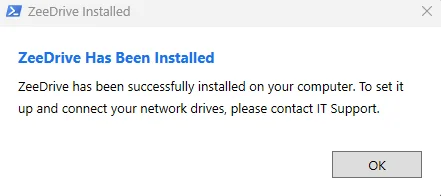
The latest version of ZeeDrive was downloaded and installed. Also, User will be notified with below
B- Upgrade
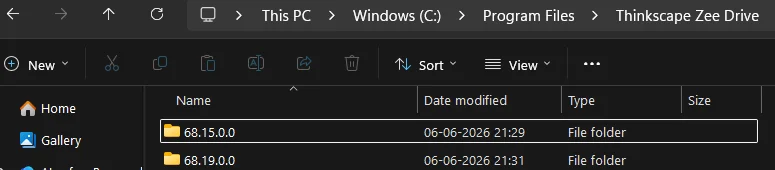
In this scenario, I have already installed ZeeDrive v68.15.00. I will run the powershell script and this should upgrade the application to latest version and also register it.

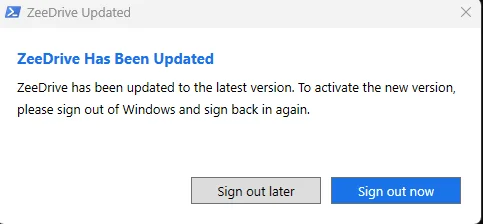
Users will be prompted to Signout no or later. After reboot, the new version of ZeeDrive will be activated.
C:\Windows\System32>powershell -file "C:\Users\shaik\Downloads\Zee02June.ps1"
2026-06-06 21:31:32 [INFO] ===== ZeeDrive Deploy Script v1.6 Started =====
2026-06-06 21:31:32 [INFO] Active console user: DESKTOP-UG0GU2L\shaik  (Session: 1)
2026-06-06 21:31:32 [INFO] Found installation: C:\Program Files\Thinkscape\Zee Drive\68.15.0.0
2026-06-06 21:31:32 [INFO] Detected installed version: 68.15.0.0
2026-06-06 21:31:32 [INFO] ZeeDrive is installed. Clean version: [68.15.0.0]
2026-06-06 21:31:32 [INFO] Fetching ZeeDrive download page...
2026-06-06 21:31:34 [INFO] Latest available version: 68.19.0.0
2026-06-06 21:31:34 [INFO] Download URL: https://thinkscapestorage.blob.core.windows.net/zeedrive/Version-68.19.0.0/ZeeDrive.exe
2026-06-06 21:31:34 [INFO] --- SCENARIO C: Update Required ---
2026-06-06 21:31:34 [INFO] Installed : [68.15.0.0]  ->  Available: [68.19.0.0]
2026-06-06 21:31:34 [INFO] Downloading https://thinkscapestorage.blob.core.windows.net/zeedrive/Version-68.19.0.0/ZeeDrive.exe ...
2026-06-06 21:31:54 [INFO] Download complete. Size: 6943392 bytes.
2026-06-06 21:31:54 [INFO] Running: C:\ProgramData\ZeeDriveDeploy\ZeeDrive_New.exe Command=Install
2026-06-06 21:31:55 [INFO] Command=Install exit code: 10
2026-06-06 21:31:55 [INFO] Install step (1/2) succeeded (exit code: 10).
2026-06-06 21:31:55 [INFO] New installed exe located: C:\Program Files\Thinkscape\Zee Drive\68.19.0.0\ZeeDrive.exe
2026-06-06 21:31:55 [INFO] Launching user-context Update + popup via RunAsUserModule (step 2/2)...
2026-06-06 21:31:55 [INFO] RunAsUser module loaded.
22156
2026-06-06 21:32:33 [INFO] Popup launched using RunAsUser.
2026-06-06 21:32:33 [INFO] --- Scenario C complete ---
2026-06-06 21:32:33 [INFO] ===== ZeeDrive Deploy Script v1.6 Finished =====
Logging
Every significant action is written to C:\ProgramData\ZeeDriveDeploy\ZeeDeploy.log in a consistent format:
2026-06-02 09:14:22 [INFO] ===== ZeeDrive Deploy Script v1.6 Started =====
2026-06-02 09:14:22 [INFO] Active console user: DOMAIN\jsmith  (Session: 1)
2026-06-02 09:14:23 [INFO] Fetching ZeeDrive download page...
2026-06-02 09:14:24 [INFO] Latest available version: 68.19.0.0
2026-06-02 09:14:24 [INFO] Detected installed version: 65.3.0.0
2026-06-02 09:14:24 [INFO] --- SCENARIO C: Update Required ---
2026-06-02 09:14:24 [INFO] Installed : [65.3.0.0]  ->  Available: [68.19.0.0]
The Write-Log function uses Write-Host rather than Write-Output intentionally; this prevents log lines from being captured into variable assignments when functions are called as $var = Get-Something.
Frequently Asked Questions
Q: Does this script work if no user is logged in?
Yes. The script detects the active console user by checking for an explorer.exe process. If no user is logged in, installation still proceeds as SYSTEM only the popup is skipped. The endpoint will be up-to-date the next time a user signs in and ZeeDrive autostart triggers.
Q: What if ZeeDrive is already on the latest version?
Scenario B kicks in: the script logs the fact and exits with code 0. No installer is downloaded and no action is taken. Safe to run on any cadence.
Q: Can I adapt this for a different RMM platform?
Absolutely. The script has no hard NinjaOne dependencies beyond running as SYSTEM. It will work from SCCM Run Scripts, Intune PowerShell scripts (packaged appropriately), or any RMM that supports SYSTEM-context execution.
Q: Why use System.Net.WebClient for the download instead of Invoke-WebRequest?WebClient.DownloadFile() is simpler and more reliable for large binary downloads in SYSTEM context. Invoke-WebRequest can buffer the entire file in memory before writing to disk, which is undesirable for installer-sized payloads.
Q: What happens if the download fails mid-way?
The script checks that the download succeeded before attempting any install. If Download-File returns $false, the script logs the error and exits with code 1 without touching the existing installation.
Next Steps in Production
Automating ZeeDrive deployment is more nuanced than a standard MSI rollout, but it is entirely scriptable with the right approach. The key takeaways are:
- Detect version by scanning versioned subfolders in Program Files, not the registry
- Scrape the download page with a regex to get the latest version and direct download URL
- Use
[System.Version].CompareTo()for safe numeric version comparison - Run
Command=Installas SYSTEM, but always runCommand=Updatein the user’s session via the RunAsUser module - Locate the newly installed EXE from Program Files before calling
Command=Updatebecause the path matters - Use structured logging and clean exit codes for RMM integration
You can drop this script directly into NinjaOne as a scheduled policy and it will keep your entire fleet on the latest ZeeDrive version, automatically, with user-friendly notifications.
Have questions or running into a specific edge case? Drop a comment below or reach out via the techeuc.com contact page.
Looking for more endpoint automation content? Check out our posts on Intune Win32 app deployment.