
Quick Answer: To disable Windows Fast Startup using Intune and PowerShell, configure the DWORD registry value HiberbootEnabled to 0 under HKLM:\SYSTEM\CurrentControlSet\Control\Session Manager\Power. Because the native Microsoft Intune Settings Catalog policy (ADMX_WinInit/Hiberboot) is one-directional and cannot force a disabled state, administrators must deploy a 64-bit PowerShell platform script or Proactive Remediation package in SYSTEM context to enforce the disabled state fleet-wide.
Why Fast Startup Causes Enterprise Operational Failures
Windows Fast Startup, introduced as Hybrid Boot in Windows 8 and enabled by default in Windows 10 and Windows 11, combines standard cold shutdown with hibernation mechanisms. When an end user clicks Start > Power > Shut down, Windows terminates all active user sessions, logs out user accounts, and writes the running Windows kernel state, core system drivers, and hardware abstraction layer (HAL) into C:\hiberfil.sys. Rather than performing a complete hardware reset, the operating system resumes from this saved kernel state upon the next power cycle.
While hybrid shutdown yields faster boot times on mechanical hard drives, the real-world difference on modern solid-state drives depends heavily on hardware configuration, driver initialization times, and peripheral loads. For systems administrators, managing Fast Startup involves balancing startup performance against operational manageability:
- Windows Servicing and Update Staging: As documented by Microsoft Learn for Windows 10, some Windows updates do not complete installation after a Fast Startup shutdown and finalize only after an explicit Restart or full shutdown. When users shut down their devices assuming updates will finalize overnight, Fast Startup restores the hibernated kernel session instead of executing the full cold boot cycle required by certain update binaries.
- Task Manager Uptime Deception: Fast Startup preserves the kernel session. As a result, the system uptime timer displayed in Task Manager does not reset upon shutdown. End users facing application instability frequently report that they shut down their computer every evening, yet help desk technicians observe extended uptimes, obscuring troubleshooting baselines.
- Driver and Hardware State Diagnostic Resets: A full cold boot cycle tears down and completely reinitializes the Windows kernel, system executive services, and hardware device drivers. Under Fast Startup, Windows restores the saved kernel session and loaded drivers rather than performing a complete cold Plug and Play hardware enumeration from scratch. For endpoints encountering intermittent peripheral faults or unstable driver states, enforcing clean cold boot sequences ensures hardware registers reinitialize reliably.
- Wake-on-LAN Operational Support: Wake-on-LAN behavior depends on system power states and network adapter firmware. Microsoft documents that Wake-on-LAN is not supported from Fast Startup (hybrid shutdown) or soft off (S5) power states, as network adapters are not armed to wake the system. Wake-on-LAN remains supported from standard sleep (S3) or standard hibernation (S4) when configured in network adapter driver and firmware settings. Refer to Microsoft’s Wake-on-LAN technical documentation for hardware details.
Important Note on Restart vs Shutdown: Selecting Restart in Windows initiates a complete cold kernel cycle, discarding the hibernation image and clearing system uptime. Only selecting Shut down triggers the hybrid Fast Startup sequence.
Microsoft generally recommends keeping Fast Startup enabled on consumer systems to accelerate initial power-on times. However, enterprise systems engineers regularly disable Fast Startup to maintain predictable servicing schedules, consistent hardware diagnostics, and accurate uptime metrics. For organizations that retain Fast Startup locally but require occasional full cold shutdowns, administrators can instruct users or automation scripts to execute shutdown.exe /s /t 0, which performs a full system shutdown rather than a hybrid shutdown.
Technical Comparison: Cold Boot vs Fast Startup vs Standard Hibernation
Understanding how Windows manages memory, disk persistence, and driver initialization across various power states determines why enterprise endpoint architects enforce Fast Startup disabling across production fleets.
Fast Startup requires the underlying Windows hibernation subsystem to remain active. If hibernation is disabled globally (for instance, by executing powercfg.exe /hibernate off), Fast Startup cannot function regardless of the local HiberbootEnabled registry setting. Disabling Fast Startup via HiberbootEnabled = 0 disables hybrid boot while preserving the standard user hibernation feature and the C:\hiberfil.sys storage allocation.
| Operational Metric | Cold Boot (Full Shutdown) | Fast Startup (Hybrid Boot) | Standard Hibernation |
|---|---|---|---|
| User Session State | Completely terminated and logged off. | Completely terminated and logged off. | Preserved entirely in memory image. |
| Kernel and Driver State | Fully unloaded from RAM; hardware reset. | Saved to hiberfil.sys and restored. | Saved to hiberfil.sys and restored. |
| Task Manager Uptime | Resets to zero days, hours, and minutes. | Preserved; uptime counter continues incrementing. | Preserved; uptime counter continues incrementing. |
| Pending Windows Update Staging | Finalizes all servicing operations cleanly. | May defer certain servicing operations until an explicit Restart. | May defer certain servicing operations until an explicit Restart. |
| Disk Storage Footprint | Requires standard disk space. | Requires persistent hiberfil.sys file. | Requires persistent hiberfil.sys file. |
The Intune Settings Catalog Limitation Explained
Administrators looking to manage Fast Startup frequently inspect Microsoft Intune’s Settings Catalog under Administrative Templates > System > Shutdown. There they discover the policy setting named Require use of fast startup, which maps directly to the MDM Policy CSP URI ./Device/Vendor/MSFT/Policy/Config/ADMX_WinInit/Hiberboot as detailed in the Microsoft Policy CSP documentation.
However, this policy setting contains an architectural constraint: it is one-directional. It is important to distinguish the behavior of this administrative policy from the underlying local registry value HiberbootEnabled:
- Enabled: Forces Fast Startup to be turned on across target devices and mandates that hibernation remains active.
- Disabled or Not Configured: This setting does not turn Fast Startup off. It simply releases central enforcement, allowing the local endpoint to use whatever setting is configured locally in Control Panel.
Because toggling this policy to Disabled leaves the endpoint unmanaged rather than turning Fast Startup off, native Settings Catalog policies cannot enforce a disabled state. Let us examine the native policy configuration in the Intune portal to verify this behavior.
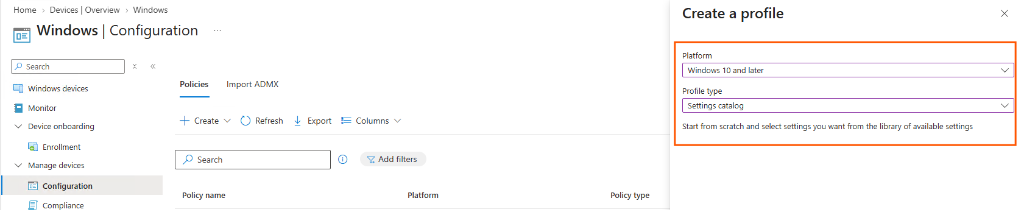
In the Intune admin center, navigate to Devices > Windows > Configuration and select + Create > New policy. Select Windows 10 and later as the platform and Settings catalog as the profile type.
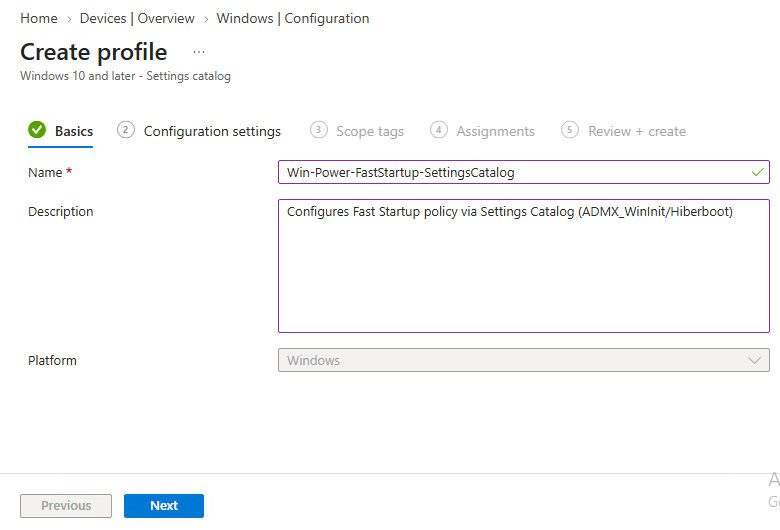
On the Basics tab, provide a descriptive name such as Win-Power-FastStartup-SettingsCatalog and outline the policy scope in the description field.
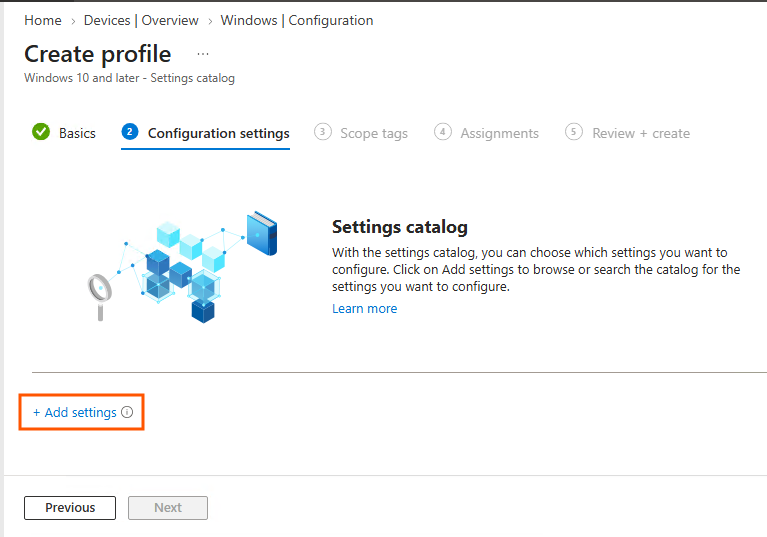
Proceed to the Configuration settings tab and click + Add settings to launch the Settings picker catalog.
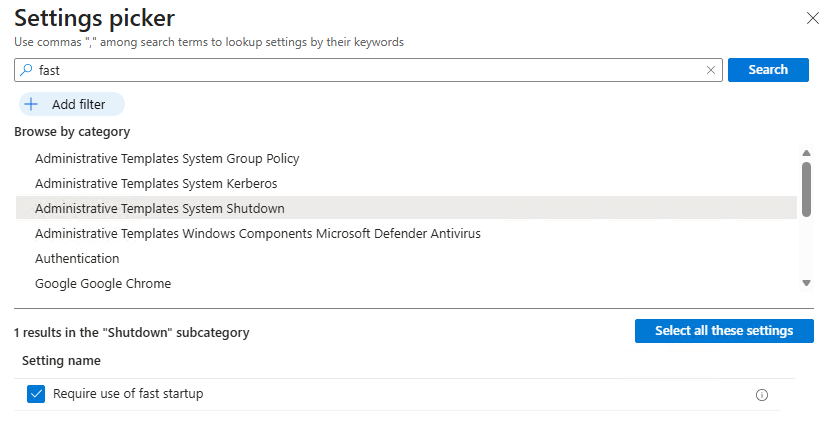
In the Settings picker, search for fast and open the category Administrative Templates > System > Shutdown. Check the box for Require use of fast startup.
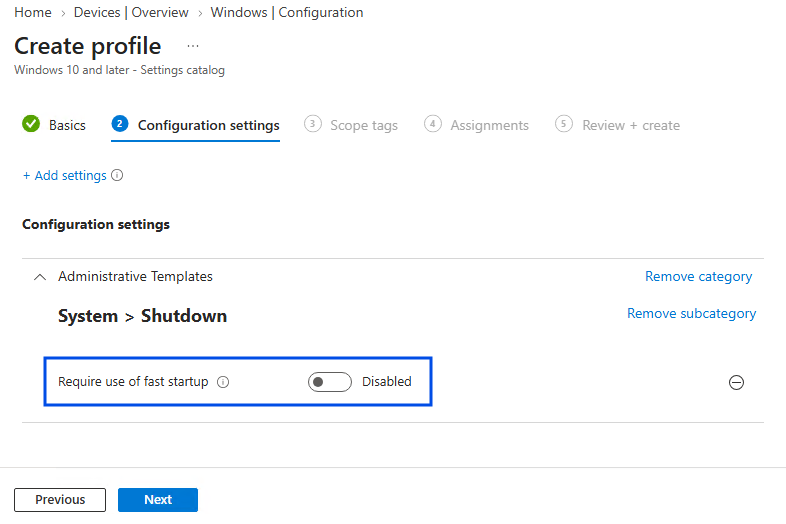
As documented in Microsoft’s policy definition, setting this switch to Disabled does not turn off Fast Startup on endpoints where it is already enabled. The local machine configuration continues to take precedence.
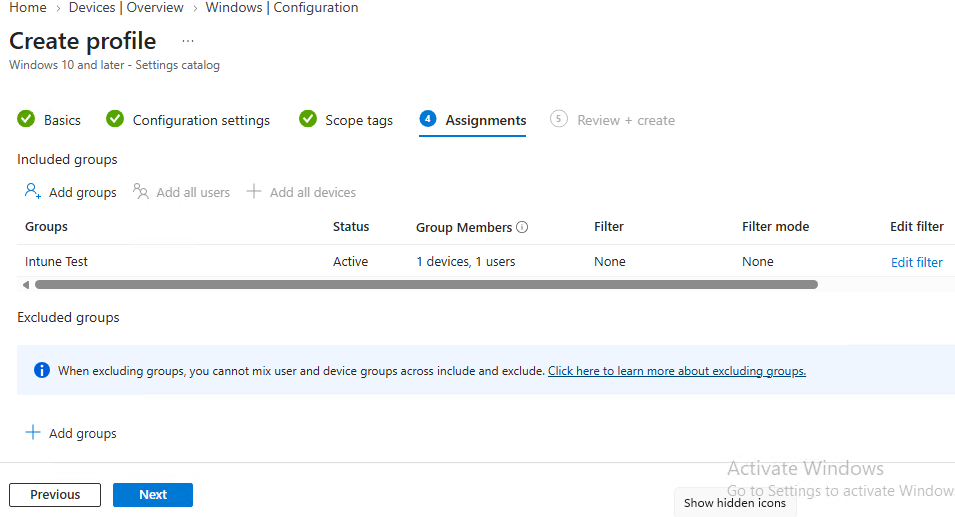
Policy precedence is critical when managing Fast Startup across mixed management authorities. If an Active Directory Group Policy or Microsoft Intune configuration profile sets ‘Require use of fast startup’ to Enabled, Windows writes HiberbootEnabled = 1 to the policy key at HKLM:\SOFTWARE\Policies\Microsoft\Windows\System. Policy-level settings take precedence over local settings. Even if a local script configures HiberbootEnabled = 0 under Session Manager\Power, an active Enabled policy will continue enforcing Fast Startup. Before deploying local disable scripts, confirm that no conflicting GPO or Intune policy is assigned to the target endpoints with the Enabled state.
The Production Solution: Deploying Platform Scripts via Intune
To enforce Fast Startup settings reliably without relying on the one-way Settings Catalog policy, administrators deploy a targeted PowerShell script using Intune Platform Scripts. This directly controls the registry value under the local machine hive.
Platform scripts deployed through Microsoft Intune execute under a specific operational lifecycle. Once assigned, the Intune Management Extension (IME) executes the script once per device assignment and script version. If execution encounters an error or returns a non-zero exit code, the IME retries execution across the next three consecutive check-ins before marking the deployment as failed. Platform scripts do not re-execute on subsequent user logons, device check-ins, or standard reboots unless the script content is modified and re-uploaded in the Intune admin center.
Ensure target endpoints satisfy Intune script deployment prerequisites: devices must be Microsoft Entra joined or Microsoft Entra hybrid joined (Entra registered devices do not support platform scripts), the script execution duration must not exceed the 30-minute timeout limit, and the total script file size must remain under 200 KB.
The registry location and value are:
- Registry Key:
HKLM:\SYSTEM\CurrentControlSet\Control\Session Manager\Power - Value Name:
HiberbootEnabled - Data Type:
REG_DWORD - Value Data:
0(Disabled) or1(Enabled)
Production Script: Disable Windows Fast Startup
Below is the hardened production script Disable_Fast_Startup.ps1. It verifies administrator privileges, creates the target registry path if missing, updates the DWORD value, verifies the written state, and records execution output in $env:ProgramData\TechEUC\FastStartup.
#Requires -RunAsAdministrator

<#

.SYNOPSIS

    Disables Windows Fast Startup (Hybrid Boot) on Windows 10 and Windows 11.

.DESCRIPTION

    Sets the HiberbootEnabled DWORD value to 0 under HKLM:\\SYSTEM\\CurrentControlSet\\Control\\Session Manager\\Power.

    Maintains persistent operational logging in ProgramData\TechEUC\FastStartup.

#>


$LogDirectory = "$env:ProgramData\TechEUC\FastStartup"

$LogFile = "$LogDirectory\FastStartup_Config.log"

$RegistryPath = "HKLM:\SYSTEM\CurrentControlSet\Control\Session Manager\Power"

$ValueName = "HiberbootEnabled"

$TargetValue = 0


if (-not (Test-Path -Path $LogDirectory)) {

    New-Item -Path $LogDirectory -ItemType Directory -Force | Out-Null

}


function Write-Log {

    param([string]$Message)

    $TimeStamp = Get-Date -Format "yyyy-MM-dd HH:mm:ss"

    $LogEntry = "[$TimeStamp] $Message"

    Write-Output $LogEntry

    Add-Content -Path $LogFile -Value $LogEntry -Encoding UTF8

}


Write-Log "Initiating configuration to disable Windows Fast Startup."


try {

    $ErrorActionPreference = 'Stop'

    if (-not (Test-Path -Path $RegistryPath)) {

        Write-Log "Registry path not found. Creating $RegistryPath."

        New-Item -Path $RegistryPath -Force | Out-Null

    }


    $CurrentValue = (Get-ItemProperty -Path $RegistryPath -Name $ValueName -ErrorAction SilentlyContinue).$ValueName


    if ($CurrentValue -eq $TargetValue) {

        Write-Log "Windows Fast Startup is already disabled ($ValueName = 0). No change required."

        exit 0

    }


    Set-ItemProperty -Path $RegistryPath -Name $ValueName -Value $TargetValue -Type DWord -Force -Confirm:$false

    $VerifiedValue = (Get-ItemProperty -Path $RegistryPath -Name $ValueName).$ValueName


    if ($VerifiedValue -eq $TargetValue) {

        Write-Log "Successfully set $ValueName to $TargetValue. Fast Startup is now disabled."

        exit 0

    } else {

        Write-Log "Verification failed. Registry value does not match target $TargetValue."

        exit 1

    }

}

catch {

    Write-Log "Error configuring Fast Startup: $($_.Exception.Message)"

    exit 1

}
Production Script: Enable Windows Fast Startup
If your organization operates specialized endpoints where faster cold boot times are prioritized over continuous uptime tracking, use Enable_Fast_Startup.ps1 to set HiberbootEnabled to 1.
#Requires -RunAsAdministrator

<#

.SYNOPSIS

    Enables Windows Fast Startup (Hybrid Boot) on Windows 10 and Windows 11.

.DESCRIPTION

    Sets the HiberbootEnabled DWORD value to 1 under HKLM:\\SYSTEM\\CurrentControlSet\\Control\\Session Manager\\Power.

#>


$LogDirectory = "$env:ProgramData\TechEUC\FastStartup"

$LogFile = "$LogDirectory\FastStartup_Config.log"

$RegistryPath = "HKLM:\SYSTEM\CurrentControlSet\Control\Session Manager\Power"

$ValueName = "HiberbootEnabled"

$TargetValue = 1


if (-not (Test-Path -Path $LogDirectory)) {

    New-Item -Path $LogDirectory -ItemType Directory -Force | Out-Null

}


function Write-Log {

    param([string]$Message)

    $TimeStamp = Get-Date -Format "yyyy-MM-dd HH:mm:ss"

    $LogEntry = "[$TimeStamp] $Message"

    Write-Output $LogEntry

    Add-Content -Path $LogFile -Value $LogEntry -Encoding UTF8

}


Write-Log "Initiating configuration to enable Windows Fast Startup."


try {

    $ErrorActionPreference = 'Stop'

    # Ensure the underlying hibernation subsystem is enabled
    & powercfg.exe /hibernate on

    if (-not (Test-Path -Path $RegistryPath)) {

        New-Item -Path $RegistryPath -Force | Out-Null

    }


    Set-ItemProperty -Path $RegistryPath -Name $ValueName -Value $TargetValue -Type DWord -Force -Confirm:$false

    $VerifiedValue = (Get-ItemProperty -Path $RegistryPath -Name $ValueName).$ValueName


    if ($VerifiedValue -eq $TargetValue) {

        Write-Log "Successfully set $ValueName to $TargetValue. Fast Startup is enabled."

        exit 0

    } else {

        Write-Log "Verification failed. Registry value does not match $TargetValue."

        exit 1

    }

}

catch {

    Write-Log "Error configuring Fast Startup: $($_.Exception.Message)"

    exit 1

}
Step-by-Step Intune Platform Script Deployment
Deploy the script to managed endpoints through the Intune admin center using these configuration steps:
- Sign in to the Microsoft Intune admin center.
- Navigate to Devices > Manage devices > Scripts and remediations (or Devices > Scripts and remediations) (or Platform scripts).
- Click + Add and select Windows 10 and later.
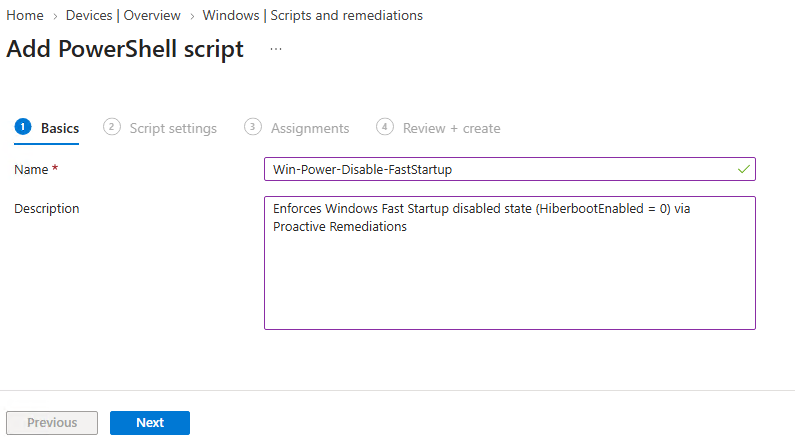
On the Basics tab, enter Win-Power-Disable-FastStartup in the Name field and provide operational documentation in the Description field.
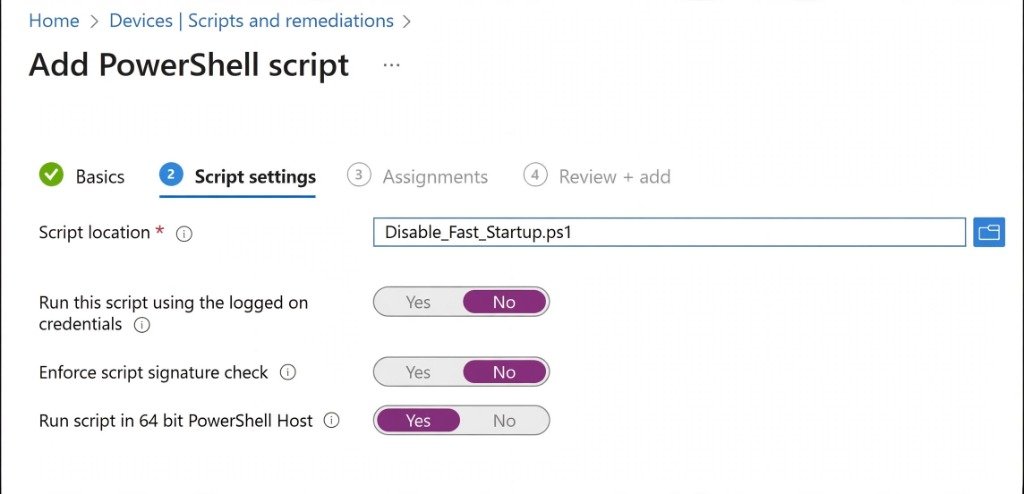
On the Script settings tab, configure the execution switches as follows:
- Script location: Browse and upload
Disable_Fast_Startup.ps1. - Run this script using the logged on credentials: Set to No. Selecting No runs the script in the local SYSTEM account context, which possesses administrative rights to modify
HKEY_LOCAL_MACHINE. - Enforce script signature check: Set to No unless your tenant mandates code-signed scripts with an enterprise internal certificate authority.
- Run script in 64 bit PowerShell Host: Set to Yes. This ensures the script executes within the native 64-bit PowerShell subsystem rather than being redirected to
SysWOW64registry hives (tracked in the Intune Management Extension agent log files).
On the Assignments tab, assign the script to your target Entra ID device security groups. Review the settings and click Add to complete deployment.
The Enterprise Alternative: Intune Proactive Remediations
While Platform Scripts run once per assignment and script version, local administrative interventions or major operating system upgrades can alter local endpoint settings over time. For organizations with qualifying licensing (including Windows Enterprise E3/E5, Windows Education A3/A5, Microsoft 365 E3/E5/F3/A3/A5, or Windows VDA per user), Intune Remediations (formerly Proactive Remediations) provides recurring compliance evaluation and automated self-healing (similar to our Defender antivirus platform remediation runbook).
Intune Remediations utilizes a two-script architecture:
- Detection Script: Evaluates whether
HiberbootEnabledequals0. If compliant, it exits with code0. If non-compliant or missing, it exits with code1. - Remediation Script: Executes only when the detection script returns exit code
1, restoring the registry value to0.
Proactive Remediation Detection Script
<#

.SYNOPSIS

    Intune Proactive Remediation Detection Script for Windows Fast Startup.

.DESCRIPTION

    Evaluates HiberbootEnabled DWORD.

    Returns Exit 0 if Fast Startup is disabled (Compliant).

    Returns Exit 1 if Fast Startup is enabled or unconfigured (Triggers Remediation).

#>


$RegistryPath = "HKLM:\SYSTEM\CurrentControlSet\Control\Session Manager\Power"

$ValueName = "HiberbootEnabled"


try {

    if (-not (Test-Path -Path $RegistryPath)) {

        Write-Output "Power registry key missing. Remediation needed."

        exit 1

    }


    $CurrentValue = (Get-ItemProperty -Path $RegistryPath -Name $ValueName -ErrorAction SilentlyContinue).$ValueName


    if ($null -eq $CurrentValue) {

        Write-Output "HiberbootEnabled DWORD does not exist. Remediation needed."

        exit 1

    }


    if ($CurrentValue -eq 0) {

        Write-Output "Fast Startup is disabled. Device is compliant."

        exit 0

    } else {

        Write-Output "Fast Startup is enabled (Value: $CurrentValue). Remediation needed."

        exit 1

    }

}

catch {

    Write-Output "Detection failed: $($_.Exception.Message)"

    exit 1

}
Proactive Remediation Script
#Requires -RunAsAdministrator

<#

.SYNOPSIS

    Intune Proactive Remediation Script for Windows Fast Startup.

.DESCRIPTION

    Enforces HiberbootEnabled = 0 under Session Manager\Power.

    Logs actions to ProgramData\TechEUC\FastStartup\Remediation.log.

#>


$LogDirectory = "$env:ProgramData\TechEUC\FastStartup"

$LogFile = "$LogDirectory\Remediation.log"

$RegistryPath = "HKLM:\SYSTEM\CurrentControlSet\Control\Session Manager\Power"

$ValueName = "HiberbootEnabled"

$TargetValue = 0


if (-not (Test-Path -Path $LogDirectory)) {

    New-Item -Path $LogDirectory -ItemType Directory -Force | Out-Null

}


function Write-Log {

    param([string]$Message)

    $TimeStamp = Get-Date -Format "yyyy-MM-dd HH:mm:ss"

    $LogEntry = "[$TimeStamp] $Message"

    Write-Output $LogEntry

    Add-Content -Path $LogFile -Value $LogEntry -Encoding UTF8

}


try {

    $ErrorActionPreference = 'Stop'

    if (-not (Test-Path -Path $RegistryPath)) {

        New-Item -Path $RegistryPath -Force | Out-Null

    }


    Set-ItemProperty -Path $RegistryPath -Name $ValueName -Value $TargetValue -Type DWord -Force -Confirm:$false

    $VerifiedValue = (Get-ItemProperty -Path $RegistryPath -Name $ValueName).$ValueName


    if ($VerifiedValue -eq $TargetValue) {

        Write-Log "Fast Startup successfully disabled. Device compliant."

        exit 0

    } else {

        Write-Log "Remediation failed to enforce HiberbootEnabled = 0."

        exit 1

    }

}

catch {

    Write-Log "Remediation encountered an error: $($_.Exception.Message)"

    exit 1

}
Step-by-Step Intune Remediation Package Deployment
Follow this procedure to configure and deploy the detection and remediation script pair in the Microsoft Intune admin center without third-party tooling:
- Open Scripts and Remediations: In the Microsoft Intune admin center, navigate to Devices > Manage devices > Scripts and remediations and select the Remediations tab.
- Create Script Package: Click Create script package. On the Basics tab, set Name to
Remediate-WindowsFastStartup-Disabledand enter a descriptive operational summary. - Upload Detection and Remediation Scripts: On the Settings tab, configure the following properties:
- Detection script file: Browse and upload
Detect_Fast_Startup.ps1. - Remediation script file: Browse and upload
Remediate_Fast_Startup.ps1. - Run this script using the logged-on credentials: Select No. This forces execution within the Local System (NT AUTHORITY\SYSTEM) security context, providing full administrative write rights to HKLM.
- Enforce script signature check: Select No (unless your organization requires code-signed PowerShell scripts).
- Run script in 64-bit PowerShell: Select Yes. While the
HKLM:\SYSTEMregistry hive is a shared key across 32-bit and 64-bit views on 64-bit Windows, selecting 64-bit PowerShell maintains execution consistency with modern endpoint workloads.
- Detection script file: Browse and upload
- Assign Target Groups: On the Assignments tab, assign the remediation package to targeted Microsoft Entra device groups.
- Configure Recurrence Schedule: Define the schedule frequency (such as Daily or Hourly intervals, e.g. every 8 hours) to detect configuration drift and automatically restore compliance.
Remediation Exit Codes and Operational Matrix
| Script Stage | Exit Code | Intune Portal Status | Administrative Action |
|---|---|---|---|
| Detection | 0 | Without issues | Fast Startup is confirmed disabled. No remediation executed. |
| Detection | 1 | Issue detected | Intune triggers the Remediation script immediately. |
| Remediation | 0 | Issue fixed | Remediation successfully updated HiberbootEnabled to 0. |
| Remediation | 1 | Remediation failed | Permissions error or registry write failure. Investigate client logs. |
| Recurring Run | 1 | Issue recurred | Device was remediated previously but subsequent scheduled detection found Fast Startup re-enabled. |
Alternative Enterprise Deployment Methods
While PowerShell platform scripts and Intune Remediations are the primary mechanisms for managing Fast Startup, administrators in complex environments often evaluate other deployment architectures:
Custom OMA-URI Configuration Profile
Administrators can configure the underlying ADMX policy using a custom OMA-URI device configuration profile in Microsoft Intune:
- OMA-URI:
./Device/Vendor/MSFT/Policy/Config/ADMX_WinInit/Hiberboot - Data Type: String
- Value:
<enabled/>
Like the Settings Catalog setting, this OMA-URI policy is one-directional. Supplying <disabled/> returns the endpoint to local control rather than forcing Fast Startup off.
Power Policy CSP Limitations
Microsoft’s Policy CSP contains a dedicated Power node (./Device/Vendor/MSFT/Policy/Config/Power) exposing 24 policy settings for standby timeouts, battery thresholds, and lid-close behaviors. However, the Power CSP contains no setting for Fast Startup or HiberbootEnabled. As documented by Microsoft support, MDM provides no native CSP setting to write arbitrary registry keys outside of defined policy nodes, which necessitates PowerShell deployment.
Win32 Application Packaging
In environments that do not possess qualifying licenses for Intune Remediations, organizations can package Disable_Fast_Startup.ps1 into an .intunewin file using the Microsoft Win32 Content Prep Tool. Configure the application with a registry detection rule targeting HKLM:\SYSTEM\CurrentControlSet\Control\Session Manager\Power where HiberbootEnabled equals DWORD 0. Because required Win32 applications re-evaluate detection rules roughly every 24 hours, this pattern acts as a scheduled compliance enforcer.
Windows Autopilot Provisioning Considerations
During the Windows Autopilot Enrollment Status Page (ESP) phase, Platform Scripts execute during device setup before end-user desktop sign-in. Because Fast Startup is enabled by default in OEM factory images and clean Windows installations, deploying the disable script during Autopilot ensures managed devices begin their operational lifecycle with clean cold boot behavior. For an end-to-end Autopilot deployment guide, review our Windows Autopilot lab and production configuration playbook.
Operational Rollback Procedure
To re-enable Fast Startup across a device fleet, remove the assignment from the disable script or Remediation package. Then deploy Enable_Fast_Startup.ps1, which sets HiberbootEnabled = 1 and executes powercfg.exe /hibernate on to restore the hibernation subsystem.
Client-Side Verification Runbook
Once the policy or script has deployed and the endpoint executes an Intune sync cycle, verify the configuration locally using the registry, the Control Panel GUI, or PowerShell.
Method 1: Windows Registry Editor Inspection
Press Win + R, type regedit, and press Enter. Navigate to:
REGISTRY PATH
HKEY_LOCAL_MACHINE\SYSTEM\CurrentControlSet\Control\Session Manager\Power 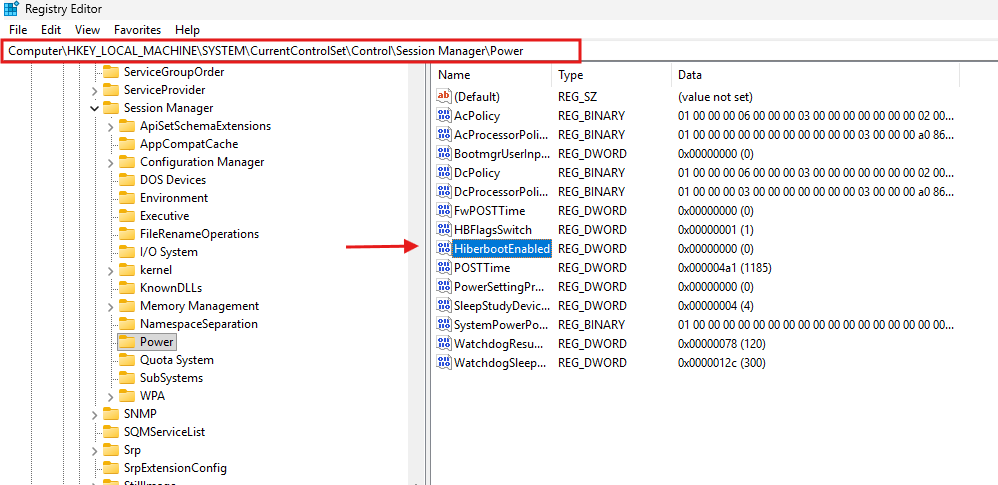
Confirm that the HiberbootEnabled DWORD is present with a hexadecimal value of 0x00000000 (0). This confirms that hybrid boot has been disabled at the kernel initialization level.
Method 2: Windows Control Panel Power Options
Open Control Panel, select Hardware and Sound > Power Options, and click Choose what the power buttons do in the left pane.
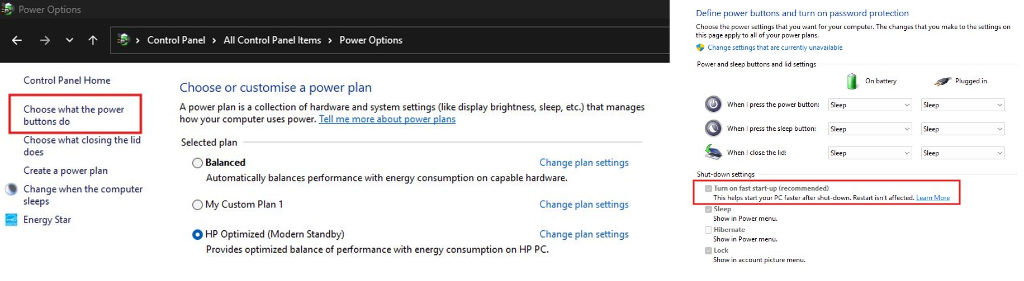
Under the Shut-down settings section at the bottom of the window, verify that the checkbox for Turn on fast start-up (recommended) is unchecked. When controlled via centralized scripts, this setting prevents the operating system from generating kernel hibernation files during standard shutdowns.
Method 3: Quick PowerShell Query
To inspect the configuration across remote machines or during automated scripting checks, run the following PowerShell query in an elevated console:
POWERSHELL • Verify-FastStartupStatus.ps1
Get-ItemPropertyValue -Path "HKLM:\SYSTEM\CurrentControlSet\Control\Session Manager\Power" -Name "HiberbootEnabled"An output of 0 indicates Fast Startup is disabled. An output of 1 indicates Fast Startup is enabled.
Need help optimizing endpoint power policies, update rings, or building custom Intune remediation scripts for your organization?
👉 Contact TechEUC Consulting | Hire on Fiverr Pro
Frequently Asked Questions
Does disabling Fast Startup increase boot times on modern SSDs?
Startup performance varies depending on storage type, UEFI firmware POST duration, and installed security software. While older spinning hard drives showed substantial gains from Fast Startup, high-speed NVMe storage systems boot cold very rapidly. For most enterprise environments, the minor difference in startup time is outweighed by the operational predictability of clean kernel and driver reinitialization.
Does disabling Fast Startup remove or delete the hiberfil.sys file?
No. Setting HiberbootEnabled to 0 disables hybrid boot but leaves the underlying hibernation subsystem operational. Standard user-initiated hibernation remains available. If your objective is to completely delete C:\hiberfil.sys and reclaim disk space, you must execute powercfg /h off from an elevated console.
Why does Task Manager report high uptime even after shutting down?
When Fast Startup is active, Windows does not shut down the kernel session. It closes user applications and saves the kernel session to disk. Upon powering back on, the kernel resumes where it left off, and its internal tick counter continues running. Only a full Restart resets this counter to zero.
Can you disable Fast Startup using the Intune Settings Catalog or Administrative Templates?
No. The Intune Settings Catalog policy ‘Require use of fast startup’ (ADMX_WinInit/Hiberboot) is one-directional. When set to Disabled or Not Configured, Microsoft Policy CSP documentation specifies that ‘the local setting is used’. It cannot force Fast Startup off. Disabling Fast Startup requires modifying the local registry value HiberbootEnabled to 0 via PowerShell or Intune Remediations.
Why does the Intune profile show succeeded even though Fast Startup remains enabled?
When an Intune profile sets ‘Require use of fast startup’ to Disabled, the MDM agent reports success because the policy payload was delivered without error. However, the policy merely instructs Windows to defer to the local system setting. Because the local setting defaults to enabled in Windows 10 and Windows 11, Fast Startup remains active.
Can end users re-enable Fast Startup if they have local administrator privileges?
If users possess local administrative rights, they can open Control Panel, click “Change settings that are currently unavailable”, and re-check the Fast Startup option. This scenario demonstrates why Intune Proactive Remediations is the superior enterprise management strategy: the recurring detection script automatically detects the configuration drift and reverts the setting to 0.