
HiberbootEnabled to 0 under HKLM:\SYSTEM\CurrentControlSet\Control\Session Manager\Power. Because the native Microsoft Intune Settings Catalog policy (ADMX_WinInit/Hiberboot) is one-directional and cannot force a disabled state, administrators must deploy a 64-bit PowerShell platform script or Proactive Remediation package in SYSTEM context to enforce the disabled state fleet-wide.Why Fast Startup Causes Enterprise Operational Failures
Windows Fast Startup, introduced as Hybrid Boot in Windows 8 and enabled by default in Windows 10 and Windows 11, combines standard cold shutdown with hibernation mechanisms. When an end user clicks Start > Power > Shut down, Windows terminates all active user sessions, logs out user accounts, and writes the running Windows kernel state, core system drivers, and hardware abstraction layer (HAL) into C:\hiberfil.sys. Rather than performing a complete hardware reset, the operating system resumes from this saved kernel state upon the next power cycle.
While hybrid shutdown yields faster boot times on mechanical hard drives, the real-world difference on modern solid-state drives depends heavily on hardware configuration, driver initialization times, and peripheral loads. For systems administrators, managing Fast Startup involves balancing startup performance against operational manageability:
- Windows Servicing and Update Staging: As documented by Microsoft Learn, certain Windows servicing operations and update cleanup routines require a complete system restart to finalize binary replacements. A shutdown under Fast Startup resumes the existing kernel session, delaying post-update finalizing operations until an explicit reboot occurs.
- Task Manager Uptime Deception: Fast Startup preserves the kernel session. As a result, the system uptime timer displayed in Task Manager does not reset upon shutdown. End users facing application instability frequently report that they shut down their computer every evening, yet help desk technicians observe extended uptimes, obscuring troubleshooting baselines.
- Driver and Hardware State Diagnostic Resets: A full boot cycle tears down and completely reinitializes the Windows kernel, system executive services, and hardware drivers. For endpoints encountering intermittent peripheral faults or unstable driver states, enforcing clean cold boots ensures hardware registers reinitialize from scratch.
- Wake-on-LAN Hardware Compatibility: Wake-on-LAN behavior depends on network adapter firmware and system power state support. As outlined in Microsoft’s Wake-on-LAN technical documentation, hybrid shutdown places network adapters into an S4 hibernation power state that may not listen for standard magic packets unless specific adapter firmware features are configured.
Technical Comparison: Cold Boot vs Fast Startup vs Standard Hibernation
Understanding how Windows manages memory, disk persistence, and driver initialization across various power states determines why enterprise endpoint architects enforce Fast Startup disabling across production fleets.
| Operational Metric | Cold Boot (Full Shutdown) | Fast Startup (Hybrid Boot) | Standard Hibernation |
|---|---|---|---|
| User Session State | Completely terminated and logged off. | Completely terminated and logged off. | Preserved entirely in memory image. |
| Kernel and Driver State | Fully unloaded from RAM; hardware reset. | Saved to hiberfil.sys and restored. | Saved to hiberfil.sys and restored. |
| Task Manager Uptime | Resets to zero days, hours, and minutes. | Preserved; uptime counter continues incrementing. | Preserved; uptime counter continues incrementing. |
| Pending Windows Update Staging | Finalizes all servicing operations cleanly. | May defer certain servicing operations until an explicit Restart. | May defer certain servicing operations until an explicit Restart. |
| Disk Storage Footprint | Requires standard disk space. | Requires persistent hiberfil.sys file. | Requires persistent hiberfil.sys file. |
The Intune Settings Catalog Limitation Explained
Administrators looking to manage Fast Startup frequently inspect Microsoft Intune’s Settings Catalog under Administrative Templates > System > Shutdown. There they discover the policy setting named Require use of fast startup, which maps directly to the MDM Policy CSP URI ./Device/Vendor/MSFT/Policy/Config/ADMX_WinInit/Hiberboot as detailed in the Microsoft Policy CSP documentation.
However, this policy setting contains an architectural constraint: it is one-directional. It is important to distinguish the behavior of this administrative policy from the underlying local registry value HiberbootEnabled:
- Enabled: Forces Fast Startup to be turned on across target devices and mandates that hibernation remains active.
- Disabled or Not Configured: This setting does not turn Fast Startup off. It simply releases central enforcement, allowing the local endpoint to use whatever setting is configured locally in Control Panel.
Because toggling this policy to Disabled leaves the endpoint unmanaged rather than turning Fast Startup off, native Settings Catalog policies cannot enforce a disabled state. Let us examine the native policy configuration in the Intune portal to verify this behavior.
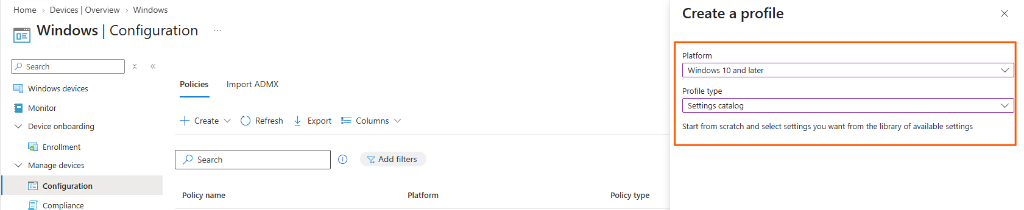
In the Intune admin center, navigate to Devices > Windows > Configuration and select + Create > New policy. Select Windows 10 and later as the platform and Settings catalog as the profile type.
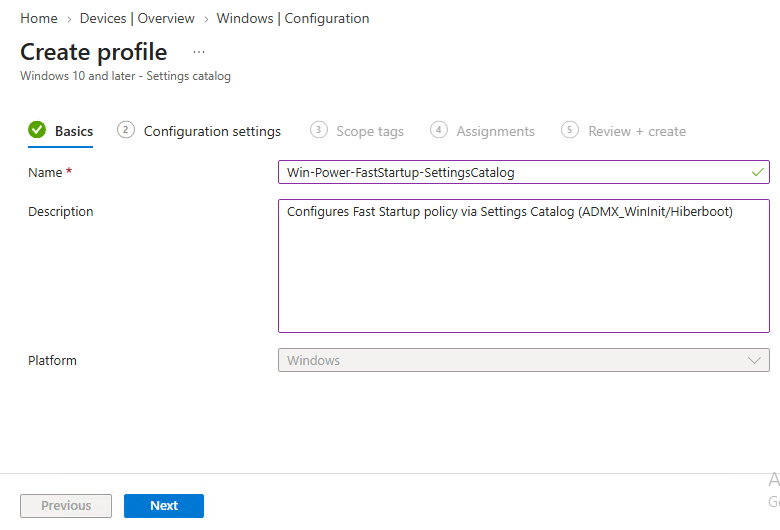
On the Basics tab, provide a descriptive name such as Win-Power-FastStartup-SettingsCatalog and outline the policy scope in the description field.
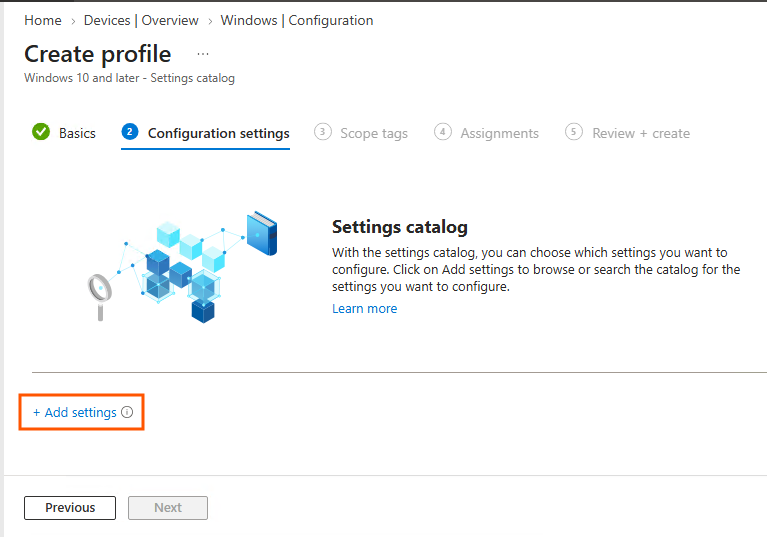
Proceed to the Configuration settings tab and click + Add settings to launch the Settings picker catalog.
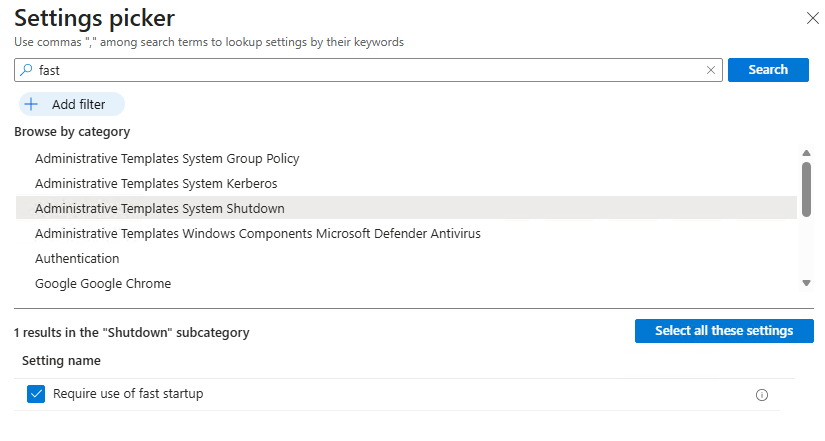
In the Settings picker, search for fast and open the category Administrative Templates > System > Shutdown. Check the box for Require use of fast startup.
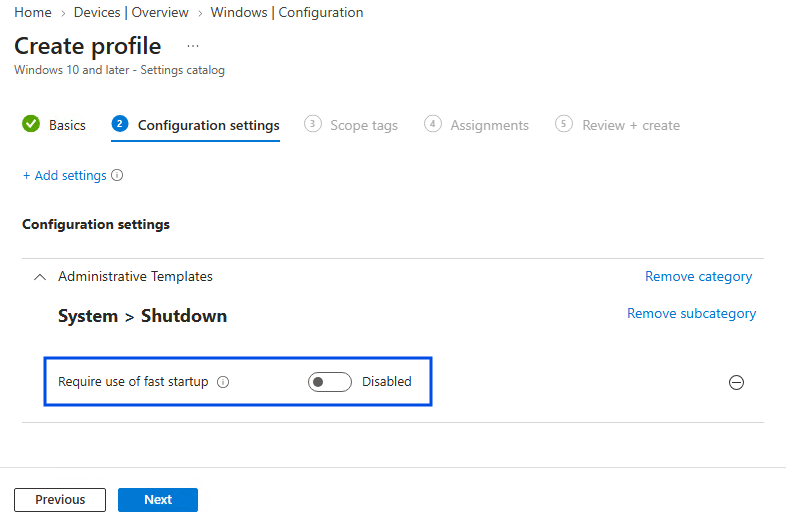
As documented in Microsoft’s policy definition, setting this switch to Disabled does not turn off Fast Startup on endpoints where it is already enabled. The local machine configuration continues to take precedence.
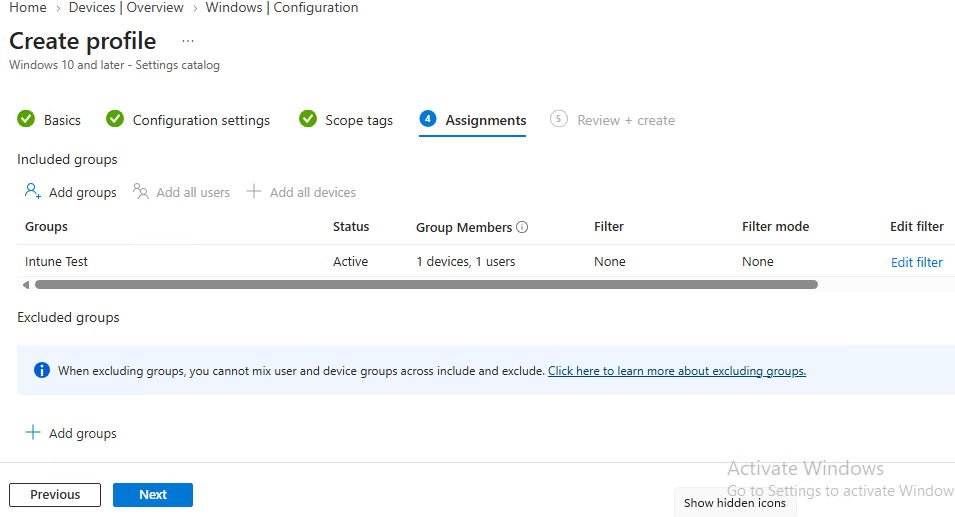
The Production Solution: Deploying Platform Scripts via Intune
To enforce Fast Startup settings reliably without relying on the one-way Settings Catalog policy, administrators deploy a targeted PowerShell script using Intune Platform Scripts. This directly controls the registry value under the local machine hive.
The registry location and value are:
- Registry Key:
HKLM:\SYSTEM\CurrentControlSet\Control\Session Manager\Power - Value Name:
HiberbootEnabled - Data Type:
REG_DWORD - Value Data:
0(Disabled) or1(Enabled)
Production Script: Disable Windows Fast Startup
Below is the hardened production script Disable_Fast_Startup.ps1. It verifies administrator privileges, creates the target registry path if missing, updates the DWORD value, verifies the written state, and records execution output in $env:ProgramData\TechEUC\FastStartup.
#Requires -RunAsAdministrator
<#
.SYNOPSIS
    Disables Windows Fast Startup (Hybrid Boot) on Windows 10 and Windows 11.
.DESCRIPTION
    Sets the HiberbootEnabled DWORD value to 0 under HKLM:\\SYSTEM\\CurrentControlSet\\Control\\Session Manager\\Power.
    Maintains persistent operational logging in ProgramData\TechEUC\FastStartup.
#>

$LogDirectory = "$env:ProgramData\TechEUC\FastStartup"
$LogFile = "$LogDirectory\FastStartup_Config.log"
$RegistryPath = "HKLM:\SYSTEM\CurrentControlSet\Control\Session Manager\Power"
$ValueName = "HiberbootEnabled"
$TargetValue = 0

if (-not (Test-Path -Path $LogDirectory)) {
    New-Item -Path $LogDirectory -ItemType Directory -Force | Out-Null
}

function Write-Log {
    param([string]$Message)
    $TimeStamp = Get-Date -Format "yyyy-MM-dd HH:mm:ss"
    $LogEntry = "[$TimeStamp] $Message"
    Write-Output $LogEntry
    Add-Content -Path $LogFile -Value $LogEntry -Encoding UTF8
}

Write-Log "Initiating configuration to disable Windows Fast Startup."

try {
    if (-not (Test-Path -Path $RegistryPath)) {
        Write-Log "Registry path not found. Creating $RegistryPath."
        New-Item -Path $RegistryPath -Force | Out-Null
    }

    $CurrentValue = (Get-ItemProperty -Path $RegistryPath -Name $ValueName -ErrorAction SilentlyContinue).$ValueName

    if ($CurrentValue -eq $TargetValue) {
        Write-Log "Windows Fast Startup is already disabled ($ValueName = 0). No change required."
        exit 0
    }

    Set-ItemProperty -Path $RegistryPath -Name $ValueName -Value $TargetValue -Type DWord -Force -Confirm:$false
    $VerifiedValue = (Get-ItemProperty -Path $RegistryPath -Name $ValueName).$ValueName

    if ($VerifiedValue -eq $TargetValue) {
        Write-Log "Successfully set $ValueName to $TargetValue. Fast Startup is now disabled."
        exit 0
    } else {
        Write-Log "Verification failed. Registry value does not match target $TargetValue."
        exit 1
    }
}
catch {
    Write-Log "Error configuring Fast Startup: $($_.Exception.Message)"
    exit 1
}
Production Script: Enable Windows Fast Startup
If your organization operates specialized endpoints where faster cold boot times are prioritized over continuous uptime tracking, use Enable_Fast_Startup.ps1 to set HiberbootEnabled to 1.
#Requires -RunAsAdministrator
<#
.SYNOPSIS
    Enables Windows Fast Startup (Hybrid Boot) on Windows 10 and Windows 11.
.DESCRIPTION
    Sets the HiberbootEnabled DWORD value to 1 under HKLM:\\SYSTEM\\CurrentControlSet\\Control\\Session Manager\\Power.
#>

$LogDirectory = "$env:ProgramData\TechEUC\FastStartup"
$LogFile = "$LogDirectory\FastStartup_Config.log"
$RegistryPath = "HKLM:\SYSTEM\CurrentControlSet\Control\Session Manager\Power"
$ValueName = "HiberbootEnabled"
$TargetValue = 1

if (-not (Test-Path -Path $LogDirectory)) {
    New-Item -Path $LogDirectory -ItemType Directory -Force | Out-Null
}

function Write-Log {
    param([string]$Message)
    $TimeStamp = Get-Date -Format "yyyy-MM-dd HH:mm:ss"
    $LogEntry = "[$TimeStamp] $Message"
    Write-Output $LogEntry
    Add-Content -Path $LogFile -Value $LogEntry -Encoding UTF8
}

Write-Log "Initiating configuration to enable Windows Fast Startup."

try {
    if (-not (Test-Path -Path $RegistryPath)) {
        New-Item -Path $RegistryPath -Force | Out-Null
    }

    Set-ItemProperty -Path $RegistryPath -Name $ValueName -Value $TargetValue -Type DWord -Force -Confirm:$false
    $VerifiedValue = (Get-ItemProperty -Path $RegistryPath -Name $ValueName).$ValueName

    if ($VerifiedValue -eq $TargetValue) {
        Write-Log "Successfully set $ValueName to $TargetValue. Fast Startup is enabled."
        exit 0
    } else {
        Write-Log "Verification failed. Registry value does not match $TargetValue."
        exit 1
    }
}
catch {
    Write-Log "Error configuring Fast Startup: $($_.Exception.Message)"
    exit 1
}
Step-by-Step Intune Platform Script Deployment
Deploy the script to managed endpoints through the Intune admin center using these configuration steps:
- Sign in to the Microsoft Intune admin center.
- Navigate to Devices > Windows > Scripts and remediations (or Platform scripts).
- Click + Add and select Windows 10 and later.
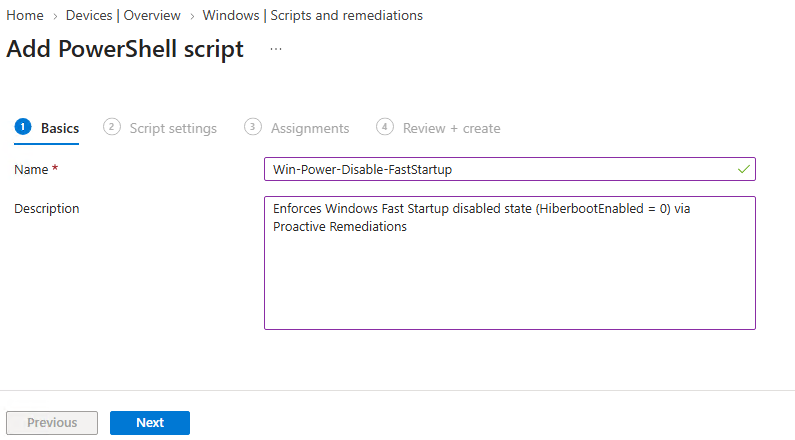
On the Basics tab, enter Win-Power-Disable-FastStartup in the Name field and provide operational documentation in the Description field.
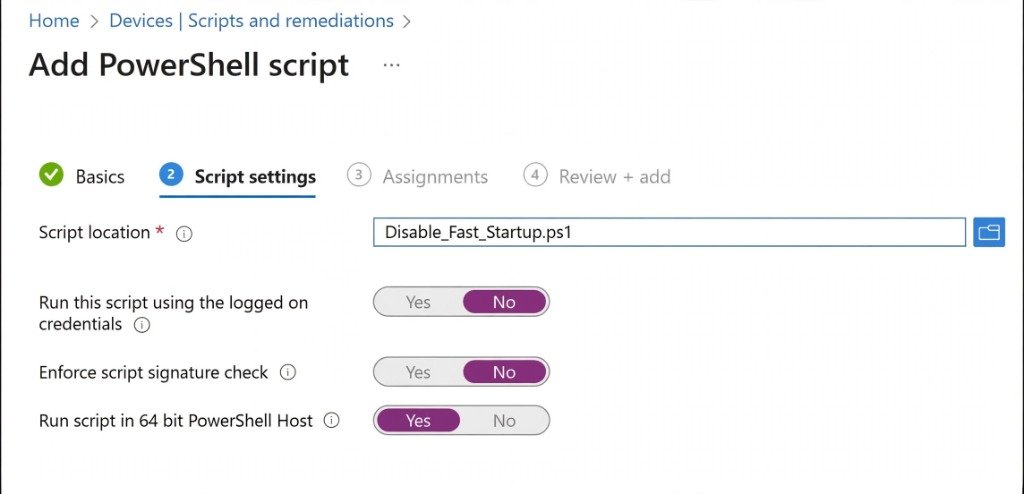
On the Script settings tab, configure the execution switches as follows:
- Script location: Browse and upload
Disable_Fast_Startup.ps1. - Run this script using the logged on credentials: Set to No. Selecting No runs the script in the local SYSTEM account context, which possesses administrative rights to modify
HKEY_LOCAL_MACHINE. - Enforce script signature check: Set to No unless your tenant mandates code-signed scripts with an enterprise internal certificate authority.
- Run script in 64 bit PowerShell Host: Set to Yes. This ensures the script executes within the native 64-bit PowerShell subsystem rather than being redirected to
SysWOW64registry hives (tracked in the Intune Management Extension agent log files).
On the Assignments tab, assign the script to your target Entra ID device security groups. Review the settings and click Add to complete deployment.
The Enterprise Alternative: Intune Proactive Remediations
While Platform Scripts execute once per device check-in, Windows cumulative feature updates or local administrative interventions can occasionally re-enable Fast Startup. For organizations possessing Microsoft 365 E3, E5, or Intune Suite licensing, Intune Remediations (formerly Proactive Remediations) provides continuous compliance auditing and automatic self-healing (similar to our Defender antivirus platform remediation runbook).
Intune Remediations utilizes a two-script architecture:
- Detection Script: Evaluates whether
HiberbootEnabledequals0. If compliant, it exits with code0. If non-compliant or missing, it exits with code1. - Remediation Script: Executes only when the detection script returns exit code
1, restoring the registry value to0.
Proactive Remediation Detection Script
<#
.SYNOPSIS
    Intune Proactive Remediation Detection Script for Windows Fast Startup.
.DESCRIPTION
    Evaluates HiberbootEnabled DWORD.
    Returns Exit 0 if Fast Startup is disabled (Compliant).
    Returns Exit 1 if Fast Startup is enabled or unconfigured (Triggers Remediation).
#>

$RegistryPath = "HKLM:\SYSTEM\CurrentControlSet\Control\Session Manager\Power"
$ValueName = "HiberbootEnabled"

try {
    if (-not (Test-Path -Path $RegistryPath)) {
        Write-Output "Power registry key missing. Remediation needed."
        exit 1
    }

    $CurrentValue = (Get-ItemProperty -Path $RegistryPath -Name $ValueName -ErrorAction SilentlyContinue).$ValueName

    if ($null -eq $CurrentValue) {
        Write-Output "HiberbootEnabled DWORD does not exist. Remediation needed."
        exit 1
    }

    if ($CurrentValue -eq 0) {
        Write-Output "Fast Startup is disabled. Device is compliant."
        exit 0
    } else {
        Write-Output "Fast Startup is enabled (Value: $CurrentValue). Remediation needed."
        exit 1
    }
}
catch {
    Write-Output "Detection failed: $($_.Exception.Message)"
    exit 1
}
Proactive Remediation Script
#Requires -RunAsAdministrator
<#
.SYNOPSIS
    Intune Proactive Remediation Script for Windows Fast Startup.
.DESCRIPTION
    Enforces HiberbootEnabled = 0 under Session Manager\Power.
    Logs actions to ProgramData\TechEUC\FastStartup\Remediation.log.
#>

$LogDirectory = "$env:ProgramData\TechEUC\FastStartup"
$LogFile = "$LogDirectory\Remediation.log"
$RegistryPath = "HKLM:\SYSTEM\CurrentControlSet\Control\Session Manager\Power"
$ValueName = "HiberbootEnabled"
$TargetValue = 0

if (-not (Test-Path -Path $LogDirectory)) {
    New-Item -Path $LogDirectory -ItemType Directory -Force | Out-Null
}

function Write-Log {
    param([string]$Message)
    $TimeStamp = Get-Date -Format "yyyy-MM-dd HH:mm:ss"
    $LogEntry = "[$TimeStamp] $Message"
    Write-Output $LogEntry
    Add-Content -Path $LogFile -Value $LogEntry -Encoding UTF8
}

try {
    if (-not (Test-Path -Path $RegistryPath)) {
        New-Item -Path $RegistryPath -Force | Out-Null
    }

    Set-ItemProperty -Path $RegistryPath -Name $ValueName -Value $TargetValue -Type DWord -Force -Confirm:$false
    $VerifiedValue = (Get-ItemProperty -Path $RegistryPath -Name $ValueName).$ValueName

    if ($VerifiedValue -eq $TargetValue) {
        Write-Log "Fast Startup successfully disabled. Device compliant."
        exit 0
    } else {
        Write-Log "Remediation failed to enforce HiberbootEnabled = 0."
        exit 1
    }
}
catch {
    Write-Log "Remediation encountered an error: $($_.Exception.Message)"
    exit 1
}
Remediation Exit Codes and Operational Matrix
| Script Stage | Exit Code | Intune Portal Status | Administrative Action |
|---|---|---|---|
| Detection | 0 | Without issues | Fast Startup is confirmed disabled. No remediation executed. |
| Detection | 1 | Issue detected | Intune triggers the Remediation script immediately. |
| Remediation | 0 | Issue resolved | Remediation successfully updated the registry to 0. |
| Remediation | 1 | Remediation failed | Permissions error or registry write failure. Investigate client logs. |
Client-Side Verification Runbook
Once the policy or script has deployed and the endpoint executes an Intune sync cycle, verify the configuration locally using the registry, the Control Panel GUI, or PowerShell.
Method 1: Windows Registry Editor Inspection
Press Win + R, type regedit, and press Enter. Navigate to:
HKEY_LOCAL_MACHINE\SYSTEM\CurrentControlSet\Control\Session Manager\Power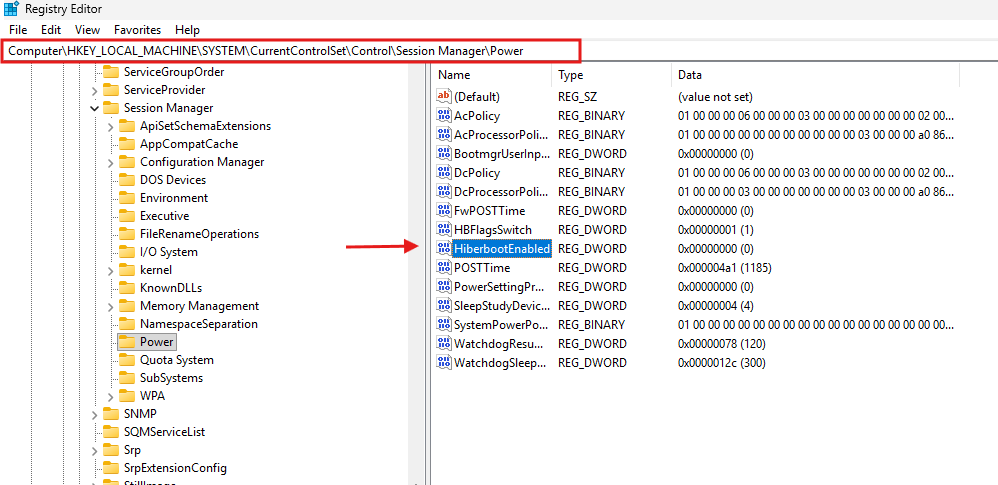
Confirm that the HiberbootEnabled DWORD is present with a hexadecimal value of 0x00000000 (0). This confirms that hybrid boot has been disabled at the kernel initialization level.
Method 2: Windows Control Panel Power Options
Open Control Panel, select Hardware and Sound > Power Options, and click Choose what the power buttons do in the left pane.
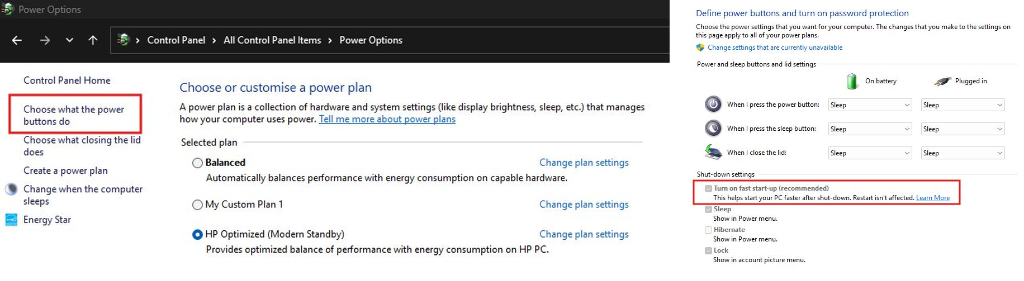
Under the Shut-down settings section at the bottom of the window, verify that the checkbox for Turn on fast start-up (recommended) is unchecked. When controlled via centralized scripts, this setting prevents the operating system from generating kernel hibernation files during standard shutdowns.
Method 3: Quick PowerShell Query
To inspect the configuration across remote machines or during automated scripting checks, run the following PowerShell query in an elevated console:
Get-ItemPropertyValue -Path "HKLM:\SYSTEM\CurrentControlSet\Control\Session Manager\Power" -Name "HiberbootEnabled"An output of 0 indicates Fast Startup is disabled. An output of 1 indicates Fast Startup is enabled.
Need help optimizing endpoint power policies, update rings, or building custom Intune remediation scripts for your organization?
👉 Contact TechEUC Consulting | Hire on Fiverr Pro
Frequently Asked Questions
Does disabling Fast Startup increase boot times on modern SSDs?
Startup performance varies depending on storage type, UEFI firmware POST duration, and installed security software. While older spinning hard drives showed substantial gains from Fast Startup, high-speed NVMe storage systems boot cold very rapidly. For most enterprise environments, the minor difference in startup time is outweighed by the operational predictability of clean kernel and driver reinitialization.
Does disabling Fast Startup remove or delete the hiberfil.sys file?
No. Setting HiberbootEnabled to 0 disables hybrid boot but leaves the underlying hibernation subsystem operational. Standard user-initiated hibernation remains available. If your objective is to completely delete C:\hiberfil.sys and reclaim disk space, you must execute powercfg /h off from an elevated console.
Why does Task Manager report 20+ days of uptime even after shutting down?
When Fast Startup is active, Windows does not shut down the kernel session. It closes user applications and saves the kernel session to disk. Upon powering back on, the kernel resumes where it left off, and its internal tick counter continues running. Only a full Restart resets this counter to zero.
Can end users re-enable Fast Startup if they have local administrator privileges?
If users possess local administrative rights, they can open Control Panel, click “Change settings that are currently unavailable”, and re-check the Fast Startup option. This scenario demonstrates why Intune Proactive Remediations is the superior enterprise management strategy: the recurring detection script automatically detects the configuration drift and reverts the setting to 0.