
Quick Answer: In an enterprise SCCM vs Intune architecture, Configuration Manager remains authoritative for complex bare-metal operating system deployment (OSD), task sequences, on-premises data center servers, and bandwidth-constrained branch offices with local distribution points. Microsoft Intune serves as the cloud authority for Entra ID identity, Conditional Access compliance, remote worker configuration profiles, and cloud-delivered software. Modern enterprises avoid all-or-nothing migrations by using Co-Management to split authority workload by workload, shifting Compliance and Endpoint Analytics to the cloud while keeping heavy imaging and legacy packages on SCCM.
The most common guidance on SCCM vs Intune often suggests picking a single winner and migrating every workload immediately. In enterprise environments, treating this as a binary choice creates operational failure. The practical engineering question is specific: which platform should own each individual workload, for which device collection, and under what operational criteria should authority transition?
Microsoft Endpoint Configuration Manager (MECM / SCCM) and Microsoft Intune represent fundamentally different systems management architectures. Configuration Manager is an infrastructure-heavy, client-driven platform designed for deep Windows lifecycle control, local site systems, SQL-backed inventory, and deterministic content distribution. Intune is a multi-tenant cloud service built on Microsoft Entra ID and the Windows Mobile Device Management (MDM) protocol, delivering configuration policies and application payloads over the public internet without customer-managed server infrastructure.
The standard architectural principle is straightforward. Use Intune as the default authority for internet-connected modern workloads, compliance reporting, and identity-driven access rules. Retain Configuration Manager where offline provisioning, bare-metal PXE imaging, high-volume server estates, and localized gigabyte-scale package distribution remain operational requirements. Co-management serves as the bridge to shift workloads sequentially rather than through high-risk flash-cut migrations.
Table of Contents
- Workload Authority Matrix: SCCM vs Intune
- Architectural Comparison: Infrastructure vs Cloud MDM
- Eight Evaluation Criteria for Enterprise Migration
- Co-Management as the Engineered Migration Path
- Production PowerShell Script: Audit Co-Management Workload Bits
- Troubleshooting and Client-Side Verification Logs
- Three Production Scenarios Shaping the Architecture
- Total Cost of Ownership and Transition Overhead
- The Production Decision Rules
- Frequently Asked Questions
Workload Authority Matrix: SCCM vs Intune
Enterprise endpoints should never have conflicting authorities managing the same configuration layer. Microsoft designed Co-Management so an administrator can configure workload sliders, granting definitive authority to either Configuration Manager or Intune. Trying to enforce the same baseline from both platforms creates policy flapping and unrepeatable device compliance states.
Consider an organization managing 25,000 Windows endpoints across corporate offices, manufacturing plants, and remote field workers. Compliance reporting and Conditional Access need to evaluate in near real-time against cloud identity. Operating system imaging for manufacturing terminals requires offline USB and local PXE distribution points. These workloads demand separate timelines and different authoritative management planes.
| Workload Domain | Authoritative Management Plane | Engineering Rationale |
|---|---|---|
| Compliance Policies | Intune (Cloud Evaluated) | Feeds device health signals directly into Microsoft Entra Conditional Access to gate access to M365 and SaaS applications. |
| Device Configuration | Intune for Modern, SCCM for GPO Parity | Move to Intune Settings Catalog for remote laptops. Retain SCCM or Active Directory Group Policy where complex WMI filters and legacy registry tweaks exist. |
| Windows Updates | Intune (Windows Update for Business) | Replaces local WSUS approval lag with cloud deployment rings and Delivery Optimization for off-network clients. |
| Client Applications | Split by Packaging Complexity | Deploy standard Win32 and store applications through Intune. Retain SCCM for complex multi-gigabyte engineering suites and task-sequence-dependent installations. |
| OS Deployment (Bare-Metal) | Configuration Manager (MECM OSD) | PXE boot, offline USB media, driver injection, and complex task sequences cannot be replaced by Windows Autopilot in air-gapped or factory environments. |
| Endpoint Protection | Intune with Defender for Endpoint | Cloud-managed antivirus definitions, attack surface reduction (ASR) rules, and automated investigation playbooks integrate directly into Microsoft Defender XDR. |
| Resource Access | Intune | Cloud delivery of SCEP/PKCS certificates, Wi-Fi profiles, and Always On VPN configurations directly to remote endpoints without on-premises directory line of sight. |
Workload Boundary Rule: A workload transition is only complete when its dependencies, console ownership, conflict resolution path, and support procedures are fully documented. Client enrollment in Intune alone does not establish management stability.
Architectural Comparison: Infrastructure vs Cloud MDM
Configuration Manager operates through an on-premises client agent (CcmExec.exe) communicating with primary site servers, management points, and distribution points. It relies on Microsoft SQL Server for state storage and uses Server Message Block (SMB) or HTTP/HTTPS for content transport. Its architecture excels at deterministic, scheduled executions inside secured corporate perimeters.
Intune relies on the native Windows MDM protocol engine (omadmclient.exe) paired with the Intune Management Extension (Microsoft.Management.Services.IntuneWindowsAgent.exe). It communicates entirely over outbound HTTPS (TCP port 443) using modern identity tokens. Configuration policies and Win32 applications download from Microsoft Azure storage endpoints, offloading local network traffic through Delivery Optimization peer-to-peer caching.
| Architectural Dimension | Configuration Manager (MECM) | Microsoft Intune |
|---|---|---|
| Underlying Infrastructure | On-premises Windows Server VMs, Microsoft SQL Server, Site Systems, and Distribution Points. | Fully managed Microsoft Azure cloud service with zero customer-managed server infrastructure. |
| Client Agent Architecture | Heavyweight SMS Agent Host (CcmExec.exe) with extensive local WMI provider repository. | Native Windows MDM agent plus lightweight Intune Management Extension (IME) for Win32 apps and scripts. |
| Network Perimeter Requirements | Requires corporate intranet, VPN tunnel, or Cloud Management Gateway (CMG) in Azure. | Requires direct outbound HTTPS (port 443) to Microsoft cloud endpoints; operates identically anywhere. |
| Supported Operating Systems | Windows 10, Windows 11, Windows Server (2012 R2 through 2025). | Windows 10, Windows 11, macOS, iOS/iPadOS, Android, Linux (Ubuntu/RedHat Desktop). |
| Software Distribution Model | Distribution Points, PeerCache, and BranchCache with granular scheduling and maintenance windows. | Azure Blob Storage CDN delivery accelerated via Delivery Optimization (DO) peer caching. |
| Policy Refresh Cadence | Configurable client polling interval (default 60 minutes) or fast-channel notification server. | MDM sync schedule (every 8 hours default), manual Company Portal sync, or push notifications. |
| Identity Dependency | Active Directory Domain Services (AD DS); supports Hybrid Microsoft Entra ID. | Microsoft Entra ID (Native Cloud Join or Hybrid Entra Join). |
Eight Evaluation Criteria for Enterprise Migration
Determining which workloads move to the cloud requires evaluating eight concrete operational criteria across your environment.
1. Management Capabilities and Execution Control
Configuration Manager provides deep control over local Windows execution. Its task sequence engine allows granular staging, custom error trapping, disk repartitioning, and pre-boot environments (WinPE). Intune focuses on declarative, policy-driven management. It sets configuration states, verifies MDM CSP reports, and relies on scripts or Win32 packages for custom tasks. When an endpoint process requires multi-stage sequential execution with intermediate reboots, Configuration Manager remains the superior mechanism.
2. Co-Management Workload Distribution
Co-management allows a single Windows 10 or Windows 11 device to be managed concurrently by Configuration Manager and Intune. Instead of choosing between two consoles, administrators use slider controls in the Configuration Manager console to transition workloads individually. Workload sliders can be targeted to specific device collections, allowing controlled pilot groups to validate policies before enterprise-wide deployment.
3. Endpoint Security and Conditional Access Integration
Intune connects natively to Microsoft Entra ID, Microsoft Defender for Endpoint, and Conditional Access. When Intune evaluates an endpoint as noncompliant (due to missing BitLocker encryption, outdated security signatures, or detected malware), Entra ID can immediately block authentication to corporate resources. While SCCM can deploy Defender baselines, it cannot provide instantaneous cloud identity signals without tenant attach or co-management synchronization.
4. Windows Update Management and Servicing
Configuration Manager relies on Software Update Points synchronized with Windows Server Update Services (WSUS). This provides absolute administrative control over package approvals, but introduces local database index bloat, synchronization failures, and heavy network overhead when endpoints leave the corporate network. Intune uses Windows Update for Business (WUfB) deployment rings, allowing devices to pull approved cumulative patches directly from Microsoft Update servers while respecting corporate quality and feature deferral windows.
5. Application Deployment Complexity
Configuration Manager handles massive multi-gigabyte application packages, complex chained dependencies, and custom installation wrappers with ease. In Intune, software packages are wrapped into the .intunewin format and delivered through the Intune Management Extension. Win32 apps in Intune require precise detection rules, requirement scripts, and exit code handling. When an application package has misconfigured detection logic, it triggers common deployment failures such as Intune error 0x87D1041C. For standard enterprise tools, follow the best practices in our guide to deploy Win32 apps using Intune.
6. Scale and Geographic Footprint
Scaling Configuration Manager across multiple geographic regions requires secondary site servers, remote SQL databases, and carefully mapped boundary groups. When mobile workforces operate outside the corporate VPN, SCCM requires a Cloud Management Gateway (CMG) provisioned in Azure with attendant virtual machine and egress bandwidth costs. Intune scales natively without on-premises hardware, managing globally dispersed endpoints uniformly as long as they possess outbound internet connectivity.
7. Licensing and Operating Overhead
Configuration Manager requires System Center Client Management Licenses, Windows Server OS licenses, and Microsoft SQL Server database licenses. Intune is licensed on a per-user basis, typically included in Microsoft 365 E3, E5, F3, or Business Premium subscriptions. If your organization already pays for Microsoft 365 E3/E5 licenses, Intune endpoint rights are already available, eliminating redundant third-party agent licensing.
8. Offline and Disconnected Scenarios
Facilities with restricted internet connectivity, such as manufacturing assembly plants, research laboratories, and defense environments, cannot rely on cloud-delivered MDM commands. Configuration Manager continues to deploy updates, enforce baselines, and execute task sequences locally across isolated networks. Intune requires frequent cloud connectivity to maintain compliance status and validate tenant certificates.
Co-Management as the Engineered Migration Path
Co-management is an active engineering bridge, not a permanent holding pattern. The objective is to systematically reassign authoritative workload bits from Configuration Manager to Intune without user disruption.
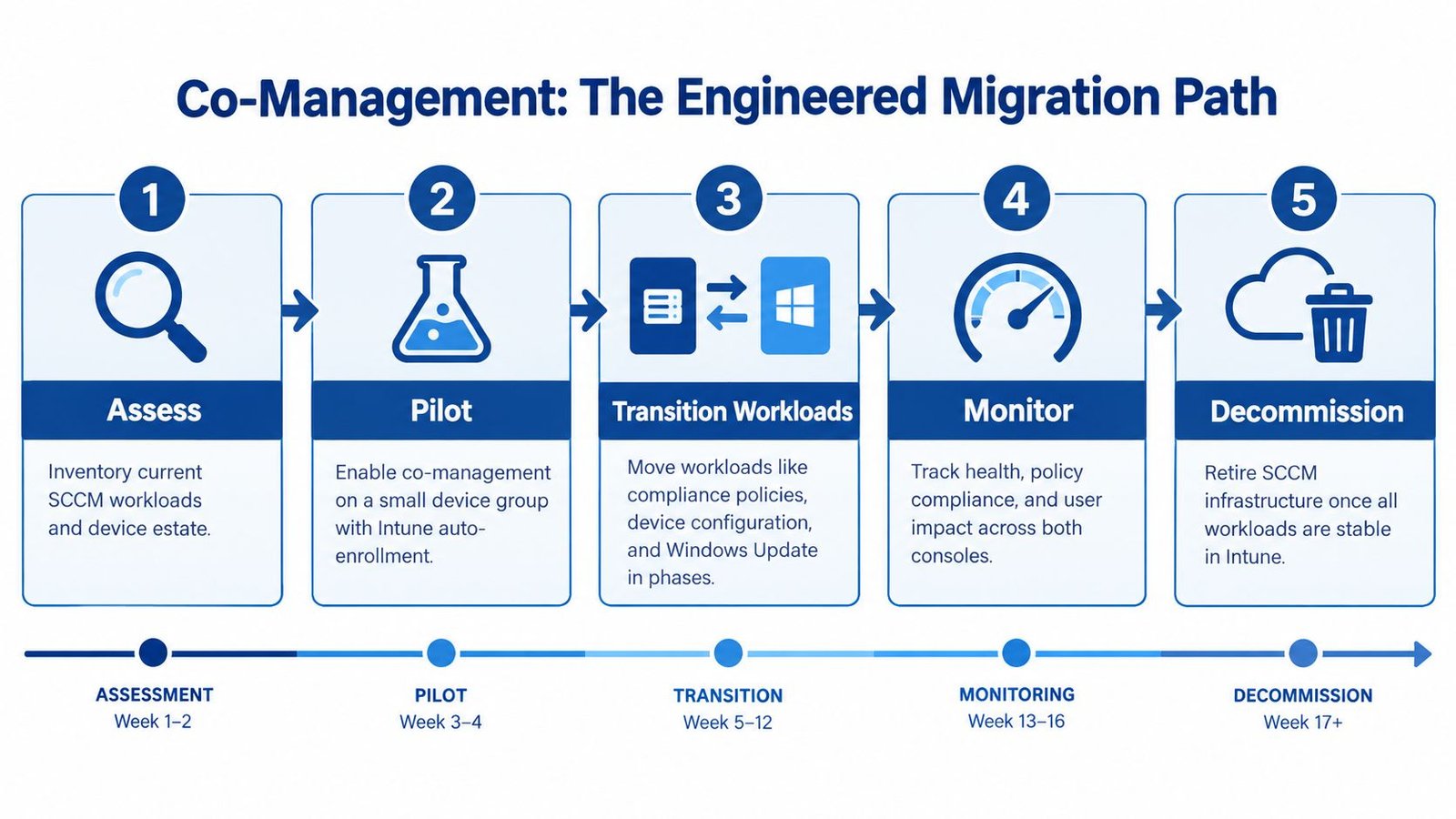
Phase 1: Hybrid Entra Join and Tenant Attach
Ensure on-premises Active Directory devices synchronize with Microsoft Entra ID via Microsoft Entra Connect. Verify that endpoints register successfully as Hybrid Entra Joined using dsregcmd /status. Configure Tenant Attach in the Configuration Manager console to enable web-based device actions and Endpoint Analytics without altering policy ownership.
Phase 2: Transition Compliance Policies
Shift the Compliance Policies slider to Pilot Intune, targeting a bounded pilot collection. Define compliance baselines in Intune (BitLocker encryption, Secure Boot, minimum OS revision). Verify that Entra ID Conditional Access receives the compliance token without disrupting user sign-in sessions.
Phase 3: Transition Windows Update Policies
Move the Windows Update policies slider. Configure Windows Update for Business update rings in the Intune admin center. Set maintenance hours, deadline configurations, and reboot grace periods. Decommission local WSUS update deployments for pilot collections to eliminate conflicting update agents.
Phase 4: Transition Endpoint Protection and Device Configuration
Shift Endpoint Protection to unify Microsoft Defender Antivirus management under the Intune Endpoint Security portal. For details on platform verification, refer to our playbook on how to force update Microsoft Defender Antivirus using PowerShell and Intune. Gradually migrate configuration profiles using the Intune Settings Catalog, auditing any legacy Active Directory GPOs targeting the same registry paths.
Phase 5: Transition Client Applications and Autopilot Provisioning
Repackage core productivity software into .intunewin packages. Verify install switches, uninstallation scripts, and 32-bit versus 64-bit registry detection logic on clean test machines. Transition new device onboarding from bare-metal SCCM task sequences to Windows Autopilot with Microsoft Entra join.
Production PowerShell Script: Audit Co-Management Workload Bits
On co-managed endpoints, Configuration Manager stores the active workload authority in a 32-bit integer bitmask named CoManagementFlags under HKLM:\SOFTWARE\Microsoft\CCM. Each workload corresponds to a specific binary power of two:
- Bit 1 (1): Compliance Policies
- Bit 2 (2): Device Configuration
- Bit 4 (4): Resource Access Policies
- Bit 8 (8): Endpoint Protection (Defender)
- Bit 16 (16): Windows Update Policies
- Bit 32 (32): Client Apps
- Bit 64 (64): Office Click-to-Run Apps
When an individual bit is set to 1, Intune owns that workload. When the bit is 0, Configuration Manager retains authority. A flag value of 0 indicates SCCM owns all workloads, while 127 indicates Intune owns every supported workload.
The following production script, Get-CoManagementWorkloadStatus.ps1, executes with administrative privileges, validates the SCCM client and Entra ID join status, reads the registry bitmask, performs bitwise evaluation across all seven workloads, writes an audit record to $env:ProgramData\TechEUC\CoManagement, and outputs a formatted diagnostic table.
POWERSHELL • Get-CoManagementWorkloadStatus.ps1
#Requires -RunAsAdministrator
<#
.SYNOPSIS
    Audits the active Co-Management workload authority on Windows endpoints.
.DESCRIPTION
    Queries the local Configuration Manager client CoManagementFlags bitmask
    from HKLM:\SOFTWARE\Microsoft\CCM, decodes each bit assignment, and logs
    the authoritative management plane (SCCM vs Intune) to ProgramData\TechEUC.
.OUTPUTS
    PSCustomObject array detailing Workload, Bit Value, Mask State, and Authority.
#>

[CmdletBinding()]
param()

$LogDirectory = "$env:ProgramData\TechEUC\CoManagement"
$LogFile = "$LogDirectory\Audit_Workloads.log"

if (-not (Test-Path -Path $LogDirectory)) {
    New-Item -ItemType Directory -Path $LogDirectory -Force | Out-Null
}

function Write-AuditLog {
    param([string]$Message, [string]$Level = "INFO")
    $Timestamp = (Get-Date).ToString("yyyy-MM-dd HH:mm:ss")
    $Entry = "[$Timestamp] [$Level] $Message"
    Add-Content -Path $LogFile -Value $Entry -Encoding UTF8
    Write-Host $Entry
}

Write-AuditLog -Message "Starting Co-Management workload authority audit on $env:COMPUTERNAME"

# Step 1: Verify SCCM Client Service
$CcmService = Get-Service -Name "CcmExec" -ErrorAction SilentlyContinue
if (-not $CcmService) {
    Write-AuditLog -Message "SMS Agent Host (CcmExec) is not installed. Endpoint is managed solely by Intune/GPO or unmanaged." -Level "WARN"
    exit 1
}

# Step 2: Retrieve CoManagementFlags from Registry
$RegistryPath = "HKLM:\SOFTWARE\Microsoft\CCM"
$CoMgmtFlags = $null

if (Test-Path -Path $RegistryPath) {
    $CoMgmtFlags = (Get-ItemProperty -Path $RegistryPath -Name "CoManagementFlags" -ErrorAction SilentlyContinue).CoManagementFlags
}

if ($null -eq $CoMgmtFlags) {
    # Check alternate Mobile Client registry location
    $AltRegistryPath = "HKLM:\SOFTWARE\Microsoft\SMS\Mobile Client"
    if (Test-Path -Path $AltRegistryPath) {
        $CoMgmtFlags = (Get-ItemProperty -Path $AltRegistryPath -Name "CoManagementFlags" -ErrorAction SilentlyContinue).CoManagementFlags
    }
}

if ($null -eq $CoMgmtFlags) {
    Write-AuditLog -Message "CoManagementFlags value not found. Co-management is not configured on this client." -Level "WARN"
    exit 2
}

Write-AuditLog -Message "Discovered raw CoManagementFlags integer value: $CoMgmtFlags"

# Step 3: Define Workload Bitmask Definitions
$WorkloadDefinitions = @(
    @{ Name = "Compliance Policies";       Bit = 1  }
    @{ Name = "Device Configuration";      Bit = 2  }
    @{ Name = "Resource Access Policies";  Bit = 4  }
    @{ Name = "Endpoint Protection";       Bit = 8  }
    @{ Name = "Windows Update Policies";   Bit = 16 }
    @{ Name = "Client Applications";       Bit = 32 }
    @{ Name = "Office Click-to-Run Apps";  Bit = 64 }
)

# Step 4: Evaluate Bitmask Assignments
$EvaluationResults = foreach ($Workload in $WorkloadDefinitions) {
    $BitValue = $Workload.Bit
    $IsManagedByIntune = [bool]($CoMgmtFlags -band $BitValue)

    $Authority = if ($IsManagedByIntune) {
        "Microsoft Intune"
    } else {
        "Configuration Manager (SCCM)"
    }

    Write-AuditLog -Message "Workload [$($Workload.Name)] -> Authority: $Authority (Bit $BitValue)"

    [PSCustomObject]@{
        Workload        = $Workload.Name
        BitValue        = $BitValue
        MaskState       = if ($IsManagedByIntune) { "Enabled (1)" } else { "Disabled (0)" }
        AuthoritativePlane = $Authority
    }
}

# Output formatted summary to console
$EvaluationResults | Format-Table -AutoSize
Write-AuditLog -Message "Audit completed successfully. Results recorded to $LogFile"
exit 0
Troubleshooting and Client-Side Verification Logs
When an endpoint exhibits unexpected behavior after shifting a workload slider, check the local log files in C:\Windows\CCM\Logs and C:\ProgramData\Microsoft\IntuneManagementExtension\Logs. The following client log matrix isolates where each workload records its sync events.
| Workload Area | Authoritative Client Log File | Key Event or String to Search |
|---|---|---|
| Co-Management Core | C:\Windows\CCM\Logs\CoManagementHandler.log | Search for Workload is set to Intune or Merging workload flags to confirm client registration. |
| Compliance State | C:\Windows\CCM\Logs\ComplMgmtAgent.log | Verifies whether the SCCM compliance agent has yielded reporting authority to the Intune MDM channel. |
| Windows Updates | C:\Windows\CCM\Logs\WUAHandler.log | Confirms whether the local Windows Update Agent points to on-premises WSUS or has deferred to WUfB. |
| Win32 App Installs | C:\ProgramData\Microsoft\IntuneManagementExtension\Logs\IntuneManagementExtension.log | Examine [Win32App] SubProcess returned exit code and result of applicationDetected. |
| Endpoint Protection | C:\Windows\CCM\Logs\EndpointProtectionAgent.log | Verifies whether Defender signature management and ASR policies are governed by SCCM or Intune. |
Three Production Scenarios Shaping the Architecture
Different enterprise operating models dictate how workloads should be structured between on-premises infrastructure and cloud management.
Scenario A: Global Regulated Enterprise with 50,000+ Endpoints
Large manufacturing, financial, or healthcare enterprises operate complex network topographies with strict regulatory auditing, disconnected plant VLANs, and specialized line-of-business software. For this environment, a rapid Intune-only replacement is unworkable.
The recommended architecture keeps Configuration Manager authoritative for offline bare-metal imaging, complex task sequences with custom reboot scripts, local distribution point content delivery, and legacy software with extensive MSI dependencies. Intune manages compliance policies, Conditional Access device health signals, modern security baselines, and cloud-delivered software for mobile knowledge workers. Governance teams maintain strict boundary collection rules to prevent overlapping policy assignments.
Scenario B: Cloud-Native Enterprise with Standardized SaaS Workflows
Organizations operating with Microsoft Entra ID joined devices, remote workforces, and cloud applications have minimal need for on-premises server footprints. In this environment, an Intune-led architecture is the correct choice from day one.
Device provisioning utilizes Windows Autopilot directly from vendor hardware distributors. Device configuration relies entirely on the Intune Settings Catalog, and software packages deploy through the Intune Management Extension with Delivery Optimization. If a legacy business application requires local servers, Tenant Attach provides visibility into the Intune console without maintaining full on-premises management infrastructure.
Scenario C: Managed Service Provider (MSP) Supporting Multi-Tenant Fleets
Managed Service Providers oversee diverse customer environments, ranging from single-office cloud-only businesses to sprawling hybrid estates. For MSPs, enforcing a single rigid template across all clients produces deployment failures.
Standardize operational runbooks, naming conventions, reporting metrics, and escalation paths. Tailor workload boundaries to each customer’s connectivity, licensing tier, and application complexity. Deploy co-management for hybrid clients modernizing in stages, while guiding cloud-ready clients directly to Intune and Windows Autopilot.
Total Cost of Ownership and Transition Overhead
Business cases advocating for Intune often promise immediate cost reductions by eliminating on-premises server infrastructure. In practice, the total cost curve includes a temporary dual-management phase during which an enterprise funds both platforms concurrently.
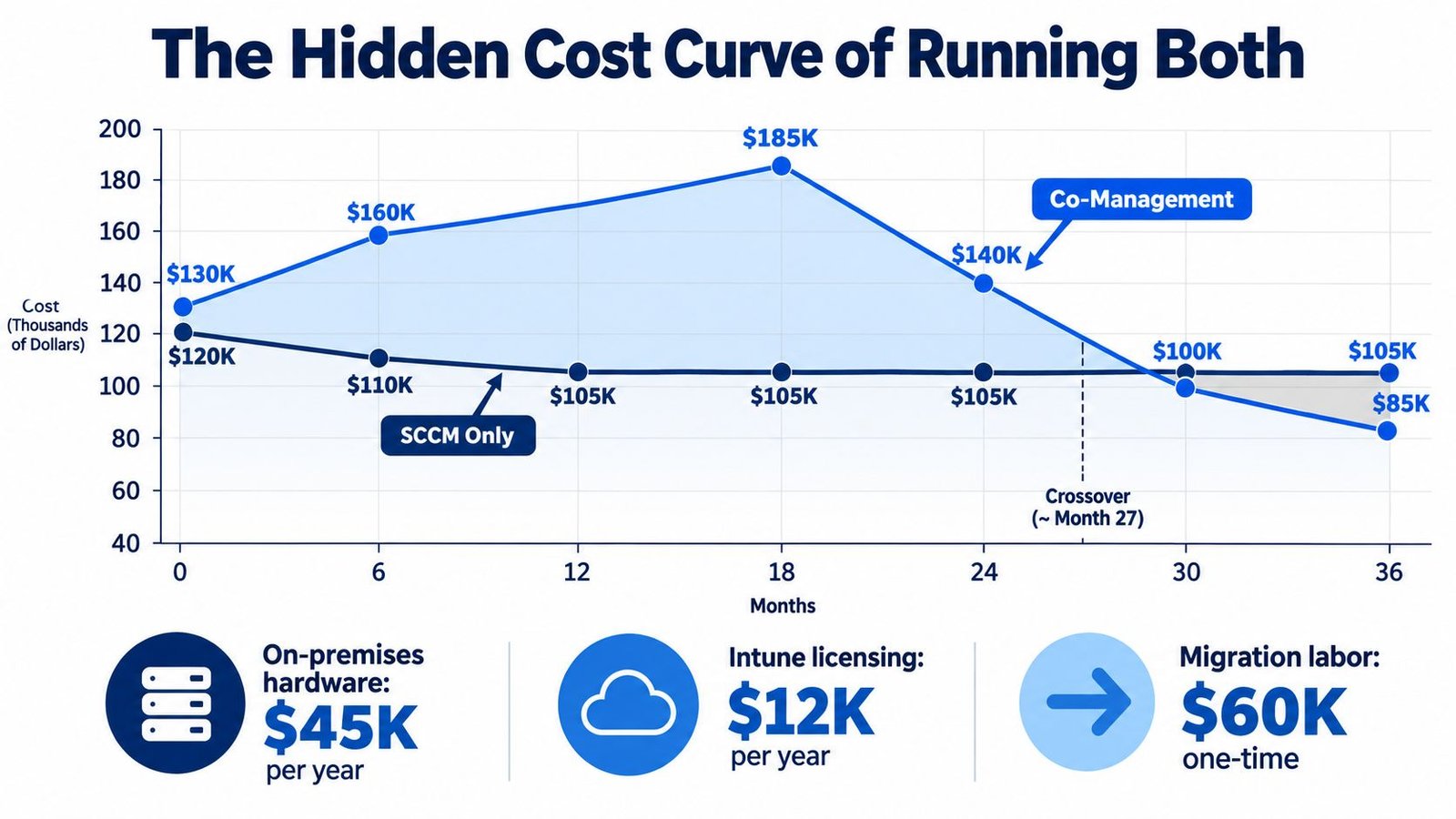
1. Configuration Manager Only State
The on-premises baseline carries server operating system licensing, SQL Server database licensing, storage infrastructure, distribution point maintenance, and client health management. It remains cost-effective when the organization heavily utilizes local network caching, server management, and disconnected task sequences that would be expensive to rebuild in the cloud.
2. The Dual-Management Transition Window
During the modernization transition, costs temporarily increase. The organization maintains existing SCCM infrastructure while funding Microsoft 365 E3/E5 subscription licensing, application repackaging into .intunewin containers, Intune policy architecture, and cross-platform service desk training. Incident volume often spikes temporarily as support staff learn to diagnose failures across both the Configuration Manager client and the Intune Management Extension.
A comprehensive financial model evaluates six cost vectors:
- Platform licensing for on-premises System Center components and Microsoft 365 subscription tiers.
- Infrastructure maintenance across physical virtualization hosts, SQL databases, distribution points, and Cloud Management Gateway egress bandwidth.
- Engineering hours dedicated to application repackaging, Intune detection script testing, and policy conflict resolution.
- Service desk incident volume generated by ambiguous workload ownership and failed client synchronizations.
- Wide-area network bandwidth consumption comparing local BranchCache or PeerCache against cloud Delivery Optimization.
- Operational response time spent remediating Conditional Access lockouts and noncompliant device flags.
3. The Intune-Led Steady State
Cost reductions materialize only after the estate reaches operational simplicity. This requires decommissioning redundant site systems, consolidating policies in the Settings Catalog, and retraining support personnel. If specialized facilities retain Configuration Manager for disconnected imaging, treat that infrastructure as an intentional, budgeted asset rather than an unfinished migration.
For guidance on designing on-premises content systems, read our technical breakdown on SCCM distribution point planning.
The Production Decision Rules
When finalizing your enterprise endpoint strategy, adhere to the following architecture rules:
Retain Configuration Manager as the authoritative management plane under these operational conditions:
- Endpoints operate in air-gapped, factory, or disconnected networks without reliable outbound internet access.
- Operating system deployment requires bare-metal PXE booting, offline USB media, and multi-stage task sequence sequencing.
- Application payloads exceed tens of gigabytes and depend on local distribution points or peer-caching technologies to protect WAN links.
- Your team manages on-premises Windows Server operating systems alongside client workstations.
Transition workload authority to Microsoft Intune under these operational conditions:
- Endpoints are assigned to hybrid or remote users who rarely connect to the corporate network or VPN.
- Access to corporate resources is governed by Microsoft Entra Conditional Access and device compliance state.
- Software updates can be managed through Windows Update for Business without manual WSUS approvals.
- New devices can be shipped directly from hardware manufacturers to end users using Windows Autopilot.
Frequently Asked Questions
Can SCCM and Intune manage the same configuration setting simultaneously?
No. When both platforms deploy conflicting settings to the same endpoint, the device enters a policy conflict state. In co-management, the workload slider determines which platform is authoritative. If an administrator deploys a Group Policy from Active Directory and a Settings Catalog policy from Intune that target the same registry key, Group Policy typically takes precedence unless MDM Wins Over GPO policy is explicitly enabled.
Why do enterprises retain Configuration Manager for operating system deployment?
Windows Autopilot does not re-image devices; it transforms an existing OEM Windows installation by applying cloud policies, user configurations, and applications. In environments requiring bare-metal imaging, specialized disk partitioning, driver injection for custom hardware, or offline provisioning without internet connectivity, Configuration Manager task sequences remain the industry standard.
When should the Windows Update workload move to Intune?
Move Windows Updates to Intune once your team has defined Windows Update for Business deployment rings, configured maintenance windows and user reboot grace periods, and verified that local network bandwidth can accommodate cumulative update downloads through Delivery Optimization. Decommission on-premises WSUS update deployments for pilot collections before moving the slider.
How do endpoints resolve conflicting application deployment intent?
If an application is targeted as Required in Configuration Manager and simultaneously assigned in Intune, both agents will attempt installation independently. This causes installer lock errors (such as MSI error 1618: another installation is already in progress) or detection flapping. Ensure software deployment collections in SCCM explicitly exclude devices whose client apps workload has migrated to Intune.
Does Co-Management require an Azure Cloud Management Gateway (CMG)?
A Cloud Management Gateway is not strictly mandatory for co-management if all managed endpoints remain on the corporate intranet or connect via VPN. A CMG is highly recommended because it enables off-network clients to communicate with Configuration Manager management points and software update points over the internet, preventing policy synchronization gaps when devices are off-site.
Need Enterprise Co-Management & Migration Architecture?
Designing and executing an enterprise transition from SCCM to Microsoft Intune requires rigorous workload mapping, packaging standards, and policy validation. If your team requires senior engineering expertise for Cloud Management Gateway design, co-management workload transitions, or Win32 application packaging, explore our specialized SCCM and MECM engineering services or reach out through our contact page.