Deploy Win32 Apps Using Intune – Step-by-Step .IntuneWin Packaging & Deployment Guide (2026)
Table of content
Deploy Win32 Apps Using Intune (.IntuneWin Packaging Guide for Enterprise IT)
What Is a Win32 App in Intune? (Quick Answer)
A Win32 app in Microsoft Intune is a traditional Windows desktop application packaged into an encrypted .intunewin format. Intune uses the Intune Management Extension to download, evaluate detection rules, and silently install these apps on devices using System or User context.
Introduction: What Is a Win32 App in Intune and Why It Still Matters
When people talk about modern Application management, they often jump straight to MSIX or Microsoft Store apps. In reality, most organizations still depend heavily on traditional Win32 applications. These are the classic Windows desktop apps that come as .exe , .msi , or custom installers built years ago. Here we will talk about how to Deploy Win32 apps using Intune.
Think about applications like:
VPN clients
Finance and ERP tools
Engineering software
Printer utilities
Firmware and driver tools
In-house business apps
Almost all of these are Win32 apps.
Using Microsoft Intune, administrators can package and deploy these apps remotely, without visiting devices or asking users to install anything manually. When Win32 deployment is done correctly, it becomes reliable, silent, and fully manageable at scale.
This blog explains how to deploy Win32 apps using Intune, starting from packaging and ending with Deployment or remediation and troubleshooting using real-world logic, not just theory.
How Win32 Apps Actually Deploy Inside Intune (Behind the Scenes)
When you upload a .intunewin package:
1- The device downloads the encrypted package using the Intune Management Extension (IME).
2- Requirement rules are evaluated.
3- Detection rules check if the app already exists.
4- The install command runs in System or User context.
5- IME logs installation results and reports status back to Intune.
💡 Engineer Tip:
Intune does not install apps directly. Everything flows through the Intune Management Extension service, which is why most troubleshooting happens in IME logs.
Intune App Types Comparison: Choosing the Right Deployment Method
Before jumping into Win32 packaging, it’s important to understand why Win32 is usually the best choice.
MSI Apps
MSI apps are simple and straightforward. Intune already understands how MSI installers work. However, MSI deployments have limitations:
-
Limited customization
-
No dependency handling
-
No supersedence
-
Detection tied to ProductCode (which can change)
MSI apps are fine for very basic deployments, but they quickly become restrictive in enterprise environments.
Win32 Apps
Win32 apps are the most flexible and powerful option in Intune.
With Win32 apps, you can:
-
Use EXE, MSI, or script-based installers
-
Control install and uninstall logic
-
Define advanced detection rules
-
Handle dependencies automatically
-
Replace older versions using supersedence
-
Deploy silently in System context
This flexibility is why Win32 apps are the preferred method for enterprise app deployment.
Microsoft Store Apps
Store apps are easy to deploy but limited:
-
Less control
-
Dependent on Store availability
-
Not suitable for many business apps
Line-of-Business (LOB) Apps
LOB apps are a legacy method and not recommended for new deployments. They lack modern features like detection rules and supersedence.
Bottom line:
If you want control, reliability, and scalability, Win32 apps are the best option.
Packaging Applications with IntuneWin
Win32 apps cannot be uploaded directly to Intune. They must first be converted into a special encrypted format called .intunewin
This is done using the IntuneWin (Win32 Content Prep Tool).
Creating the .intunewin Package
Step 1: Prepare Your Source Content
Before you begin, you must gather your installation files and the necessary utility.
- Download your software: Place your installer (e.g., logitech_dfu.exe) in a dedicated folder, such as C:\ScriptDFU.
- Get the Prep Tool: Download the Microsoft Win32 Content Prep Tool (IntuneWinAppUtil.exe) from the official GitHub repository.
- Organize: Keep the tool in a separate folder (e.g., C:\IntuneWinAppUtil) to prevent it from being bundled into your application package

Example of preparing source files and the IntuneWinAppUtil tool before creating a .intunewin package for Win32 app deployment in Intune.
Step 2: Create the .intunewin Package
Intune cannot deploy raw .exe or .msi files directly; they must be converted into the encrypted .intunewin format.
- Launch the Command Prompt as Administrator.
- Navigate to your tool’s folder and run IntuneWinAppUtil.exe.
- Provide the following inputs when prompted:
◦ Source Folder: C:\ScriptDFU
◦ Setup File: logitech_dfu.exe
◦ Output Folder: C:\ScriptDFU
◦ Catalog Folder: Type N.
The tool will compress and encrypt your files into a single package ready for upload.

What happens here:
-
Intune encrypts the source files, Compresses everything into one package and Prepares metadata for Intune

Step 3: Upload and Configure App Information
Log into the Microsoft Intune admin center to register your new package.
- Navigate to Apps > All apps > Add.
- Select Windows app (Win32) as the app type.

Choosing Windows app (Win32) in Intune before uploading the .intunewin package during Win32 app deployment setup. - Upload your .intunewin file and fill in the App Information tab:
◦ Publisher: Logitech.
◦ App Version: Helpful for future updates.

◦ Logo: Always specify a logo to help users identify the app in the Company Portal.
oStep 4: Define Program and Install Behavior
This step determines how the app executes on the user’s device.
- Install Command: logitech_dfu.exe /available /list /fw_version /wait /pop-up /output c:\Script_DFU_Outputuser.txt /upgrade_latest. You may need to find the silent install parameters for different applications by using the vendor website.
- Install Behavior: For apps which installs in logged on user’s profile context (e.g %Appdata%) use User. For Apps which installs in the device or system context(e.g. C:\ProgramFiles), use System.
- Device Restart Behavior: Choose No specific action if you want to suppress reboots for MSI-based apps.

Setting install command, uninstall command, and install behavior in the Intune Program settings tab during Win32 app deployment.
💡 Engineer Tip:
Always test silent switches locally before packaging.
Step 5: Set Requirements and Detection Rules
Detection rules are vital; they tell Intune if the app is already installed so it doesn’t try to reinstall it unnecessarily.
- Requirements: Specify 64-bit architecture and a minimum OS like Windows 10 1607.
- Detection Rules: Manually configure a File rule.
Path: C:\
◦ File: Script_DFU_Outputuser.txt
◦ Method: File or folder exists.

Expert Tip: Avoid using MSI product codes for detection if the software auto-updates, as the GUID may change and trigger a “downgrade” loop.
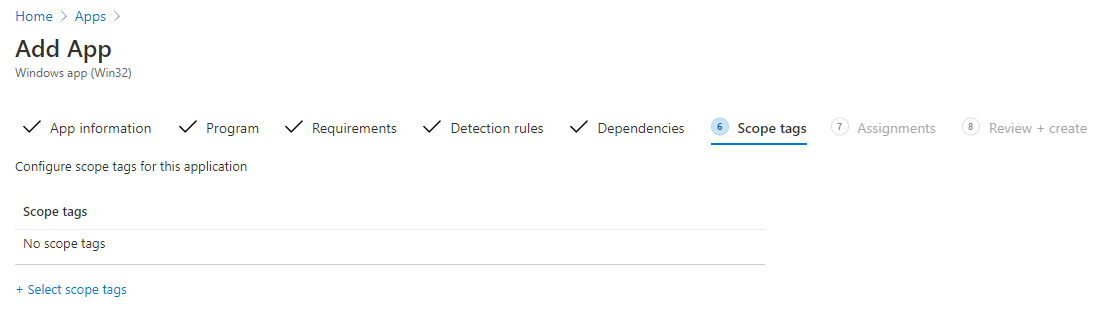
Step 6: Dependency and Tags
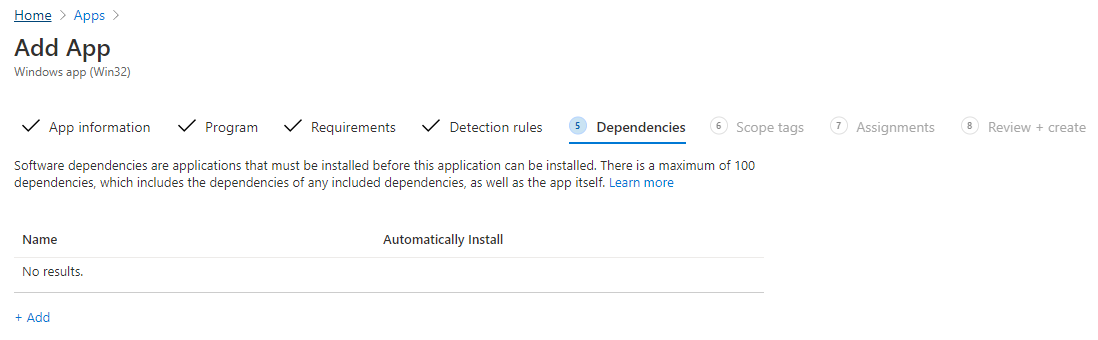
- On the Dependencies tab: Software dependencies are applications that must be installed before this application can be installed. Adjust if needed. Click Next
- Modify the Scope tags if needed
Step 7: Assignments and Monitoring
When assigning the app to groups, consider the Deployment Intent. Always go for UAT testing with few users before scheduling the deployment to all production users/devices.
- Available: Users can choose when to install via the Company Portal. This is highly recommended for firmware tools like Logitech Script DFU to prevent users from losing keyboard input during critical work.
- Required: The app installs automatically.

Click on Create, At this point it will upload the .intunewin file to create our Intune Win32 App.
After deployment, monitor the Device Install Status in the portal to track successes or failures.
Detection Rule Strategies Used by Real Engineers
Choosing the wrong detection method causes most deployment failures.
Best practices:
-
Use File detection for firmware or script-based installs
-
Use Registry detection for version tracking
-
Avoid volatile paths like Temp folders
Advanced engineers often create detection scripts to validate multiple conditions instead of relying on single checks.
Common Win32 Packaging Mistakes That Break Deployments
-
Packaging unnecessary folders
- Missing silent install switches
Using incorrect install context
Detection rules pointing to user profile paths during System installs -
Ignoring exit codes like 3010 (soft reboot)
Troubleshooting Common Issues
If an installation fails, use these tools to find the root cause:
- Log Collection: Use the Collect logs feature in the Intune portal.
- Drill down into the Managed Apps for the failed system
Go To Devices -> All Devices -> Select the computer failed and then select Managed Apps
Click on collect Logs and enter the path %temp%/xlog_logitech In a few minutes, the log file will be ready to download.

Using the Managed Apps section in Microsoft Intune to collect logs and investigate Win32 application installation failures. - Log Paths: Check C:\ProgramData\Microsoft\IntuneManagementExtension\Logs for the AppWorkload.log (Win32 specific) and IntuneManagementExtension.log.
- Exit Codes: A code of 0 is a success; 3010 indicates a restart is required.
Conclusion
Win32 app deployment remains the most powerful and reliable way to manage enterprise Windows applications in Intune. Once you understand packaging, detection rules, and Intune Management Extension workflow, deployments become predictable and scalable.
Mastering how to deploy Win32 apps using Intune gives you full lifecycle control over enterprise software delivery.
FAQ – Win32 App Deployment in Intune
1. What is a Win32 app in Microsoft Intune?
A Win32 app in Intune is a traditional Windows desktop application, usually delivered as an EXE or MSI installer. These apps are packaged into a intunewin file so Intune can install them silently, track installation status, and manage them across devices.
2. Why should I use Win32 apps instead of MSI apps in Intune?
Win32 apps give you much more control than MSI apps. With Win32 deployment, you can use custom install commands, run PowerShell scripts, handle complex installers, and define advanced detection rules. This makes Win32 apps the better choice for most enterprise applications.
3. What are detection rules and why are they important?
Detection rules tell Intune how to check whether an app is already installed on a device. If the detection rule is wrong, Intune may keep reinstalling the app or mark it as failed even when it works. Correct detection rules are the key to reliable Win32 app deployment.
4. Where can I find logs when a Win32 app fails to install?
When a Win32 app fails, logs are stored on the device at:C:\ProgramData\Microsoft\IntuneManagementExtension\Logs
The IntuneManagementExtension.log and AppWorkload.log files usually explain exactly why the installation failed.
5. What is IntuneWinAppUtil?
It’s Microsoft’s Win32 Content Prep Tool used to convert EXE or MSI installers into the encrypted .intunewin format required by Intune.