
Quick Answer: Autopilot Device Enrollment Error 80180003 (“This user is not authorized to enroll”) happens when Intune or Microsoft Entra ID blocks MDM enrollment. The most common fixes are: setting MDM User Scope to All (or adding the user to the assigned group) under Entra ID > Mobility (MDM and WIP) > Microsoft Intune, enabling Users may join devices to Microsoft Entra, allowing Windows personally owned devices under Intune Enrollment device platform restrictions, or freeing up device quota if the user has reached their maximum device limit.
What Is Autopilot Device Enrollment Error 80180003?
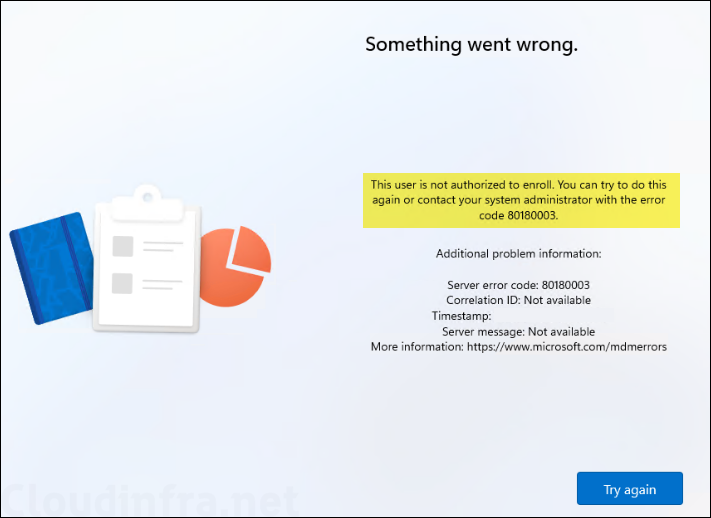
Autopilot Device Enrollment Error 80180003 is a Microsoft Intune MDM rejection that stops Windows setup during the Out-of-Box Experience (OOBE) with the message: “This user is not authorized to enroll. You can try to do this again or contact your system administrator with the error code 80180003.” It occurs when tenant join scopes, device quota caps, Windows editions, or enrollment restrictions block MDM registration.
When provisioning corporate laptops through Windows Autopilot Device Preparation (Autopilot v2) or user-driven Microsoft Entra Join, administrators often assume error 80180003 stems from an account password failure. In reality, the user successfully authenticates against Microsoft Entra ID, but the directory blocks the endpoint during the mobile device management handshake.
I’ve resolved this across dozens of enterprise tenants. Here are 7 verified solutions covering every root cause behind this error.
How to Fix Autopilot Device Enrollment Error 80180003 (7 Solutions Summary)
To resolve Error 80180003 without rebuilding the workstation, work through these 7 enterprise verification checkpoints:
- Solution 1: Authorize User Device Joins in Entra ID: Set Users may join devices to Microsoft Entra to All or target the assigned deployment security group.
- Solution 2: Configure Automatic MDM Enrollment: Enable MDM user scope to All (or Some) and set MAM user scope to None under Mobility settings.
- Solution 3: Verify Device Platform Restrictions: Confirm that Windows (MDM) is set to Allow and unblock personal devices or register hardware serial numbers.
- Solution 4: Validate Windows OS Edition: Ensure the machine runs Windows 11/10 Pro, Enterprise, or Education (Windows Home edition cannot enroll in Intune).
- Solution 5: Increase or Clean Device Limit Restrictions: Check if the provisioning account hit its maximum device limit (default 15) and delete decommissioned records.
- Solution 6: Verify Mobile Device Management (MDM) Authority: Check Intune Tenant Administration to confirm the tenant authority is bound to Microsoft Intune.
- Solution 7: Re-evaluate Microsoft 365 Licensing: Confirm an active license containing Microsoft Intune Plan 1 (E3, E5, Business Premium, or standalone EMS) is assigned.
Root Causes Behind Autopilot Error 80180003
Understanding why the MDM gateway rejects the enrollment request cuts triage time in half. Here is how each tenant configuration triggers error 80180003:
| Root Cause | Failure Mechanism | Impacted Component |
|---|---|---|
| Restricted Entra Join Scope | The user account is not a member of the allowed Entra Join pilot group. | Microsoft Entra ID > Device Settings |
| MDM User Scope Disabled | Device joins Entra ID, but cannot trigger automatic handoff to the Intune MDM service. | Entra ID > Mobility (MDM & WIP) |
| Platform / BYOD Block | Intune treats factory-imaged machines as personal devices when corporate serial numbers are missing. | Intune > Enrollment Device Platform Restrictions |
| Unsupported Windows Edition | Workstation is running Windows 11/10 Home, which lacks enterprise MDM client libraries. | Local Operating System SKU |
| Device Registration Quota Exceeded | IT test account or power user has reached the 5, 10, or 15 device cap in Intune or Entra ID. | Intune > Device Limit Restrictions |
| Missing Intune License | User has an Entra ID account, but no active Intune Plan 1 license entitlement. | Microsoft 365 Admin Center > Users |
| Classic Hash Collision | The device has an old Autopilot v1 hardware hash mapped to an active Autopilot profile in the same tenant. | Intune > Windows Enrollment > Devices |
Detailed Step-by-Step Solutions for Error 80180003
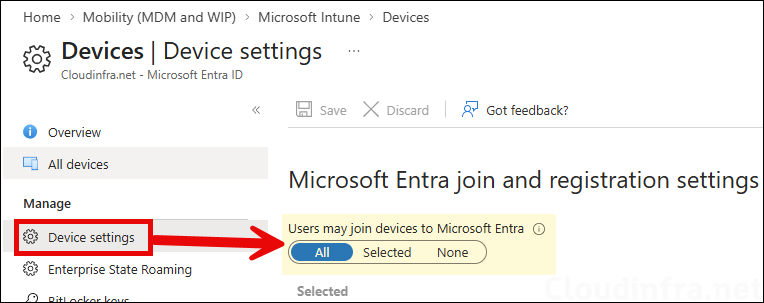
Solution 1: Confirm Users Can Join Devices to Microsoft Entra ID
Autopilot Device Preparation requires the provisioning user to hold explicit rights to register endpoints with Microsoft Entra ID. If your organization restricts join privileges to specific pilot groups, onboarding new users or staging technicians causes error 80180003.
- Sign in to the Microsoft Entra admin center using Global Admin or Cloud Device Admin credentials.
- Navigate to Devices > Overview > Device settings.
- Under Users may join devices to Microsoft Entra, review your selection: All allows any licensed identity to join hardware. Selected limits join authority to specified security groups. None blocks all endpoint enrollments immediately.
- Save changes and reboot the target machine to re-test the OOBE workflow.
Solution 2: Configure Automatic Intune MDM Enrollment Scopes
Once an identity registers a device with Entra ID, the directory must hand off the management session to Microsoft Intune. If the automatic enrollment scope is disabled or misaligned, the user authenticates, but Intune refuses the connection with error 80180003.
- In the Microsoft Entra admin center, select Entra ID > Mobility (MDM and WIP).
- Select Microsoft Intune from the applications list.
- Set MDM user scope to All (or Some with your device staging group selected).
- Set MAM user scope to None. Enabling both MDM and MAM scopes for Windows endpoints causes enrollment collisions and unexpected application packaging errors.
- Click Save to commit the mobility policies across your tenant.
Solution 3: Check Device Platform & BYOD Restrictions
Enterprise security baselines often block personal (BYOD) Windows machines from enrolling into MDM. Because factory-sealed machines have not yet completed provisioning, Intune evaluates them as personally owned devices unless specific corporate flags exist.
- Sign in to the Microsoft Intune admin center.
- Go to Devices > Enrollment > Device platform restrictions.
- Select your active policy under the Windows restrictions tab and click Properties.
- Under Platform settings, confirm Windows (MDM) is set to Allow.
- If personal enrollments must remain Blocked, register the machine as corporate before running OOBE. Navigate to Devices > Enrollment > Corporate device identifiers and upload a CSV containing the device manufacturer, model, and serial number.
Solution 4: Verify the Edition of Windows (Home vs. Pro/Enterprise)
Microsoft Intune and Windows Autopilot rely on enterprise management client services that do not exist in Windows Home editions. If you purchase consumer laptops from retail channels, they often ship with Windows 11 Home or Windows 10 Home.
When an end-user attempts to sign in with work credentials on Windows Home, OOBE halts and outputs error 80180003 because the underlying OS cannot process MDM policies. To verify and resolve:
- Check the OS build during OOBE: Press Shift + F10 on the setup screen to open Command Prompt. Type
winverand press Enter. Review the edition name in the dialog. - Upgrade to Windows Pro/Enterprise: If the edition reports Windows Home, enter a generic Windows Pro Volume License Key or wipe the machine using official Windows 11 Pro Enterprise installation media from your Microsoft Volume Licensing portal.
- Once converted to Windows 11 Pro or Enterprise, reboot into OOBE and resume sign-in.
Solution 5: Review Device Limit Restrictions & Clear Stale Records
Intune and Microsoft Entra ID enforce strict quotas on the number of endpoints a single user can enroll. By default, Intune sets this cap at 15 devices, though many organizations lower it to 5 for security compliance.
In enterprise deployments, IT engineers testing Autopilot builds frequently hit this cap. When the next machine attempts registration under that administrator’s account, Intune terminates the handshake with 80180003.
- In Microsoft Intune admin center, select Devices > Enrollment > Device limit restrictions.
- Click on the assigned restriction policy and select Properties.
- Verify the Device limit value (configurable from 1 to 15).
- If the cap is appropriate, clean up old records: Browse to Users > All users > select the affected user > Devices.
- Select retired, duplicate, or stale virtual machine records and click Delete.
Solution 6: Set MDM Authority to Microsoft Intune
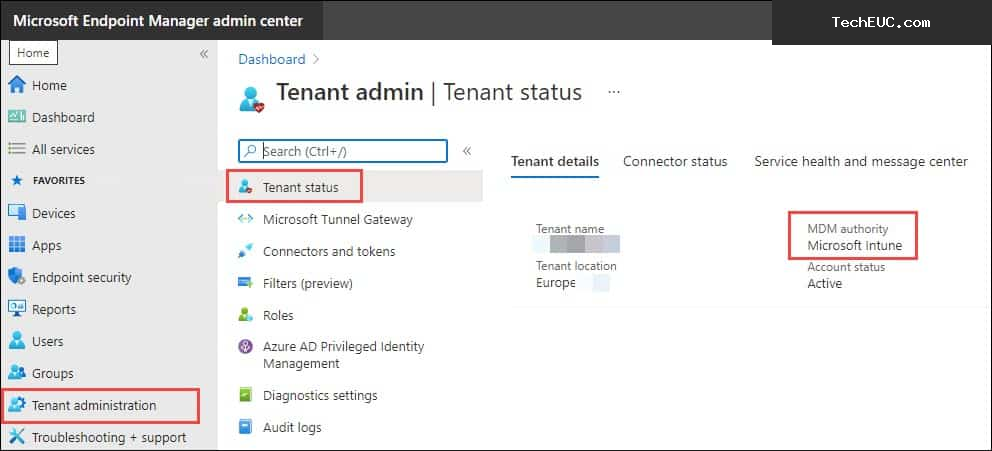
Before any Windows device can complete mobile management registration, the tenant must establish Microsoft Intune as its authoritative MDM provider. In brand-new Microsoft 365 tenants or environments transitioning away from legacy Configuration Manager co-management, the authority may sit unconfigured.
- Open the Microsoft Intune admin center.
- Navigate to Tenant administration > Tenant status.
- Locate the Tenant details tab and inspect the MDM authority property.
- Verify that the status explicitly displays Microsoft Intune. If unassigned, choose Microsoft Intune and complete tenant initialization.
Solution 7: Re-evaluate Microsoft 365 Licensing Entitlements
Every user enrolling a corporate PC through Autopilot requires an active license containing Microsoft Intune Plan 1. Without this entitlement, Entra ID validates the user identity, but the Intune registration server rejects the device with error 80180003.
Verify that the target user account holds one of the following qualifying SKUs:
- Microsoft 365 E3 or Microsoft 365 E5
- Microsoft 365 Business Premium
- Enterprise Mobility + Security (EMS) E3 or E5
- Microsoft 365 F1 or F3 (Frontline)
- Microsoft 365 A3 or A5 (Academic)
- Standalone Microsoft Intune Plan 1
In the Microsoft 365 admin center, navigate to Users > Active users, select the target user, click Licenses and apps, and confirm the service plan checkbox for Microsoft Intune is enabled.
Advanced Triage: Purging Classic Autopilot Hardware Hash Collisions
If you have verified all 7 solutions above and error 80180003 persists on a specific laptop, check for a Hardware Hash Collision. This happens when migrating from Classic Autopilot (v1) to Autopilot Device Preparation (v2).
Autopilot Device Preparation requires devices to enroll purely through cloud-driven Entra join without pre-existing 4K hardware hashes. If that physical device’s serial number or 4K CSV hash still exists under Devices > Enrollment > Windows Autopilot devices, the tenant’s classic profile engine attempts to intercept the enrollment, causing an unresolvable policy deadlock.
- Go to Devices > Enrollment > Devices (under Windows Autopilot).
- Search for the machine’s serial number.
- If the record exists, select the device and click Delete.
- Wait 15-30 minutes for Intune and Graph directory sync to purge the object, then re-run OOBE.
Production PowerShell Diagnostic Extraction
If error 80180003 persists after auditing tenant policies, extract the raw diagnostic bundle directly from the OOBE failure screen. Press Shift + F10 to launch Command Prompt, type powershell, and execute:
If diagnostic logs reveal HTTP connection timeouts or network lookup failures against login.microsoftonline.com or enterpriseregistration.windows.net, verify local name resolution. If endpoint DNS is failing to resolve external domains, follow our runbook to fix the DNS_PROBE_FINISHED_NXDOMAIN error on Windows to clear local resolver caches and restore network connectivity.
Extract the generated zip archive and review the Event Viewer logs in these channels:
Microsoft-Windows-DeviceManagement-Enterprise-Diagnostics-Provider/Admin: Check Event IDs 71, 76, and 11 to inspect specific token rejection reasons and discovery server return codes.Microsoft-Windows-ModernDeployment-Diagnostics-Provider/Autopilot: Track the OOBE state machine and Autopilot profile download status.
If you are troubleshooting application deployment failures or custom detection scripts after enrollment succeeds, refer to our detailed guide on Deploying Win32 Apps Using Intune and our diagnostic reference for Intune Management Extension Log Files.
People Also Ask (PAA)
Why does Autopilot say “This user is not authorized to enroll” even with a valid Intune license?
A valid license satisfies user entitlement, but does not override tenant device join restrictions. Error 80180003 occurs when Entra device join permissions are restricted to a specific pilot group, when personal Windows devices are blocked without Corporate Identifiers, or when the user has reached their maximum device quota.
Can I use Autopilot Device Preparation with Hybrid Entra Join?
No. Microsoft designed Autopilot Device Preparation (Autopilot v2) exclusively for cloud-native Microsoft Entra Join. If your infrastructure requires on-premises Active Directory domain joins, you must continue using Classic Windows Autopilot with an Intune Connector for Active Directory.
Do I need to upload hardware hashes for Autopilot Device Preparation?
No. Autopilot Device Preparation does not use 4K hardware hashes. If your organization blocks personal device enrollments, upload the manufacturer, model, and serial number into Corporate Device Identifiers instead.
What is the difference between Autopilot error 80180003 and 80180018?
Error 80180003 indicates an authorization or policy rejection during the MDM enrollment phase. Error 80180018 indicates an MDM license or multi-factor authentication failure during the identity handoff.
Reference: For official Microsoft troubleshooting steps regarding device enrollment failures and user authorization codes, consult the Microsoft Learn Intune Device Enrollment Guide.
Related Architecture Guide: If you are setting up modern tenant co-management alongside Configuration Manager, explore our deep dive on Enterprise SCCM & Intune Co-Management and our guide to Application Packaging standards.
Next Steps in Production
When confronting Autopilot Error 80180003, audit your environment methodically: confirm Entra join rights, verify automatic MDM user scopes, ensure the machine is running Windows Pro or Enterprise, clean up device quotas, and remove legacy v1 hardware hashes. Applying this structured framework resolves OOBE enrollment blocks and delivers a reliable zero-touch deployment pipeline.
For organizations planning tenant migrations or requiring dedicated deployment architecture support, review our engineering scopes under Microsoft Intune Consulting Services or explore our practice overview at TechEUC Services.