Quick Answer: To deploy PowerShell scripts via SCCM (ConfigMgr) without traditional packaging, use the built-in Run Scripts feature. Navigate to Software Library > Scripts > Create Script, paste your PowerShell code, approve the script (under a separate administrator account or with approval restrictions disabled), right-click a target device collection, select Run Script, and monitor real-time client results in the Script Status dashboard.
Managing devices at scale can be challenging, but SCCM simplifies this by allowing you to deploy PowerShell scripts directly to client machines. Whether you’re installing applications, modifying configurations, or collecting data, this feature is invaluable. Let’s walk through the process.
Prerequisites
Before you begin, ensure the following:
SCCM Version: Your SCCM environment should be running version 1706 or later.
Client Requirements: Targeted client devices must have PowerShell version 3.0 or higher installed.
Permissions: You need appropriate permissions to create, approve, and run scripts within SCCM.
Step 1: Create the PowerShell Script
Open the SCCM Console: Launch the SCCM console and navigate to the Software Library workspace.
Access Scripts: In the left-hand pane, expand Software Library > Scripts.
Create New Script:
On the Home tab, click Create Script.
In the Create Script wizard:
Script Name: Enter a descriptive name for your script.
Script Language: Select PowerShell.
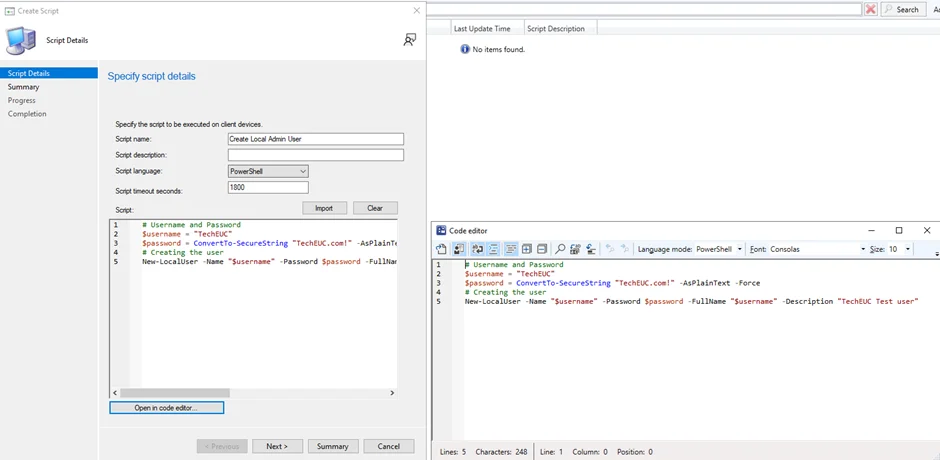
Script Content: Paste your PowerShell code into the provided field.
POWERSHELL • Create-LocalUser.ps1
# Define Username and Secure Password
$username = "TechEUC"
$password = ConvertTo-SecureString "TechEUC.com!" -AsPlainText -Force

# Create the Local User Account
try {
    New-LocalUser -Name "$username" -Password $password -FullName "$username" -Description "TechEUC Test User" -ErrorAction Stop
    Write-Output "Local user '$username' created successfully."
    exit 0
} catch {
    Write-Error "Failed to create user: $_"
    exit 1
}
“
Click Next, review the summary, and then click Close to finish
Step 2: Approve the Script
Select the Script: In the Scripts list, click on the script you just created.
Approve Script:
On the Home tab, click Approve/Deny.
If you notice the Approve/Deny option is greyed out, then we need to allow the Author to approve own scripts.
Go to your Administration / Site / Hierarchy Setting. Then Disable “Script Authors require additional script approver”
Now the Approve/Deny option should be enabled
In the Approve or deny script dialog box:
Select Approve.
Optionally, enter a comment regarding the approval.
Click Next, review the summary, and then click Close.
Note: By default, script authors cannot approve their own scripts. This setting can be modified in the Hierarchy Settings if necessary
Step 3: Run the Script on Target Devices
Navigate to Device Collections: In the SCCM console, go to Assets and Compliance > Device Collections.
Select Target Collection: Right-click on the device collection you wish to target and choose Run Script.
Choose Script:
In the Run Script wizard:
Select the approved script from the list.
Click Next.
Review the summary and click Next to initiate the script deployment.
Click Close to exit the wizard.
Note: Scripts are executed immediately on online clients. Offline clients will execute the script once they come online, within a one-hour window.
Step 4: Monitor Script Execution
Access Script Status: In the SCCM console, navigate to Monitoring > Script Status.
Review Results:
Locate the script you ran in the list.
Click on it to view detailed execution results, including success rates and any error messages.
Note: A script exit code of 0 typically indicates successful execution
When operationalizing SCCM Run Scripts across enterprise environments:
Dual-Administrator Approval: In production hierarchies, ensure script approvers differ from script authors to maintain security compliance.
Fast Channel Verification: Ensure client communication utilizes BGB (Big Green Button) fast notification channel so scripts trigger within seconds rather than waiting for machine policy intervals.
Output Sizing: Keep script standard output under 4 KB to prevent truncation in the SCCM administrative console and SQL reporting tables.
FIVERR PRO VERIFIED12+ YRS EXPERIENCE
Atoofa Shaikh
Senior Microsoft 365, EUC & Cloud Endpoint Architect
Need custom Win32 App Packaging, PowerShell Automation, Zero-Touch Intune Autopilot, or SCCM Co-Management for your enterprise or MSP? I specialize in production-grade deployment architectures with zero downtime.

Deploying PowerShell Scripts via SCCM: A Step-by-Step Guide
Table of content
Quick Answer: To deploy PowerShell scripts via SCCM (ConfigMgr) without traditional packaging, use the built-in Run Scripts feature. Navigate to Software Library > Scripts > Create Script, paste your PowerShell code, approve the script (under a separate administrator account or with approval restrictions disabled), right-click a target device collection, select Run Script, and monitor real-time client results in the Script Status dashboard.
Managing devices at scale can be challenging, but SCCM simplifies this by allowing you to deploy PowerShell scripts directly to client machines. Whether you’re installing applications, modifying configurations, or collecting data, this feature is invaluable. Let’s walk through the process.
Prerequisites
Before you begin, ensure the following:
SCCM Version: Your SCCM environment should be running version 1706 or later.
Client Requirements: Targeted client devices must have PowerShell version 3.0 or higher installed.
Permissions: You need appropriate permissions to create, approve, and run scripts within SCCM.
Step 1: Create the PowerShell Script
Open the SCCM Console: Launch the SCCM console and navigate to the Software Library workspace.
Access Scripts: In the left-hand pane, expand Software Library > Scripts.
Create New Script:
On the Home tab, click Create Script.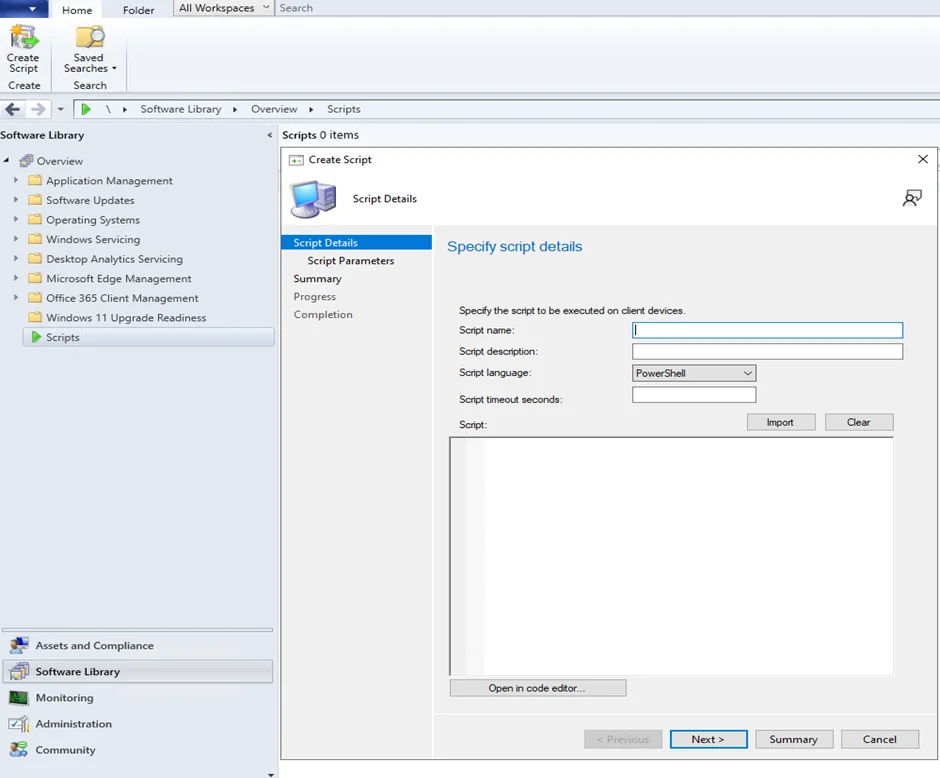
In the Create Script wizard:
Script Name: Enter a descriptive name for your script.
Script Language: Select PowerShell.
Script Content: Paste your PowerShell code into the provided field.
“
Click Next, review the summary, and then click Close to finish
Step 2: Approve the Script
Select the Script: In the Scripts list, click on the script you just created.
Approve Script:
On the Home tab, click Approve/Deny.
If you notice the Approve/Deny option is greyed out, then we need to allow the Author to approve own scripts.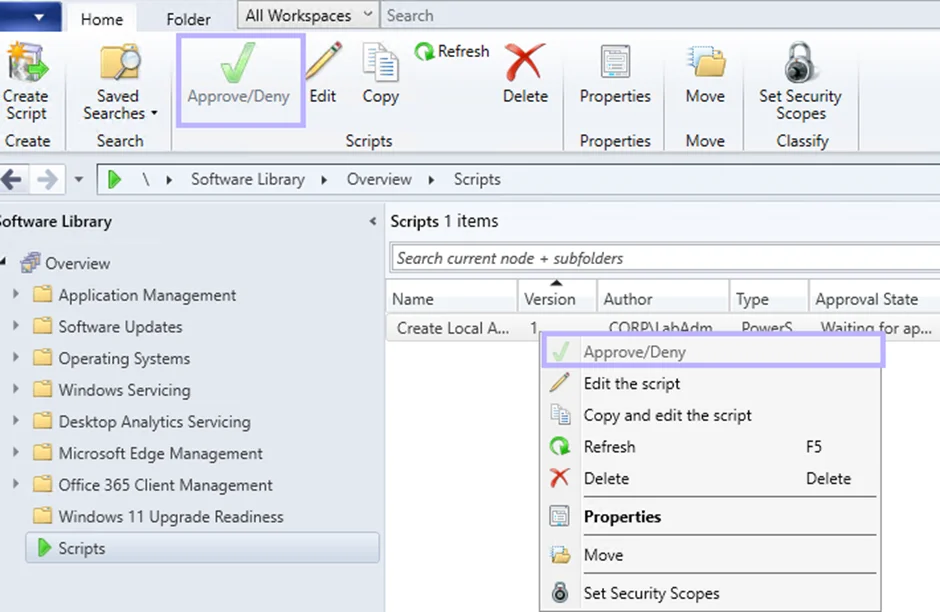
Go to your Administration / Site / Hierarchy Setting. Then Disable “Script Authors require additional script approver”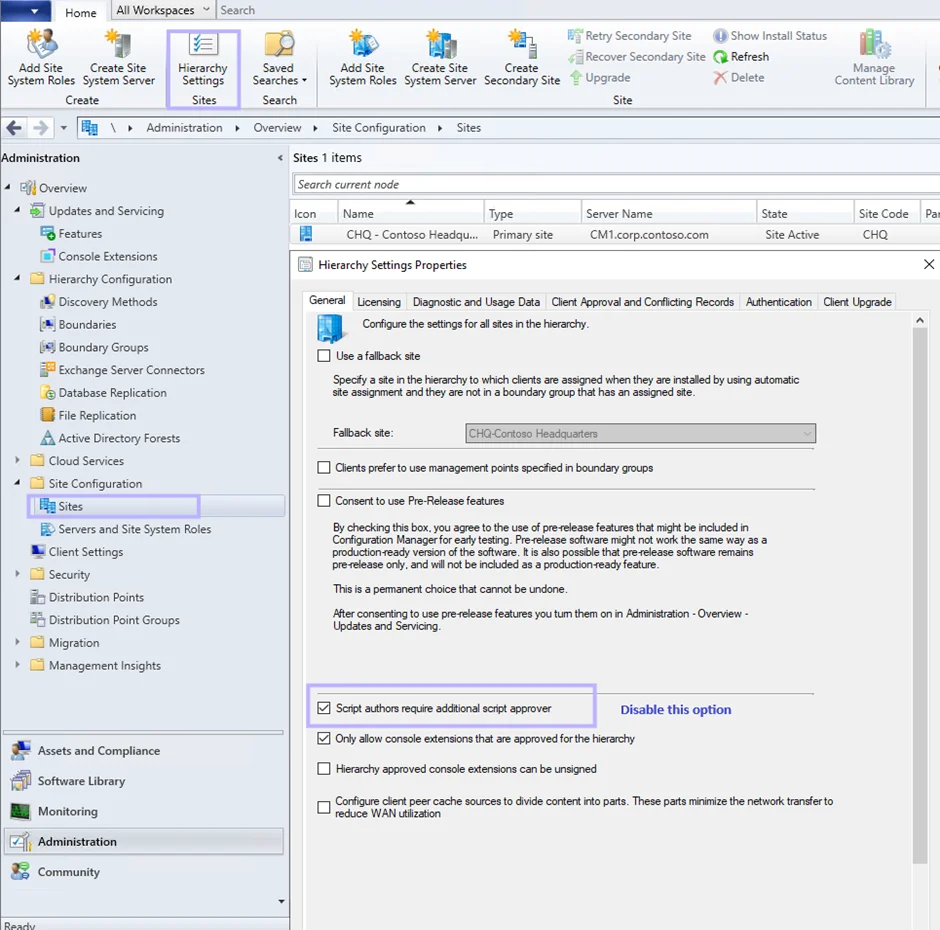
Now the Approve/Deny option should be enabled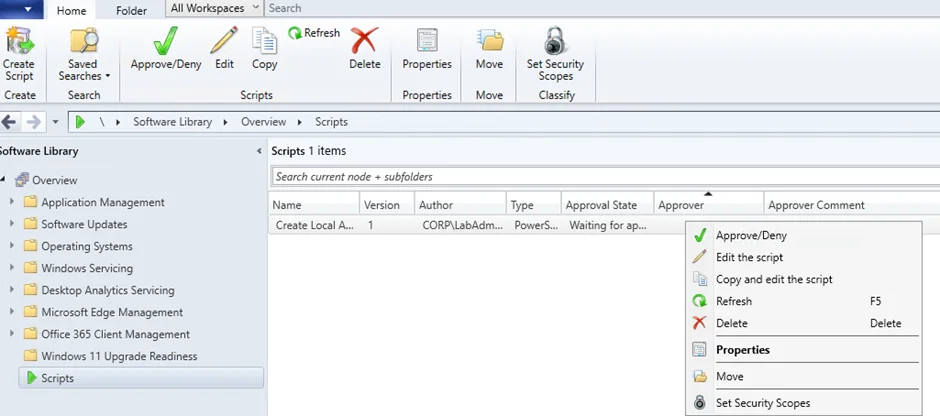
In the Approve or deny script dialog box:
Select Approve.
Optionally, enter a comment regarding the approval.
Click Next, review the summary, and then click Close.
Note: By default, script authors cannot approve their own scripts. This setting can be modified in the Hierarchy Settings if necessary
Step 3: Run the Script on Target Devices
Navigate to Device Collections: In the SCCM console, go to Assets and Compliance > Device Collections.
Select Target Collection: Right-click on the device collection you wish to target and choose Run Script.
Choose Script:
In the Run Script wizard:
Select the approved script from the list.
Click Next.
Review the summary and click Next to initiate the script deployment.
Click Close to exit the wizard.
Note: Scripts are executed immediately on online clients. Offline clients will execute the script once they come online, within a one-hour window.
Step 4: Monitor Script Execution
Access Script Status: In the SCCM console, navigate to Monitoring > Script Status.
Review Results:
Locate the script you ran in the list.
Click on it to view detailed execution results, including success rates and any error messages.
Note: A script exit code of 0 typically indicates successful execution
Related SCCM & Automation Guides:
Next Steps in Production
When operationalizing SCCM Run Scripts across enterprise environments:
Atoofa Shaikh
Senior Microsoft 365, EUC & Cloud Endpoint Architect
Need custom Win32 App Packaging, PowerShell Automation, Zero-Touch Intune Autopilot, or SCCM Co-Management for your enterprise or MSP? I specialize in production-grade deployment architectures with zero downtime.
Table of content
Subscribe to Blog
Signup to our weekly newsletter
category
Connect with Us
Recommended Posts
Configure Windows Hello for Business in Intune (2026 Guide)
How to Configure Windows LAPS in Microsoft Intune: Complete Step-by-Step Guide
How to Fix Intune Error 0x87D1041C: App Not Detected After Installation [Complete Runbook]